A survey asks customers something rather than telling them something. Because it costs them attention, what matters most is when you ask and how much you ask for. Surveys are part of Outreach, which is available on the Team plan and up.
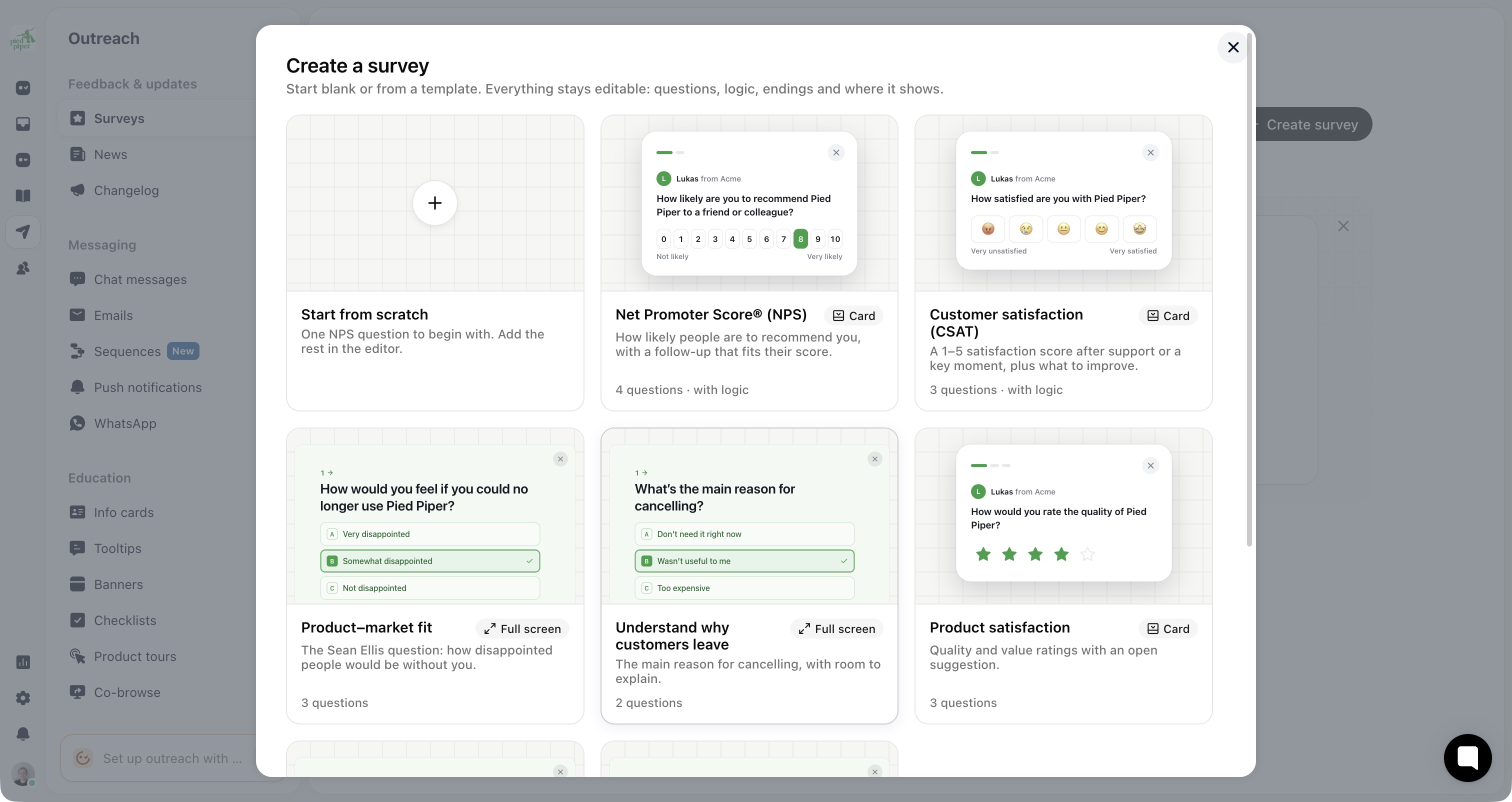
Go to Outreach → Surveys and click Create survey.
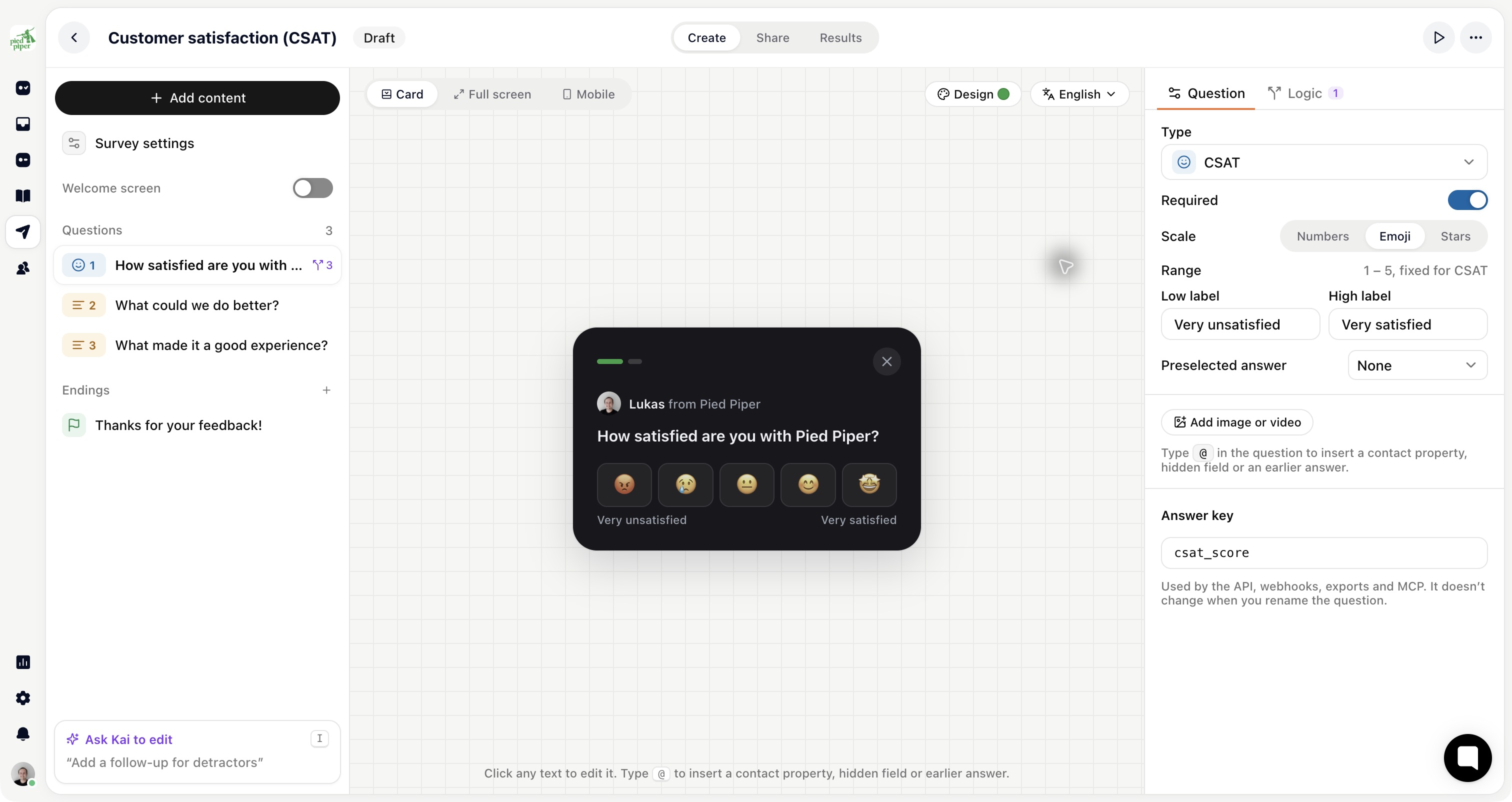
Pick Start from scratch or a template, such as Net Promoter Score® (NPS) or Customer satisfaction (CSAT). The editor opens on the Create tab.
Add and edit questions. Use Ask Kai to edit if you'd rather describe the change.
Open the Share tab. It lists the channels: click In the app, and its settings open in their own panel.
Under Format, choose Card or Full screen. A third format, In the messenger, is marked Soon.
Set the trigger, audience and frequency, then switch on Show in the app. For a one-off audience, click Send instead.
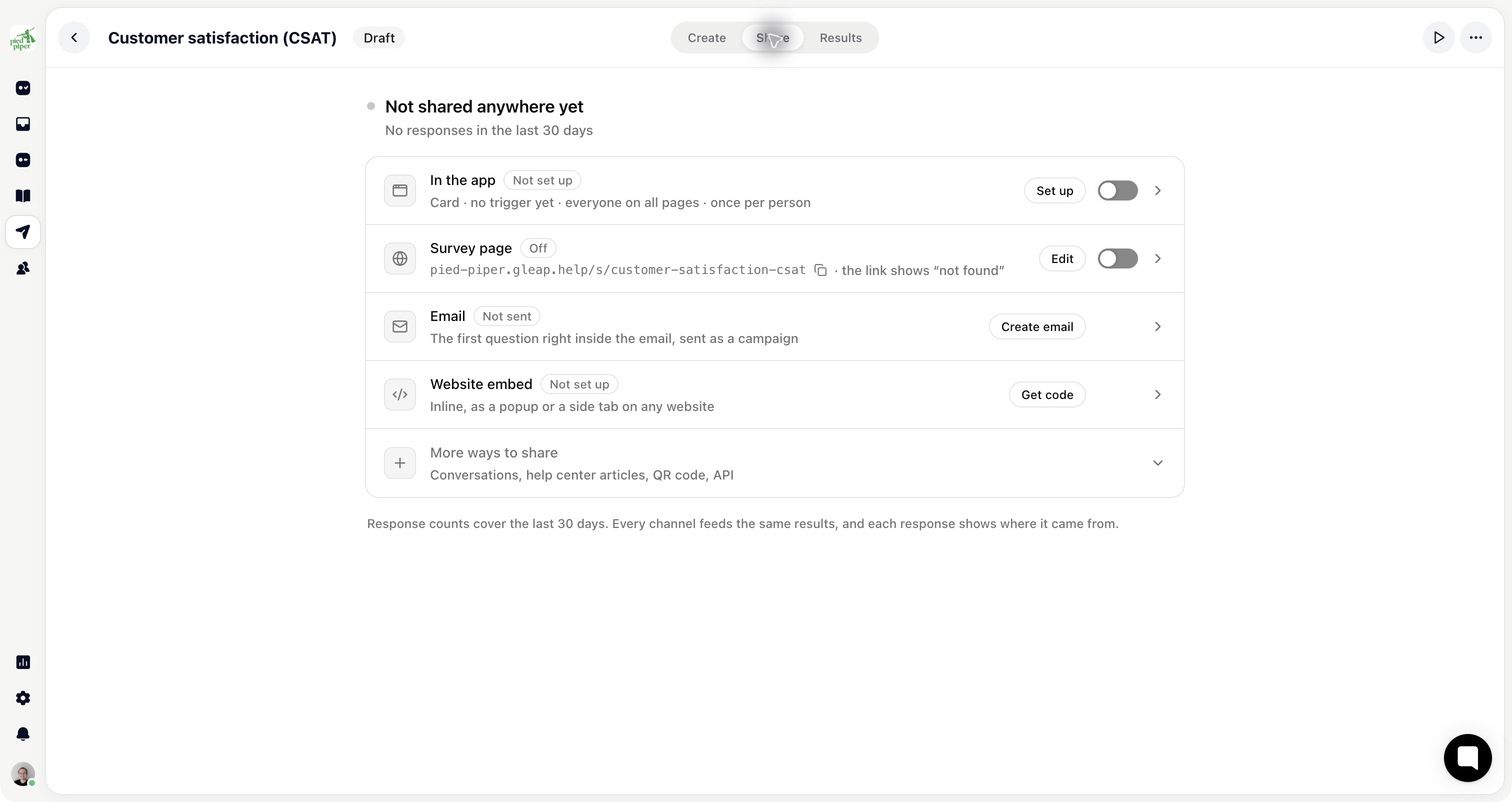
The same Share tab offers a Survey page with its own link, Email and Website embed.
Net Promoter Score, CSAT, Rating, Opinion scale, Single choice, Multiple choice, Yes / No, Short text, Long text, Email, Number, Date, File upload, Statement and Consent.
NPS is comparable over time and largely meaningless without a follow-up asking why. Choice questions are what you want when you mean to count the answers; the text answers are the ones that tell you something. Each question's Logic tab can send people to different questions or endings: see Show different questions depending on an answer.
A Card is small and in the corner, best for one to three quick questions. Full screen shows one question at a time, best for four or more. The card gets ignored more and interrupts less; full screen gets answered more and costs more goodwill. Keep full screen for a moment where stopping is reasonable: after something was completed, not in the middle of it.
Timing decides your response rate far more than wording. Ask after someone has done the thing you're asking about, on the page where it happened, once they've used the product long enough to have an opinion.

Under Partial answers, Remind people who stopped halfway shows the survey once more where they left off, with their earlier answers kept.
Open the survey's Results tab. Summary shows scores and the drop-off per question, Insights has the themes Kai found, and Responses lists every answer. Export downloads them as CSV or JSON. The free text is where the value is: the score tells you where you stand, and only the words tell you what to do.
Decide in advance who reads them and how often. A survey nobody reviews still costs your customers the interruption.