Every outreach message needs an audience and a delivery plan. Most message editors put these on Targeting. For a survey, open Share → In the app; its panel uses the same audience and trigger controls. A newsletter offers one-off and CSV audiences, while automated formats can match people dynamically.
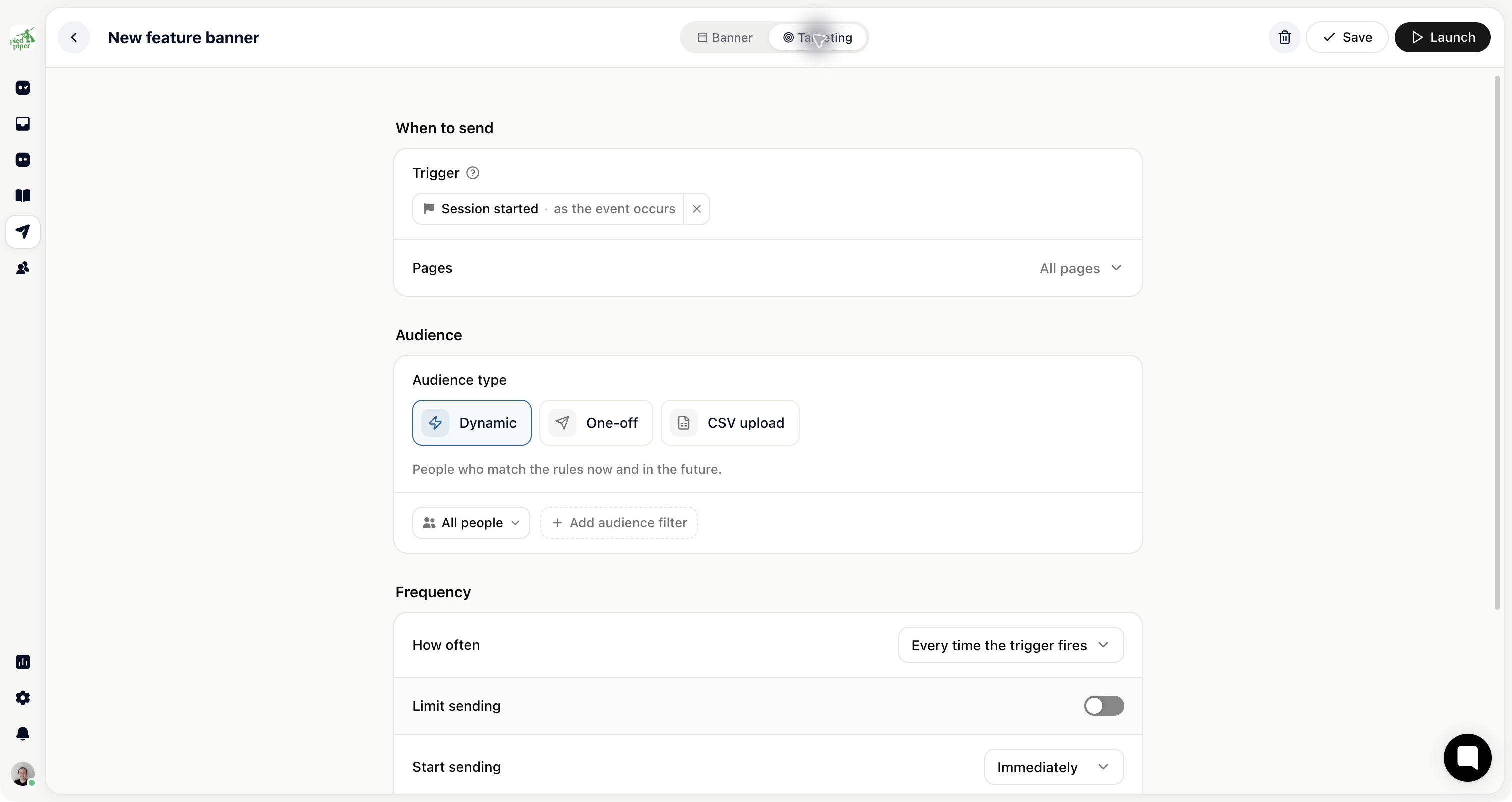
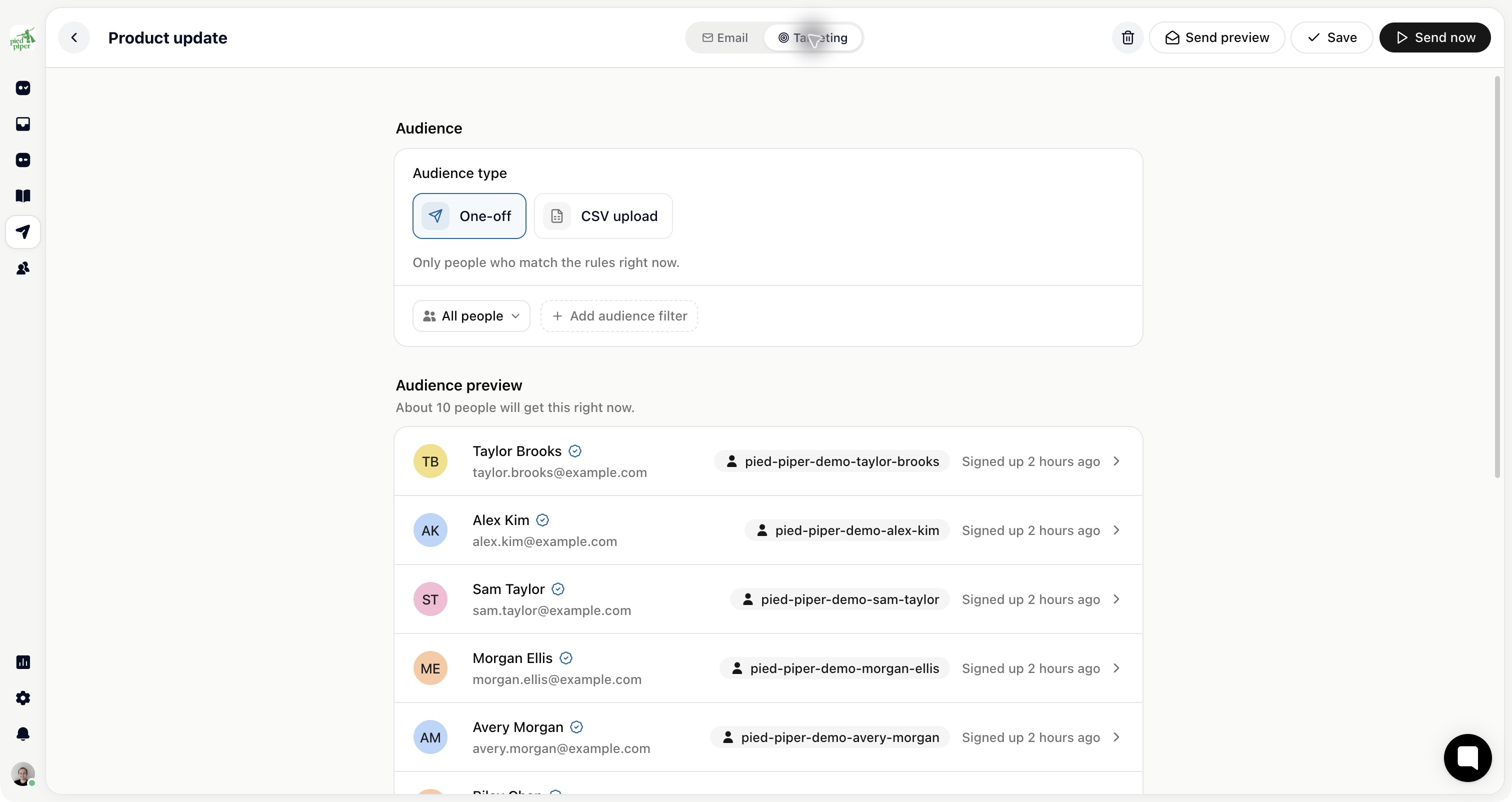
Under Audience, pick the Audience type:
Dynamic: people who match the rules now and in the future. Someone who starts matching later is included later.
One-off: sends once to everyone who matches right now. It can't be combined with an event trigger.
CSV upload: sends once to the contacts in a CSV file you upload.
Then narrow it: All people, Users only or Leads only, plus Add audience filter for attributes and events, or Use a contact list to target a saved custom list. Dynamic suits anything ongoing, such as a welcome for new signups. One-off and CSV suit a single announcement to a known group. Not every format offers all three types.

Trigger: Add event to send when someone does something in your product, such as finishing a setup step.
Pages: in-product formats can be limited with Add page rule (show on pages matching any of) and Add exclusion (hide on matching pages), so an export tip appears on the export screen rather than everywhere.
Time on page: Add time on page rule waits up to 60 seconds before showing, so a message doesn't interrupt people passing through.
For a dynamic audience with an event trigger, Frequency decides what happens when someone keeps qualifying. How often is Once per person or Every time the trigger fires. With Every time, Limit sending with Once every sets a minimum number of days between sends.
Once is right for almost everything you'd call an announcement. If you're unsure, start with once: too rarely is a missed opportunity, too often is a customer switching off notifications.
Skip if conditions no longer match drops a delayed send when the person no longer fits the rules by the time it's due, instead of waiting until they match again.
Start sending defaults to Immediately and Stop sending to Never. Setting the stop is the habit worth forming: it's the difference between a campaign that ends and one that has to be remembered.
Read the rules once more and ask who they include that you didn't picture: trial accounts, internal test users, the colleague who signed up twice.
For one-off and CSV audiences, read the Audience preview (it shows up to 50 contacts).
For an email, use Send preview to send yourself a copy.
Click Launch for a dynamic audience, or Send now or Schedule for a one-off.
To stop a live message, use Unpublish in its editor or Pause in the list's … menu. A one-off in-app message that's already sent can be ended with Stop sending.