
A pipeline shows the same entries two ways. The Board / Table toggle in the header switches between them.

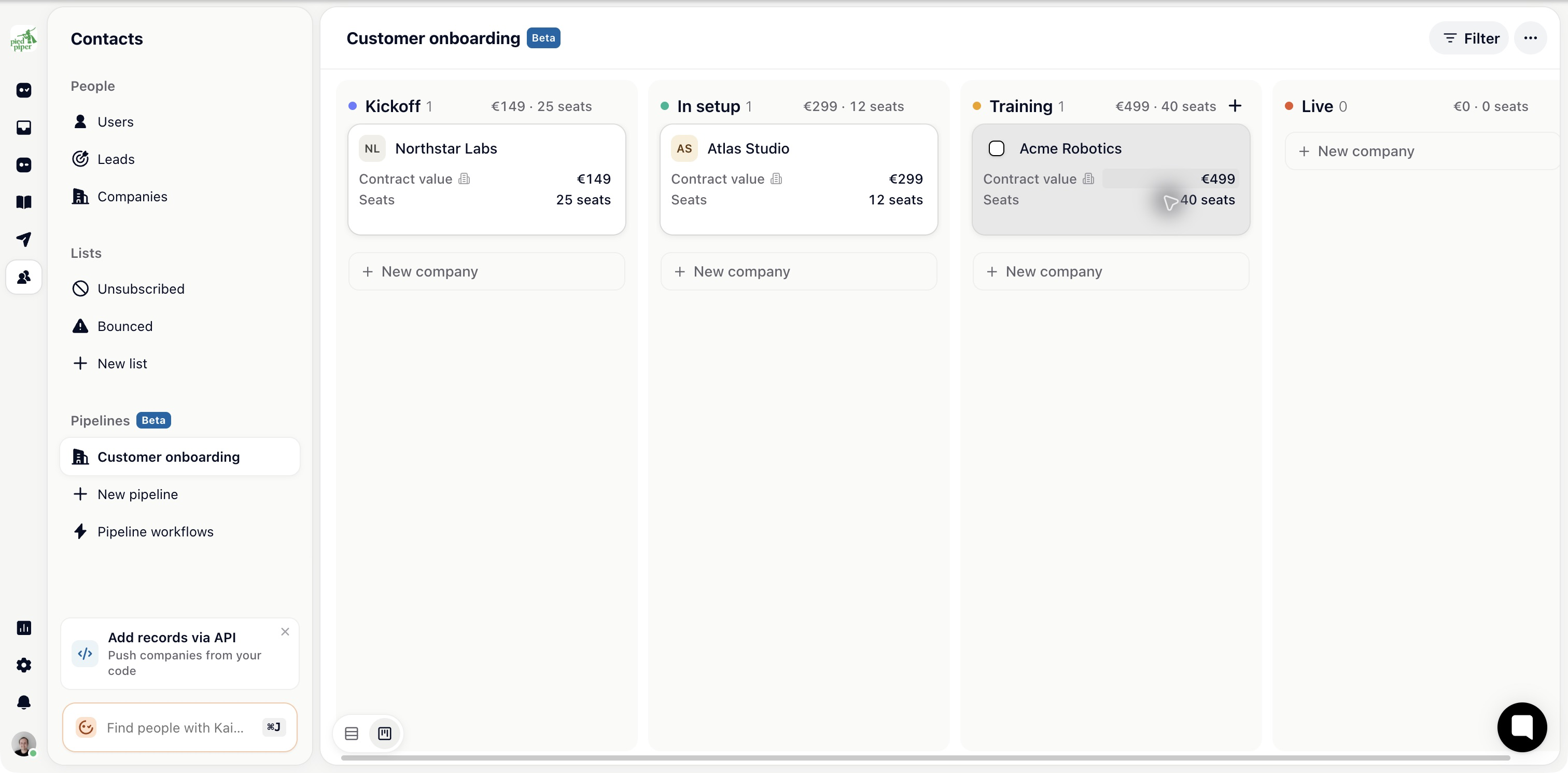
One column per stage. Each column header shows the stage's colour, its name and how many entries are in it. That count covers the whole stage, not only the cards loaded so far.
Drag a card to another column to move it.
If the pipeline has fields, the cards show them and you can type straight into a card to set a value.
A card shows its due date and flags it once it's overdue.
Columns load more as you scroll, so a stage with hundreds of entries stays quick.
Filters in the header narrow the board, and the filtered board's address can be shared.
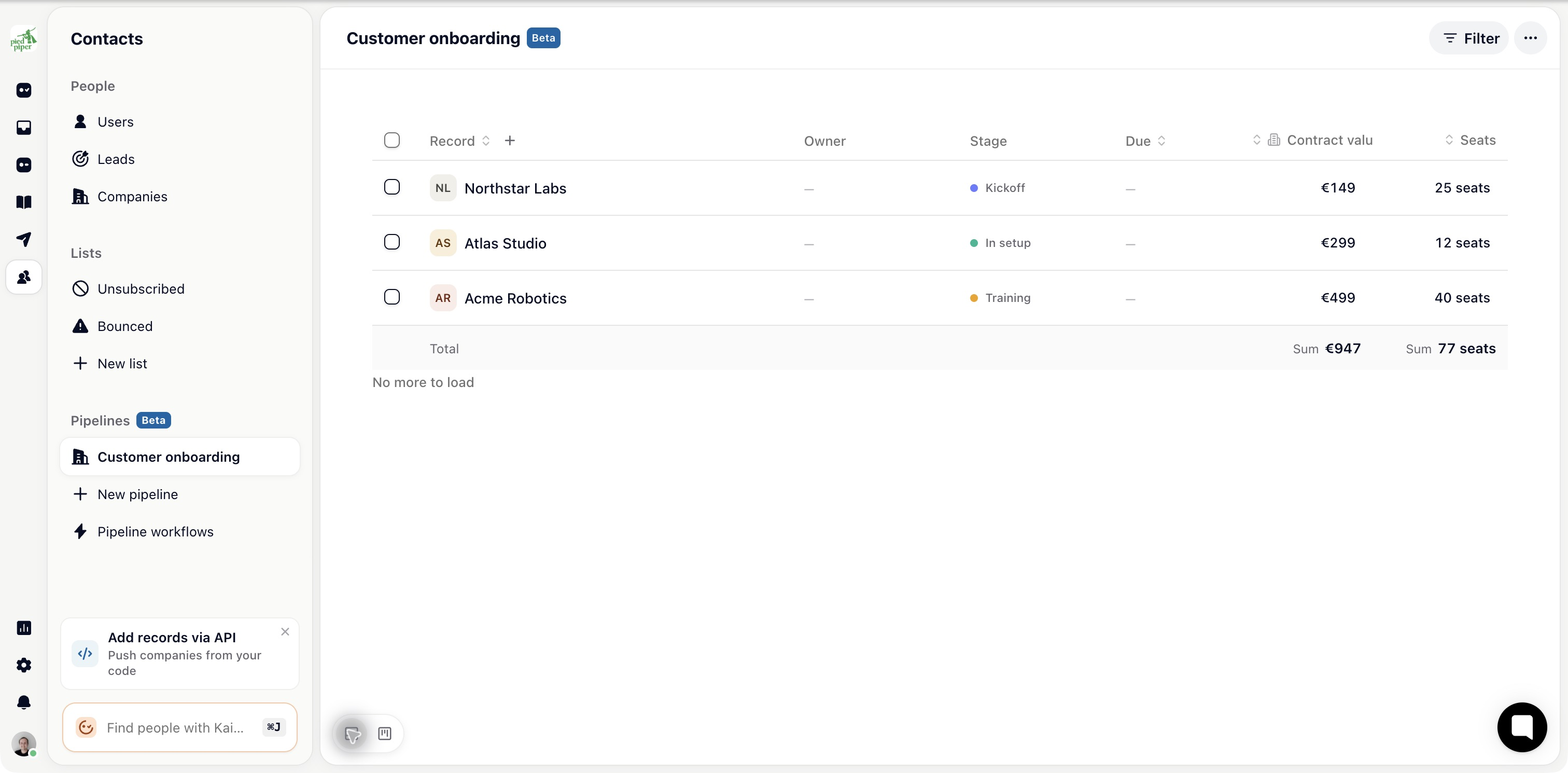
The same entries as rows: the record, its stage and a column for each field. Sort by a column, page through, and edit values in place.
Use the board to move work along and the table to read across everything: who's stuck, what's in each stage, which entries are missing a value.
A number field can carry a total: Sum, Average, Min or Max. The figure appears at the foot of each column and under the table, so a stage tells you what its entries are worth, not only how many there are.
Select several cards or rows and a bar appears with Move to stage, and on contact pipelines Enroll in sequence. Clear drops the selection.
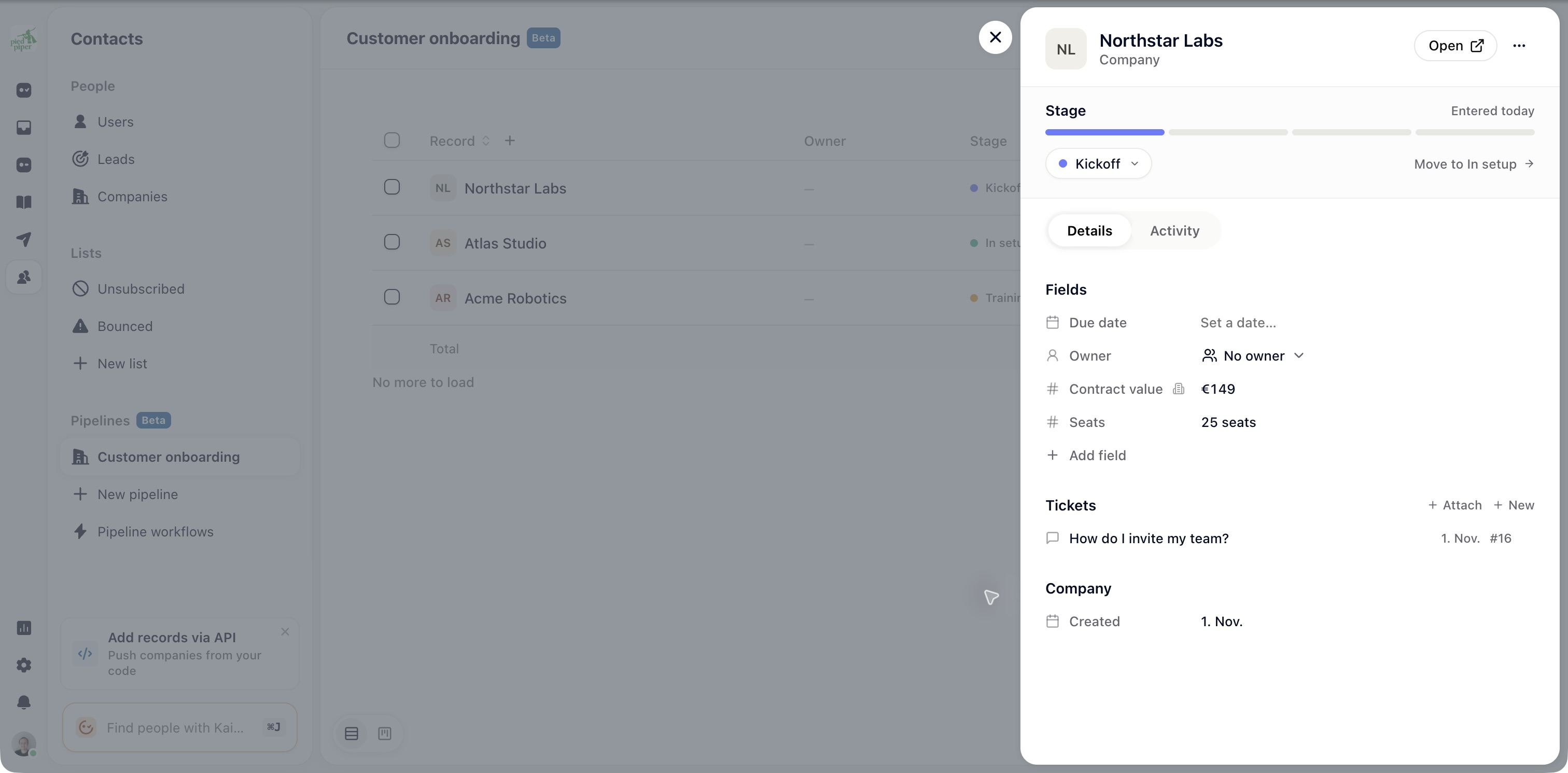
Click a card or a row. The entry panel opens on the right, over the dimmed board, with its own address you can send to a colleague.
At the top: the record's name and whether it's a company or a contact. Open goes to the full record. The … menu holds Remove from pipeline, which takes the entry off the board and leaves the company or contact untouched.
Below it, the Stage strip shows how long the entry has been in its stage. Click a segment or the stage name to jump to any stage, or Move to the next one. This is the only way to move an entry from the table.
The Details tab has Tickets (with Attach and New), Sequences on contact pipelines, Details (Due date, Owner on company pipelines, and this pipeline's fields), then what Gleap knows about the company or contact.
The Activity tab lists what happened: added, moved, fields changed, automations run or failed.
Anything an automation did is labelled Automation, so you can tell your team's work from the system's. Activity is recorded from the point the pipeline had history to record, so older entries can show fewer events than they lived through.
A stage that keeps filling up is a bottleneck, usually a step that depends on someone outside the team. A stage that's always empty probably isn't a real step; merge it into its neighbour.
