
Moving a card is a signal. A pipeline automation turns it into work: the welcome email when an account reaches “Live”, the ticket for the team when something lands in “At risk”. Pipeline automations are workflows whose subject is a pipeline entry instead of a conversation.
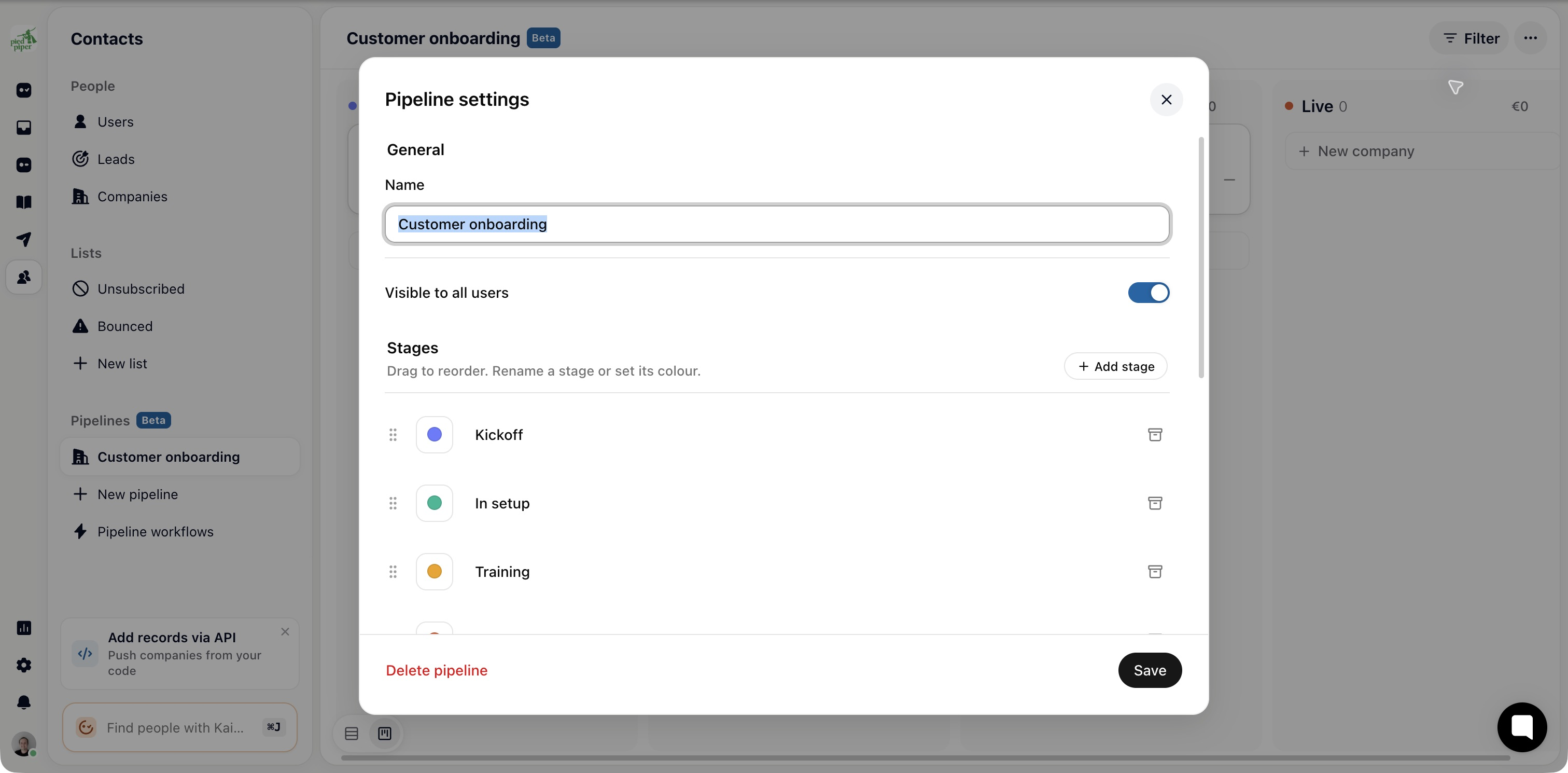
Open the pipeline, open Pipeline actions → Pipeline settings and scroll to Automations. It lists this pipeline's automations as Live or Draft.
Click New automation. The editor opens, already pointed at this pipeline.
Set the trigger: On entry added to pipeline, or On stage changed with the Stage to watch (or Any stage).
Add steps, such as Email contact or Create ticket.
Click Publish. Like every workflow, it does nothing until it's live.
All pipeline automations are also listed under Contacts → Pipeline workflows in the pipelines sidebar, where New workflow starts one you point at a pipeline yourself.

Several automations can react to the same event. They don't compete: every one that matches runs.
Trigger On stage changed, Stage Live.
Email contact with your welcome message.
Notify teammate, choosing the account manager's team.
Set due date for the 30-day check-in.
A Condition step narrows things down: the entry's current stage, this pipeline's own fields, office hours, and the attributes of the underlying record. Field and attribute options only appear once the trigger has a pipeline selected.
Move stage: send the entry elsewhere on this board.
Set entry field: write a value into one of this pipeline's fields.
Set due date: set the entry's due date a number of days or weeks ahead, or clear it.
Add to another pipeline: hand the record on, for instance from onboarding to renewals.
Create ticket: raise a conversation, linked back to this entry.
Email contact: send a message to the person behind the entry.
Notify teammate: an internal notification to people or a team.
Enroll in sequence: start a sequence for the entry's contact.
Alongside those you get Condition, Wait, Custom API action and Pass to workflow. There's no message step, because there's no conversation to send a message into.
On a contact pipeline, Email contact and Create ticket use that contact. On a company pipeline, Gleap uses the company's most recently active contact. Both steps are skipped when there's nobody to use, such as a company with no contacts or a contact without an email address. An automated email doesn't appear in your inbox; a reply to it does.
A stage change made by Move stage doesn't set off stage-change automations, so an automation can't retrigger itself by moving a card. Add to another pipeline does fire the target pipeline's “entry added” automations, on purpose, and the target has to hold the same record type.
The entry panel's Activity tab shows Automation ran or Automation failed with the automation's name. It's the fastest way to answer “did this customer get the email?” for one account.
