Steps are listed below as they appear in the step picker (Add step on any path), in the same categories and order. Type in Search steps to find one by name or category.
Some steps only appear where they make sense: pipeline steps on pipeline workflows, for instance. Steps marked widget only stay listed but are disabled while the workflow also runs on other channels; to use one, untick the other channels under Platform in the trigger panel. Steps marked ends the path must be the last step on their path.
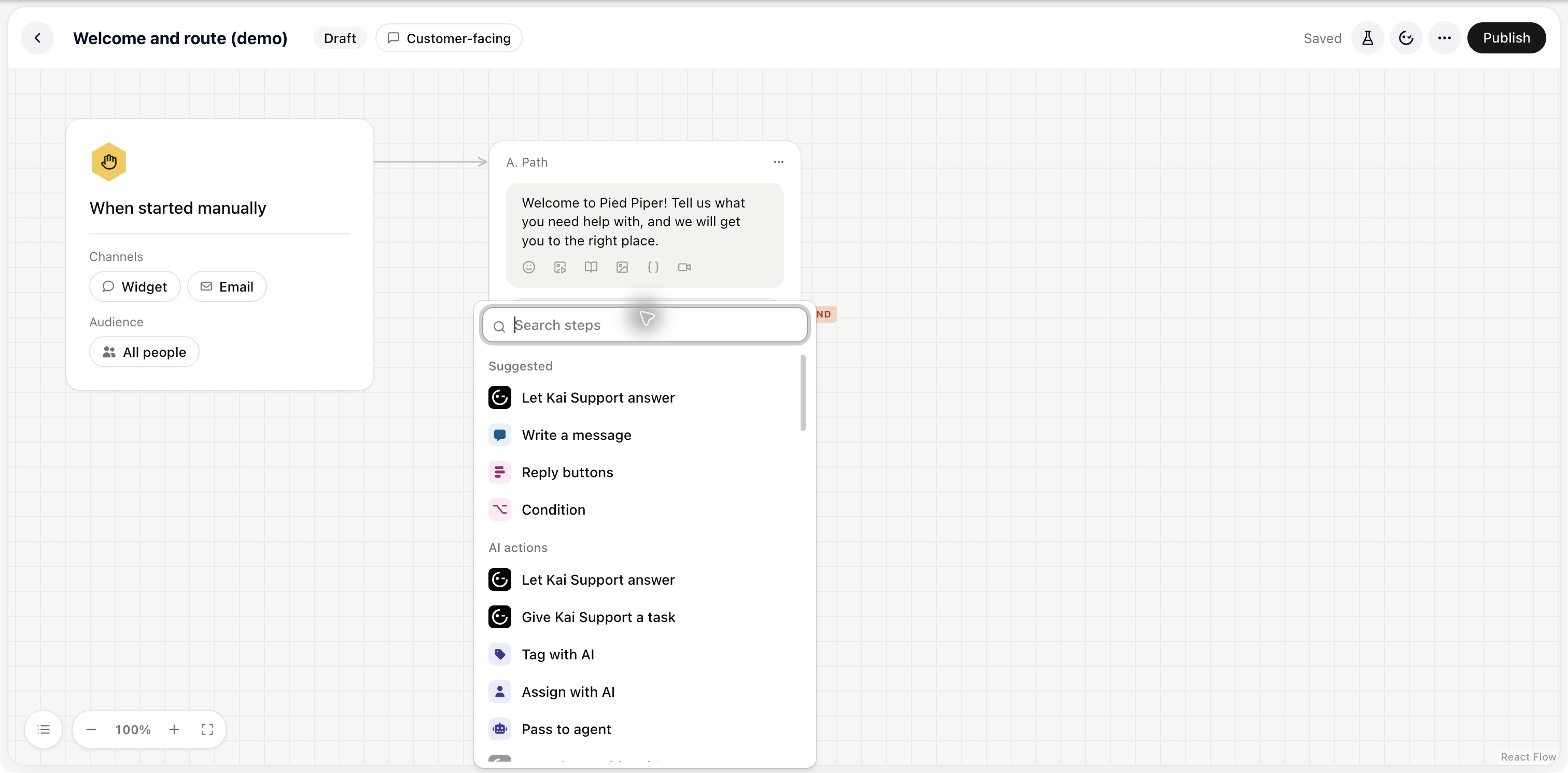
Let Kai Support answer hands the conversation to Kai Support, which answers from your content. Ends the path. Configure its tasks, investigation capability and forwarding behaviour in the step’s panel.
Give Kai Support a task: Kai Support follows step-by-step instructions you write, or drafts them from a goal you describe, instead of answering freely. It has a Completed and a Failed path. See Give Kai a task inside a workflow.
Tag with AI: tags the conversation from a list of tags you describe. See Tag conversations automatically.
Assign with AI: assigns the conversation without a rule you have to maintain.
Pass to agent: hands the conversation to one of your own AI agents. Only live agents with the Reply to customer tool can be picked. Ends the path.
Investigate with Kai Support (widget only) investigates a bug report before your team sees it. It can ask the customer for more, investigate and start coding work, then hands the ticket to your team with its findings. Configure investigations under AI agents → Kai Support → Settings → Investigations. Select only Widget in the trigger’s channels to make this step available. Configure the next step for cases where an investigation cannot start.
Write a message: sends text from the workflow.
Show expected reply time: tells the customer your configured reply time.
Collect customer reply: waits for them to write something.
Collect data: asks a question and stores the answer in an attribute.
Verify email: sends a 6-digit code to the customer's email and waits for them to type it in the Messenger. It has a Verified and a Not verified path, and can continue the conversation as the known contact with that email. On other channels it takes Not verified. See Confirm a customer's email in the chat.
Ask for screenshot and Ask for screen recording: ask the customer for a capture. Outside the widget, the request goes out as text and the customer's next reply with an attachment is taken.
Collect log data: collects logs from the customer's app in the background, and the workflow carries on straight away.
Schedule a meeting (widget only): offers a booking instead of a conversation.
Rate conversation: asks for a satisfaction rating. See Ask customers to rate a conversation.
Add tag, Change priority, Assign ticket, Change status & type, Set data attribute and Add note (an internal note) change the ticket.
Archive ticket and Snooze ticket do what they say.
Close ticket: closes the conversation. Ends the path.
Open latest open ticket: switches a customer who already has an open conversation to it and closes the new one they just started. If they have none, the workflow carries on. Ends the path.
Convert to ticket: creates a ticket of the type you choose from the conversation and sends it to your integrations. It doesn't start workflows that listen to On ticket created; use Pass to workflow for that. Ends the path.
End workflow: stops the workflow and leaves the conversation where it is. Ends the path.


Run custom action (widget only): triggers something in your own app through the SDK.
Custom API action: calls your own endpoint and can use what comes back. See Call your own API from a workflow.
Send to integration: sends the ticket to one of your fully set up integrations.
Send webhook: sends the ticket to your webhooks as a ticket.sent event.
Buttons from API: builds reply buttons from an API response, so the choices reflect live data. Ends the path.
Pass to workflow: hands over to another workflow of the same kind. Ends the path.
Wait: pauses the workflow for a number of seconds, minutes, hours or days.
Enroll in sequence: adds the contact to one of your sequences.
Open link (widget only): opens a URL for the customer. Ends the path.
Start classic form (widget only): opens one of your forms. Ends the path.
Condition: branches on what you know, such as an attribute, the channel, office hours or whether the contact's email is verified, or on an AI condition asked in plain language. Ends the path, because every branch continues on its own.
Reply buttons: offers options for the customer to choose from, each with its own path. Ends the path.
On pipeline workflows (and as Contact & team on survey automations) there are steps to Move stage, Set entry field, Set due date and Add to another pipeline (pipelines only), and to Create ticket, Email contact and Notify teammate. Custom API action, Pass to workflow, Wait, Condition and Enroll in sequence work there too.

