Identifying a user tells Gleap who is on the other side of the conversation. Without it, every visitor is anonymous, which limits what Kai can answer and what you can target. This article is for whoever adds Gleap to your product's code. It works the same on every plan and in every SDK.
Run this wherever your app knows who the user is: right after login, and on page load for a session that's already signed in.
Gleap.identify("user-123", {
  name: "Franz Huber",
  email: "[email protected]",
  plan: "Pro",
  createdAt: new Date("2024-03-01"),
  company: {
    id: "acme-inc",
    name: "ACME Inc."
  },
  customData: {
    seats: 12,
    trialEndsAt: "2026-09-01"
  }
});
The first argument is your own user ID. Use the value your database uses, and keep it stable. It's how Gleap recognises someone across sessions and devices, so an ID that changes produces a new contact each time.
Call Gleap.clearIdentity() when someone logs out. On shared computers, skipping this leaves the next person signed in as the previous one.
Gleap understands these built-in fields: name, email, phone, avatar, plan, value, sla, createdAt and tags, plus the company object. They land in the right places: the email is the address you reply to, and the avatar is the picture your agents see.
Anything else goes in customData as key-value pairs, for example seats, a trial end date or a feature flag you care about. Custom data shows on the contact, works in audience filters and segments, and Kai can read it.
Values can be text, numbers, true/false, dates, or lists of text or numbers. Nested objects are dropped, so flatten them first (billingPlan, not billing: { plan }).
Up to 100 custom keys are stored per call. Send the handful you'd actually filter on: a contact with six attributes is easier to read than one with fifty.
Don't reuse a built-in name for something else. A custom value or plan is treated as the built-in field, with its type checks.
When something changes mid-session, such as an upgrade, send just the fields that changed:
Gleap.updateContact({ plan: "Enterprise" });Passing null for a field clears it.
Attribute keys are case-sensitive. trialEndsAt and trialendsat are two different attributes, and filters, audiences and segments match the exact casing. A rule built on one silently ignores data sent under the other.
When you define an attribute under Settings → Inbox & tickets → Data attributes, the editor shows a Casing mismatch warning if your recent contact data uses a different spelling. Fix the spelling in your code rather than ignoring it.
Pass a company object to group contacts under the organisation they belong to. That's what lets you see everyone from one customer together, and what company-level SLAs are based on.
The id is required. Without it the whole company is ignored. Use a stable identifier from your own system, not the display name.
Only id and name are used. Put company-level attributes such as seat count on the company record, through the server-side Companies API or a CSV import (see Group contacts into companies). company.name only fills in a company that has no name yet and never replaces an existing one.
The nested object needs SDK 16.3.0 or later. On earlier versions, pass the flat companyId and companyName instead. Those keep working.
Attributes say what someone is. Events say what they did:
Gleap.trackEvent("invited-teammate", { count: 3 });Events show on the contact's page, and outbound messages and workflows can react to them: a checklist that advances when someone finishes setup, or a survey after a first export. Name each event for what happened, in one consistent style. "invited-teammate", "Invite Sent" and "invite_teammate" are three different events. Gleap already tracks page views on its own, so you don't need to send those.
Sign in to your own product so identify runs, and trigger one event.
In Gleap, open Contacts and find yourself.
Check your custom attributes in the details on the right of the contact page. Attributes you've defined show there (All N attributes opens the rest), and data you haven't defined as an attribute yet is listed under Custom data. Your event is under the Activity tab.
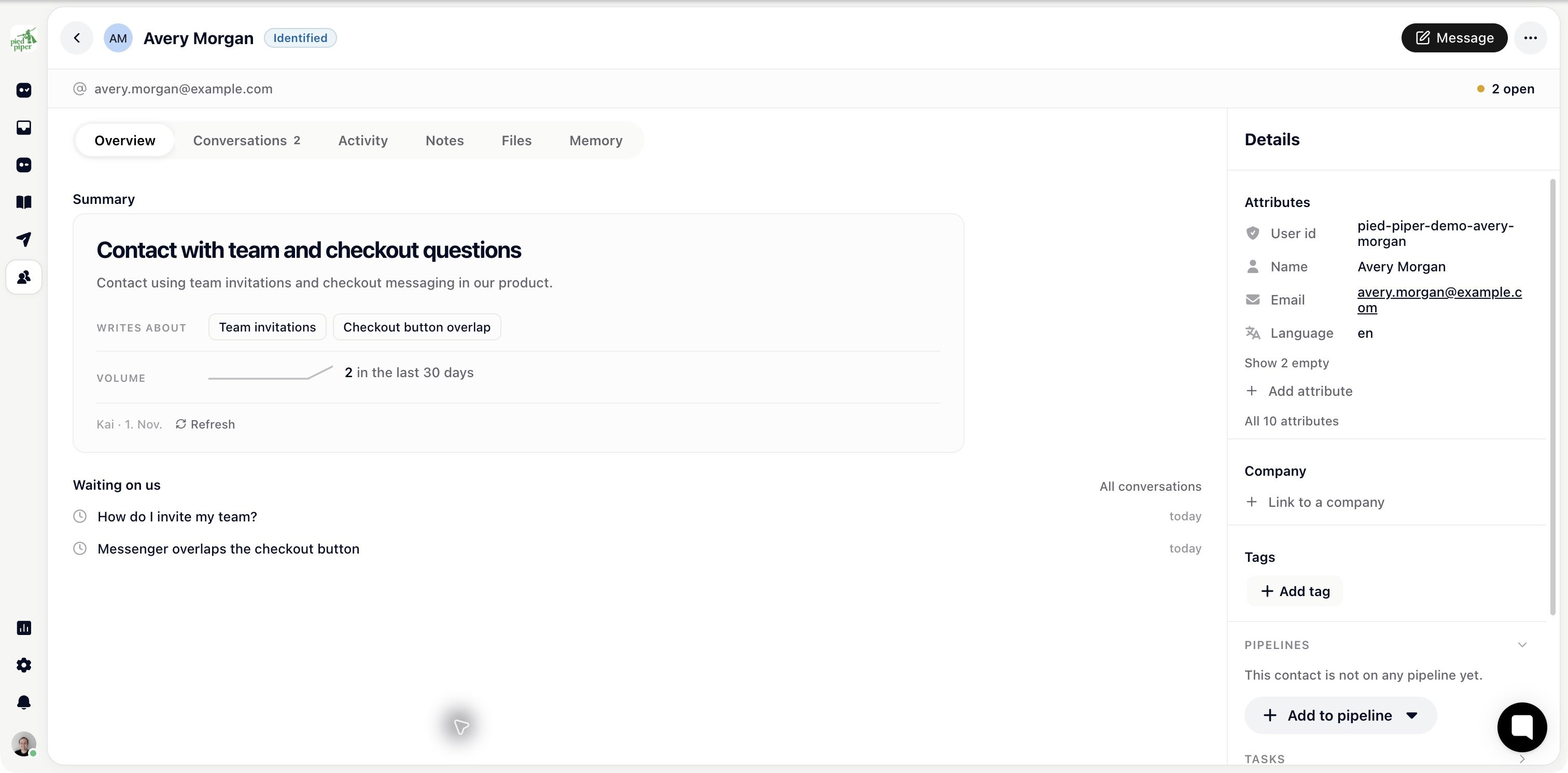
If nothing shows up, check that identify ran at all. A contact still marked as a guest is the usual explanation.
The same calls exist in the mobile and cross-platform SDKs, with the same field names. If you have both a web app and a mobile app, identify with the same user ID in both so people don't end up as two contacts.
Anyone who can read your client-side code could call identify with someone else's user ID. An identity token proves who the user is: your backend signs it, and Gleap checks it.
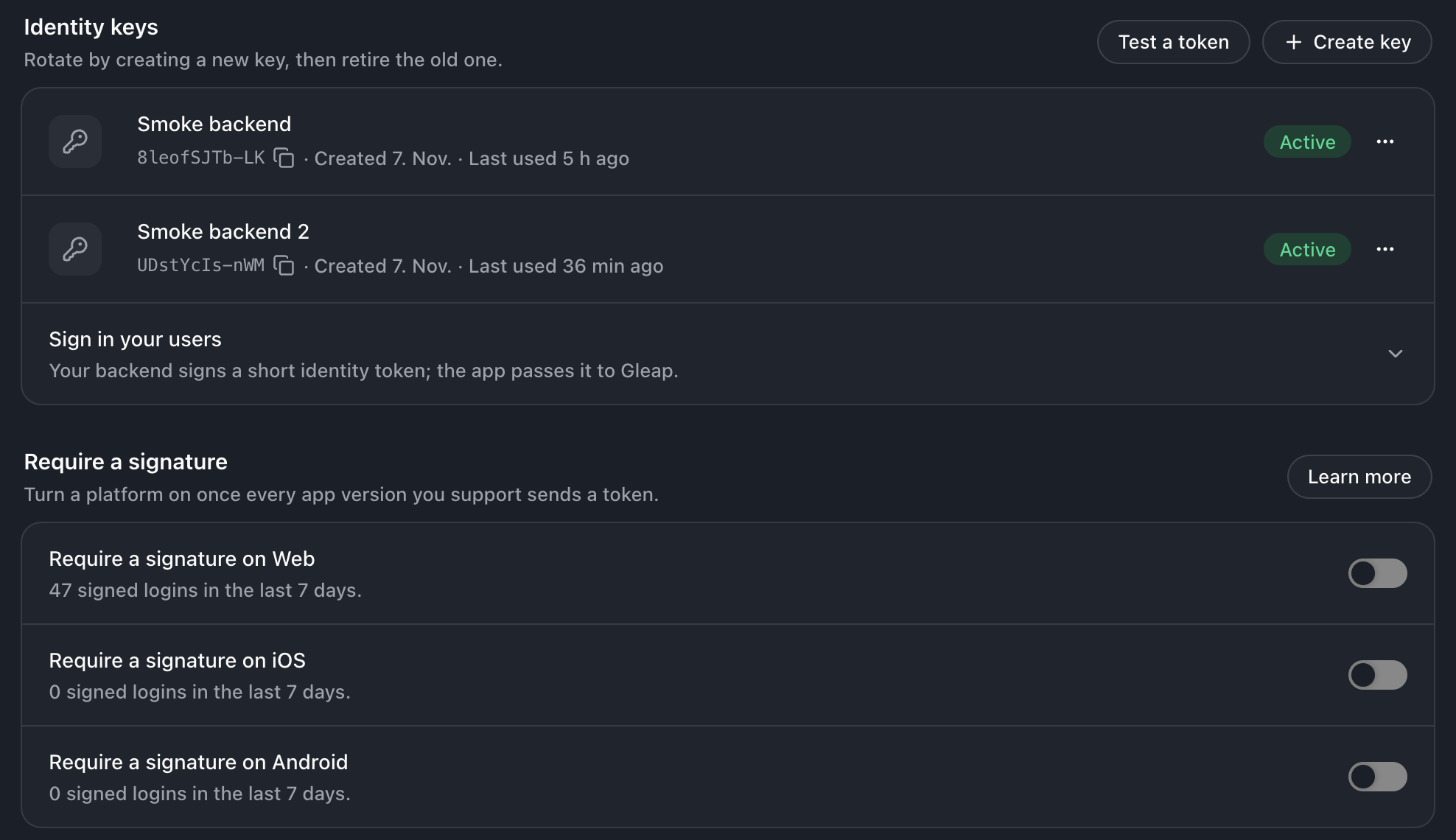
An admin creates an identity key under Settings → Security → Customer identity → Identity keys. Gleap shows the secret once. Store it in your backend's configuration.
After login, your backend signs a short-lived token with that key. It holds the user ID and, if you want, the email, name, company and other attributes.
Your app passes the token to Gleap after login and on every app start:
await Gleap.setUserJwt(token);You can also give the SDK a provider with Gleap.setUserJwtProvider that returns a fresh token from your backend. From JavaScript SDK 19.6.0 (19.5.0 in the mobile SDKs), the provider also restores the signed session after a page reload or app restart when no grant is held. Still call setUserJwt on every app start.
Turn on signed sessions. Creating a key alone changes nothing for your users. Under Settings → Security → Customer identity, the Sign your users in setup walks you through it: create an identity key, check a token from your backend, then click Turn on next to Turn on signed sessions and confirm with Turn on.
Once every version of your app sends a token, switch on Require a signature for each platform you ship to (web, iOS, Android) on the same page. From then on, Gleap refuses a sign-in without a valid token on that platform.
Everything in the token is signed. Only put emails in the token that your system has confirmed. With Merge contacts by email switched on, Gleap can bring the person's earlier conversations together, but only with contacts whose email is proven: emails sent to your support address, contacts created through the server API, and contacts that confirmed their email with a code. A guest who only typed an email into the chat is never merged. See Avoid and clean up duplicate contacts.
To stop the app from changing a field such as the plan, mark it Only signed updates under Settings → Inbox & tickets → Data attributes. From then on, only the token can change that field. Send other data with updateContact as before.

Server code for each language and the call for each SDK are in the developer guide Customer identity. Moving from an older integration? See Upgrade to identity tokens.

