Installing the SDK connects your app or website to Gleap. It adds the messenger and starts sending the technical context that comes with every report. It takes a short snippet and your Project ID. Every plan includes it.
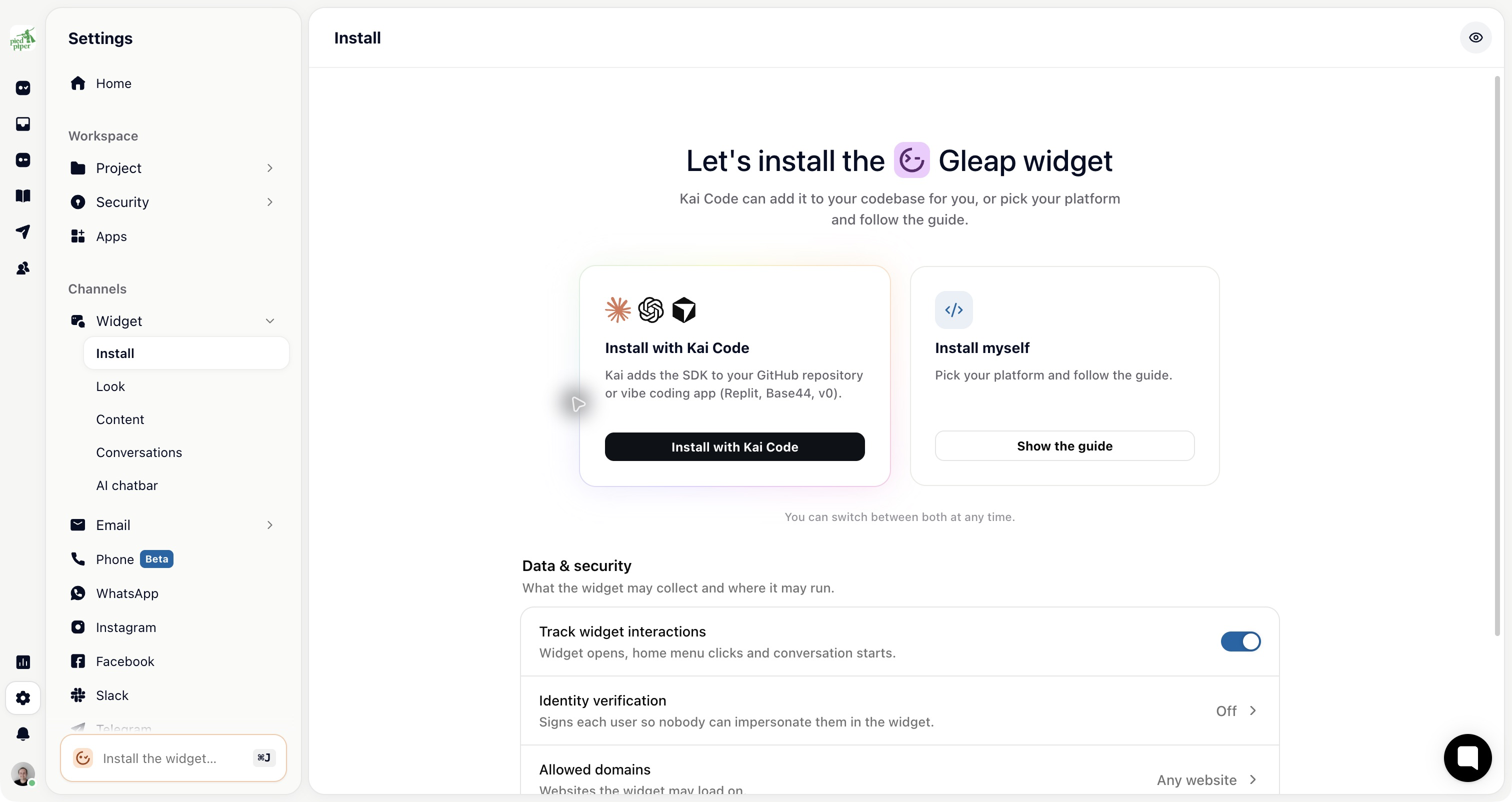
Go to Settings → Widget → Install.
Choose Install myself. It opens on its own page.
Copy the Project ID at the top. Every SDK is initialised with it.
Under Platform, pick where you're installing Gleap. A step-by-step guide with a ready-made snippet opens.
Follow the guide and paste the snippet into your app or website.
The Project ID identifies your project, not a user, so it's safe in client-side code. You'll also find it under Settings → Project → General. It isn't the same as the secret API keys under Settings → Developer → API keys, which must never go into your app. Where to find your keys and IDs lists every key and what it's for.
If you'd rather not do it yourself, choose Install with Kai Code on the same page. Kai Code adds the SDK to your GitHub repository or vibe coding app. Coding agents in your own editor can do it too, see Let an AI coding agent install Gleap.
Gleap has a native SDK for each of these:
Web: JavaScript, which covers React, Vue, Angular, Next.js and any other framework, plus plain HTML pages
Mobile: iOS, Android, React Native, Flutter, FlutterFlow, Ionic / Capacitor and Cordova
Desktop and games: Windows Desktop, .NET MAUI and Unity, all currently in beta
For WordPress there's a plugin, so no code is needed. Site builders such as Webflow, Squarespace, Wix and Weebly take the JavaScript snippet in their custom code field, and so does Google Tag Manager.
Each platform also has a full guide in the developer documentation at docs.gleap.ai, with installation and the platform's own options. The guide on the Install page links to it.
Build and run your app or website.
Look for the Gleap launcher and open it.
Send a test message.
Open your inbox. The message appears within a few seconds, with the browser, device and page it came from.
The guide on the Install page also waits for the SDK to check in and confirms once it has.
If nothing appears, check these:
The Project ID in your snippet matches the one on the Install page.
The snippet sits somewhere that actually runs, for example not behind a feature flag that's off.
If you limited domains under Settings → Security → Allowed domains, the page's domain is on that list.
The SDK works straight away for anonymous visitors. To get the most out of it, identify your signed-in users, so Gleap knows who is writing.