The command palette is the fastest way around Gleap. Press ⌘K on a Mac or Ctrl+K on Windows and Linux, anywhere in the dashboard, even while you're typing a reply. From there you can search your whole project or run an action on the ticket you have open.
Press ⌘K (or Ctrl+K).
Type at least two characters.
Choose the row Search for your term and press Enter.
Narrow the results if you need to:
All, Tickets, Contacts or Companies.
A ticket type (All types, or one of your types such as bugs or feature requests) and a Status.
Broad match or Strict match: the two icon buttons in the filter row.
Sort tickets by Best match, Newest first or Oldest first. The sort control is at the end of the filter row; in a narrow window, scroll the row sideways to reach it.
Click a result to open it.
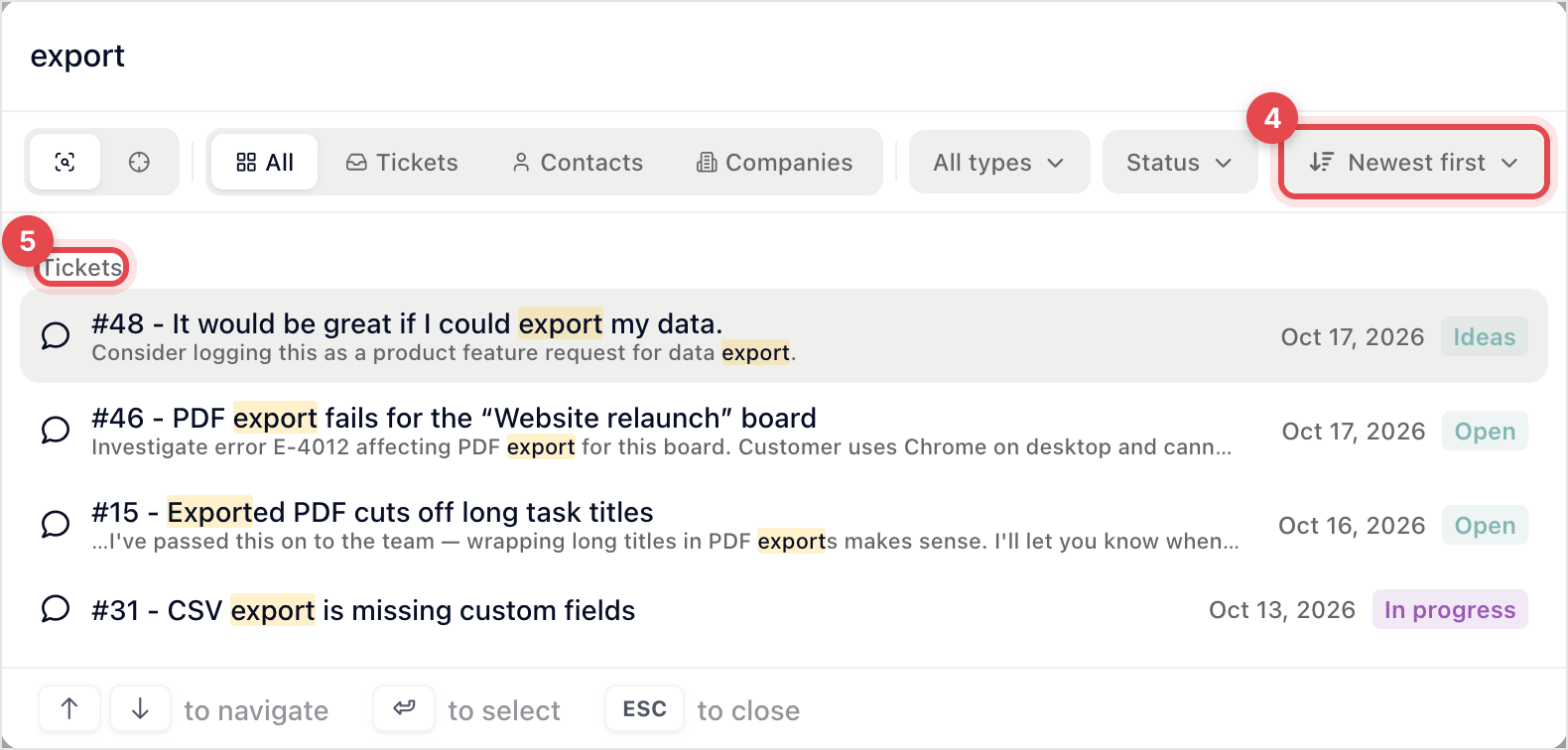
Results are grouped into contacts, companies, tickets and survey responses. Click Show more under a group to see all of it. A few things to know:
Searching for a ticket number puts that ticket first.
Archived tickets are found too, with an ARCHIVED label.
Sorting by date uses the date the ticket was created.
Survey responses are searched only while no type or status filter is set.
In the help center section, the same search looks through your articles instead.
Open the palette and start typing what you want to do. The list filters as you type. With a ticket open you can, for example:
Reply or Add note
Assign to me, Assign…, Snooze… or Set status…
Tag conversation… or Set priority…
Run workflow… or Hand over to AI agent…
Insert macro or Insert help center article
Most rows show their keyboard shortcut next to them, so the palette is also a way to learn them. Go to inbox or view… jumps to My inbox, Needs my input, All conversations, Unassigned, Mentions, Bots, a team inbox or one of your views. Keyboard shortcuts (or Shift+?) lists every shortcut.
You probably pressed Shift+D. It switches the dashboard between light and dark mode whenever you're not typing in a text field. Press it again to switch back.
To choose for good:
Click your avatar at the bottom of the left-hand bar.
Next to Theme, pick Light, Dark or System (follows your OS appearance).


