A view is a saved queue: a set of filters, a sort order and, where supported, a layout. Open Inbox, then choose Conversations or the board you want to work.
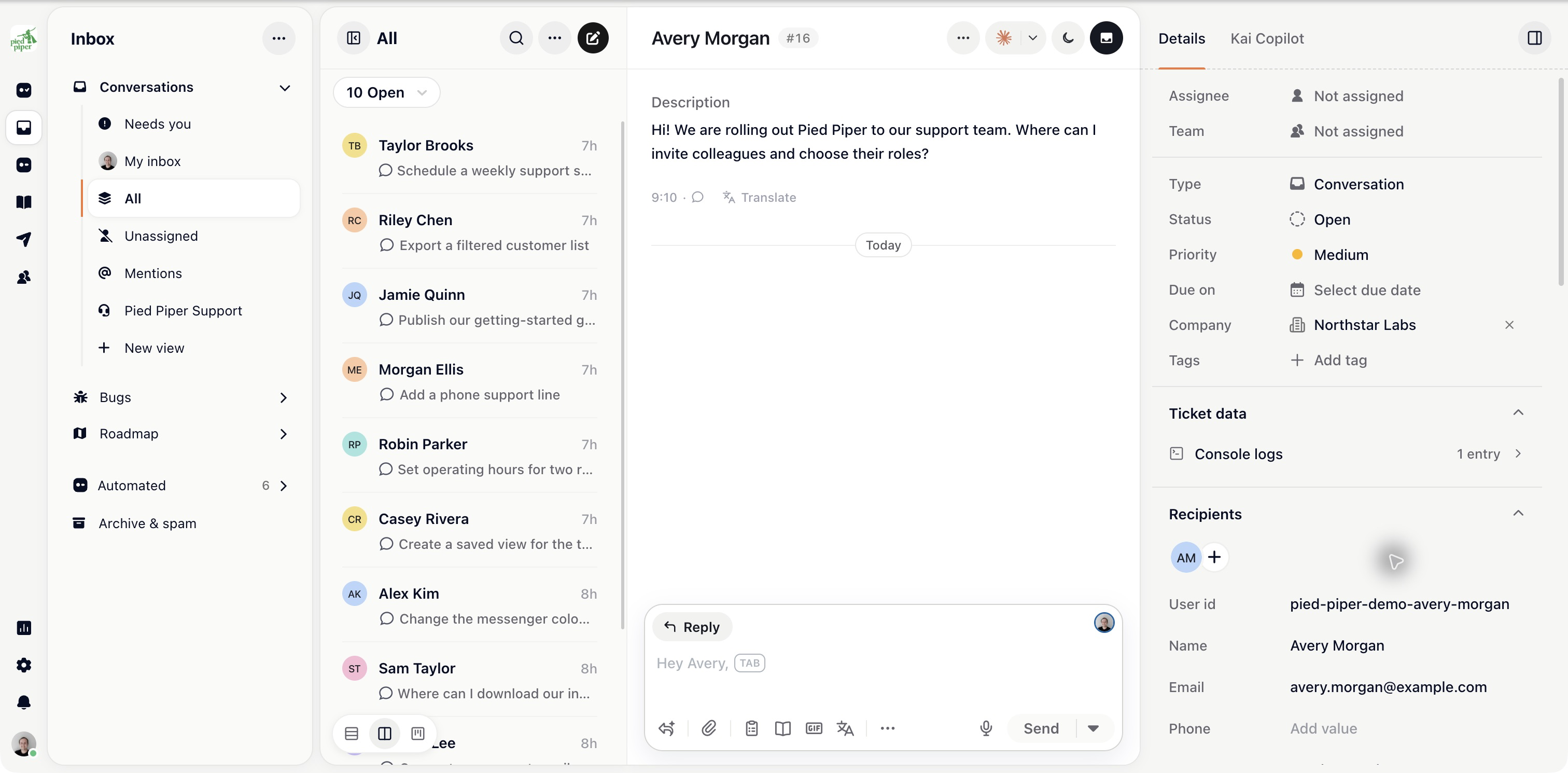
Conversation views include Needs you, My inbox, All, Unassigned, Mentions and team queues. Automated shows work being handled by workflows or AI.
Needs you brings attention to work requiring a person. Read the question or decision attached to the ticket before replying.
Choose Open, Snoozed or Closed at the top of a conversation list. Boards use their configured statuses and priorities.
In the Inbox sidebar, choose New view for the board you are working with. You can also use the Inbox options menu.
Enter a name your team will recognise.
Set the filters, sort order and available layout.
Choose whether the view is visible to everyone or private to you.
Choose Create.
You need permission to manage views. A view appears with its ticket type so a queue of bugs stays with the Bugs board.
The filter options depend on the ticket type. Common choices include status, priority, tag, team, assignee, channel, contact, title and creation date.
Use SLA to find work that breached its target, Read status to find new activity and Reply status to distinguish untouched work from conversations already answered. Agent-state filters help distinguish work in progress from work waiting for input.
Custom fields become useful here when the data is filled consistently.
Use the view-style controls to choose List view, Conversation view or Board view where available. Conversation view keeps a thread beside the queue; a board makes stage changes easier to scan.
Gleap remembers your working view so you can return to it later.
Open and unassigned, oldest first.
SLA breached and still open.
Your team’s open work, sorted by priority.
Tickets waiting for a teammate’s input.
A saved filter is only useful if someone owns its queue. Keep a small set of views your team actually checks.

