Most complaints about slow support are really complaints about not knowing. Someone who's told "we usually reply within four hours" waits calmly; someone who's told nothing writes again after twenty minutes. Operating hours tell customers in the messenger whether your team is online and when to expect an answer. Project admins set them.
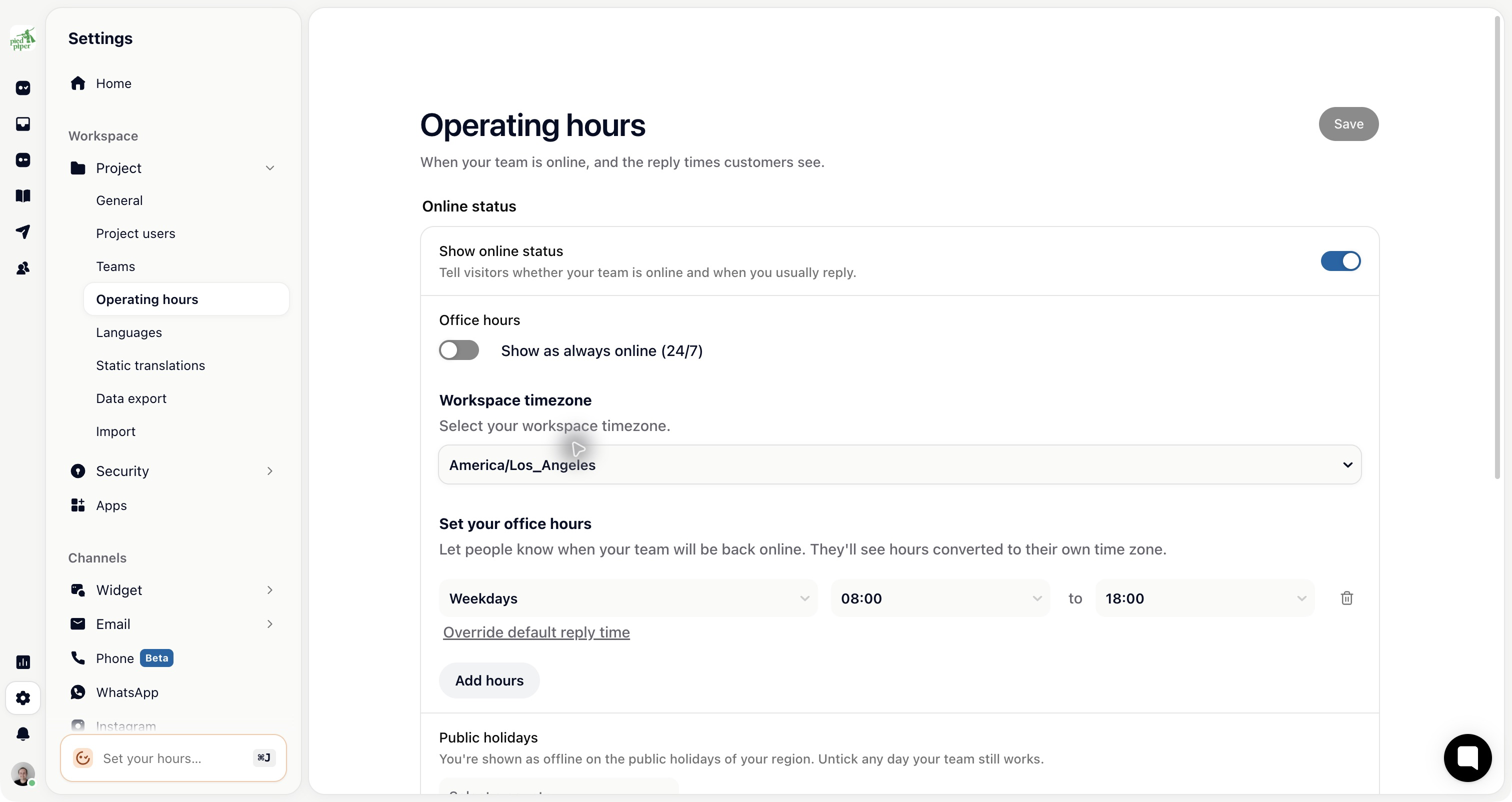
Go to Settings → Project → Operating hours.
Switch on Show online status. Office hours, holidays and reply times only appear once it's on.
Under Office hours, choose your Workspace timezone and add the hours for each day with Add hours. To give a day its own reply-time text, such as "We usually reply within a few hours", click Override default reply time under its row. Switch on Show as always online (24/7) instead if someone is always there.
Check Public holidays: you're shown as offline on the public holidays of your region. Untick any day your team still works, and add company events or a holiday break under Custom closed days.
Under Reply time, write the general reply-time message for office hours, and an Out of office message for when you're closed.
Click Save. The messenger now shows whether you're online and your reply time.
Write the reply time as something you can keep on a bad day, not on a good one. Customers remember the promise, not the average. Per-day reply times are the honest way to handle a Friday with half the team, or a Monday morning when the weekend's backlog is being cleared.
If you leave the Out of office message empty, the messenger shows a reply time calculated from your office hours instead. A message like "We're back Monday at 9:00 and will answer then" sets a clearer expectation than silence.
A team can have its own hours, with its own timezone and opening times per day. That suits a team in another region or an on-call rota.
Go to Settings → Project → Teams and open the team.
Under Operating hours, switch on Use custom operating hours. While it's off, the team uses the project's hours.
Pick the Team timezone and the hours per day, or Always online (24/7) for an on-call rota.
Optionally set a Team reply time and a Team out-of-office message. Anything you leave empty falls back to the project.
Click Save.
The timezone matters more than people expect. A team set up in one office's timezone appears offline at odd moments once someone joins from elsewhere.
Separately from what customers are told, an SLA is the time within which a conversation should get a first response. It's the internal number that compliance is measured against in reports.
The project's Default SLA lives under Settings → Inbox & tickets → SLAs, where you also switch on Track SLAs for this project and choose which ticket types count.
A team can override it with its own Team SLA in the team dialog.

Keep the public and the internal number consistent. Promising an answer within four hours while measuring against eight means your reports look healthy at exactly the moment your customers are unhappy.
If you don't want the messenger to show an online status or a reply-time line at all, switch off Show online status under Settings → Project → Operating hours and click Save.

