Once your questions are ready, the Share tab decides where the survey runs and the Results tab shows what people said. This article covers both, plus the finishing touches before you share and how to act on every response. Surveys are available on the Team plan and up.
Three things in the Create tab are worth a look first:
Welcome screen: turn on the Welcome screen switch in the outline to show an intro before the first question. You can add an image and a Time to complete estimate.
Design: click Design above the preview to set the Brand colour, Appearance (Auto, Light or Dark), Background, Text, Corners and Logo. Reset to widget defaults brings back your messenger's look.
Consent: click Add content and pick Consent to add a required checkbox. Add a Policy link and Link text. Without text, readers see "I have read and accept the privacy policy." in their language.
The Ask Kai to edit box sits at the foot of the outline (press I to jump to it). Type what you want, such as "Add a follow-up for detractors" or "Make it shorter", and press Enter. Kai changes the draft and marks what it added, edited or moved. Click Keep to accept or Undo to put the previous version back.
Go to Outreach → Surveys and open your survey.
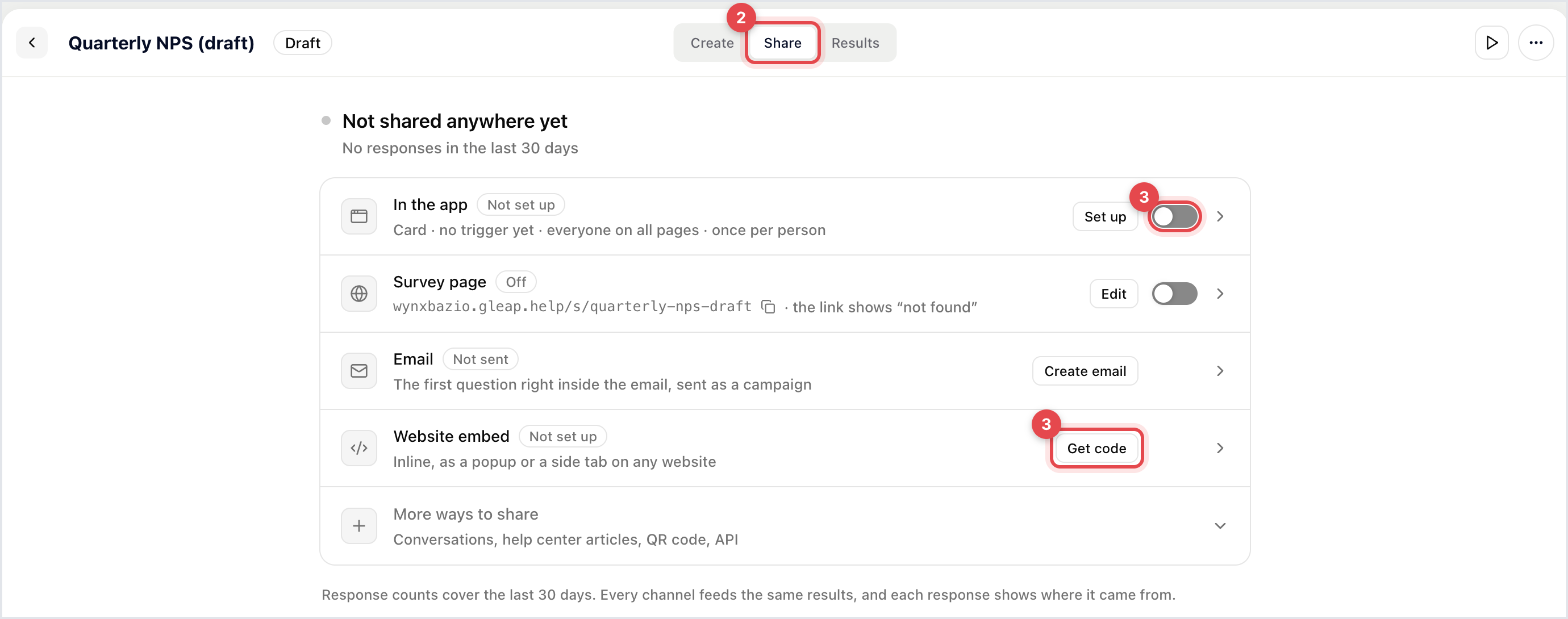
Click the Share tab. Each channel shows its status and how many responses it brought in over the last 30 days.
Click a channel to open its settings, then switch it on: Show in the app, Show the page, or Create email for an email campaign. For Website embed, click Get code.
The first time you switch on a channel, Gleap publishes the survey as version 1. Later edits in Create stay a draft until you click the green Save, which publishes the next version. Every response keeps the version it answered.
Channel | What it does |
|---|---|
In the app | Shows the survey in your product as a Card or Full screen, to the audience and trigger you pick. More options adds frequency, a reminder for people who stopped halfway and a code snippet. |
Survey page | A hosted page on your help center address, ending in |
Sends the survey as an email campaign. When the first question is NPS, a rating, yes/no or single choice, people can answer it right inside the email. You can add a Reminder. | |
Website embed | Two lines of HTML that show the survey inline, as a popup or as a side tab on any website. |
More ways to share | Send it in a conversation, link it from a help center article, share it on WhatsApp, print a QR code, or call the API. |
The embed code looks like this. Use data-mode="popup" or data-mode="tab" for the other styles:
<div data-gleap-survey="SURVEY_ID" data-api-key="SDK_KEY" data-mode="inline"></div>
<script src="https://sdk.gleap.io/latest/survey-embed.js" async></script>
Open the Results tab. Pick a date range (Last 7 days up to All time) and, once you've published more than once, a version (All versions or a single one). The results have three views:
Summary: views, starts, submissions and completion rate, then each question's answers. An NPS survey gets a Net Promoter Score card with the score, the split into detractors, passives and promoters, and the score's history. Drop-off shows how people moved through the survey and where they left.
Insights: Kai tags every open answer and choice with themes and shows What changed this week. Click a theme to see its responses, use Edit themes to rename or merge them, and ask Kai questions about the responses. A problem Kai finds can become a bug or a roadmap item.
Responses: every response in a table. Filter by status (All, Completed, Partial), NPS group, theme, channel, device or quality, or use Search answers.

In Responses, click a row to open it. Move between responses with J and K or the arrow keys.
Click Reach out to start a conversation with that person by messenger or email. The button shows when Gleap knows who answered.
Or open the More menu to Create ticket, Copy link or Delete response.
A conversation started with Reach out shows the survey response in the ticket's sidebar, so your team has the context.
To take the data elsewhere, click Export in Responses and choose Export as CSV or Export as JSON.
Workflows: in Share → More ways to share, click Automate next to Run a workflow. Gleap creates a workflow with the On survey completed trigger for this survey. Add steps to email the person, open a ticket, notify a teammate or update the contact.
Webhooks: under Settings → Developer → Webhooks, add the survey.response.completed event to send finished responses to your own systems. survey.response.partial and survey.response.answered are there too.

