If you sell to businesses, the useful unit isn't the person who happened to write in, it's the account behind them. Companies group your contacts so you can see every conversation from an account and treat some accounts differently from others.
Companies are under Contacts → Companies.
Usually a contact joins a company when your app identifies the user and sends a company with it:
Gleap.identify("user-123", {
  name: "Ada Lovelace",
  email: "[email protected]",
  company: { id: "acme", name: "Acme Boards" },
});
The id is what matters. It creates the company if it doesn't exist and links the contact to it. Send your own account ID rather than the display name, so a company that renames itself doesn't split into two. A name without an ID does nothing. Identify users and send attributes and events covers the rest of the call.
Go to Contacts → Companies and click New company.
Enter the Company ID. Use your own system's identifier; it can't be changed later.
Optionally enter the Company name.
Click Create company.
To add people, open the company and use Add a person in the … menu, or the People tab. On a contact's page you can also set the company from the Company row in the sidebar.
To load many companies at once, for example from your CRM or ERP:
Go to Contacts, open the import menu and choose Import companies from CSV.
Upload your file and map each column to a company field. The Company ID column is required. Any company attribute you've defined can be a target.
Check the preview and start the import.
A row whose company ID already exists updates that company; a new ID creates one. Running the same file again doesn't duplicate anything. Tags in the file replace the company's tags, while address and custom data are added to what's there.
For a nightly sync, send your companies from your server with the Admin API: one company per call (PUT /admin/companies/{companyId}), or up to 1,000 per call (POST /admin/companies/bulk). Both authenticate with an API key from Settings → Developer → API keys and need the Team plan or higher.
curl -X POST https://api.gleap.io/admin/companies/bulk \
  -H "Api-Token: YOUR_API_KEY" \
  -H "Content-Type: application/json" \
  -d '{ "companies": [ { "companyId": "acme", "name": "Acme Boards", "plan": "Gold", "ownerEmail": "[email protected]", "customData": { "modules": ["Kassa", "DMS"] } } ] }'
A name set this way is never overwritten by names your app sends with identify. ownerEmail sets the company's owner, one of your teammates. The developer docs list every field.
The tabs are Overview, Conversations (everything anyone there has written to you), People, Notes and Files. The sidebar holds the company's attributes, its Owner, its Tags and its Pipelines.
Conversations across the whole account is the one people underestimate. "Has anyone at this customer already reported this?" can't be answered from one contact's history.
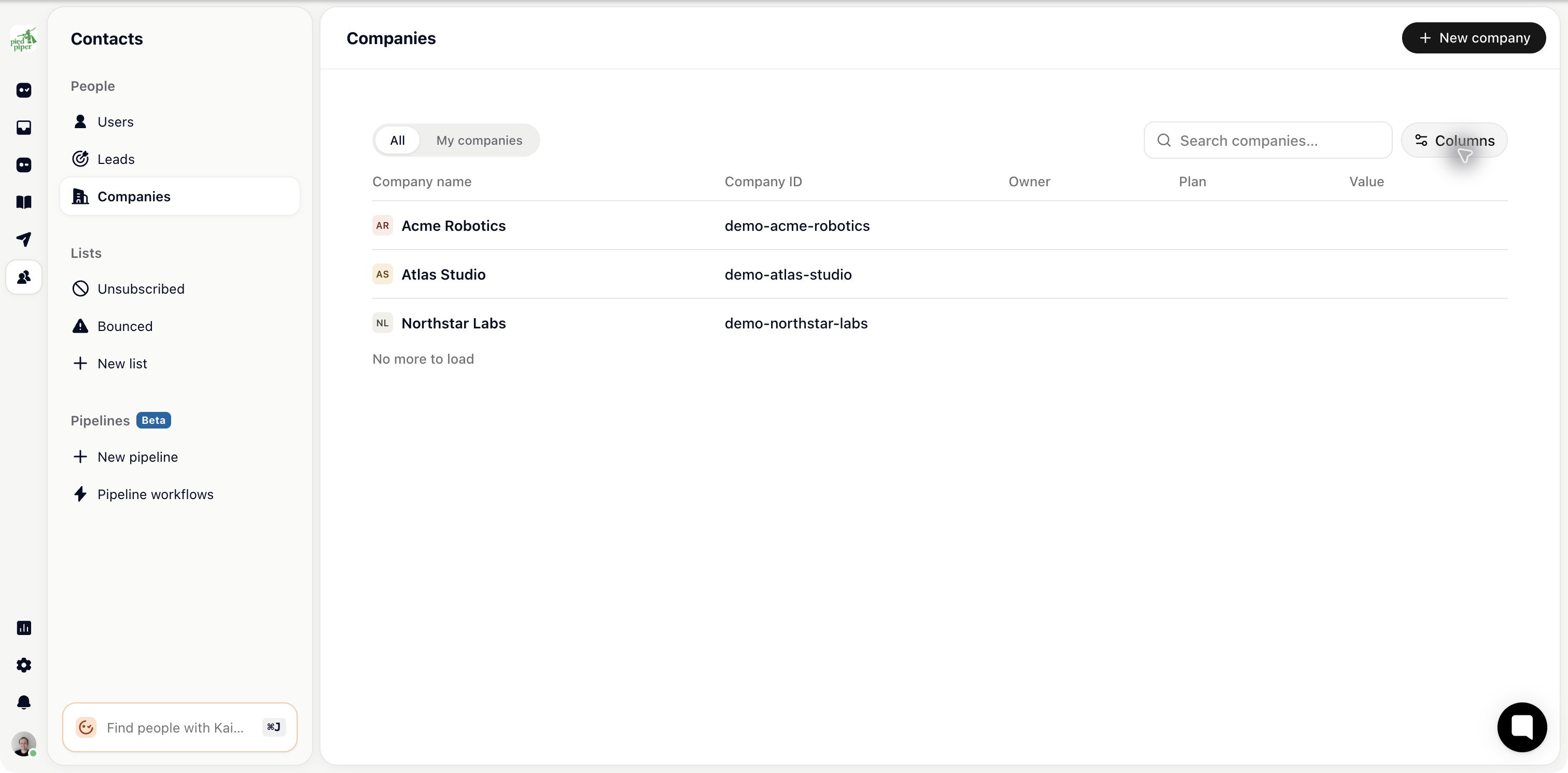
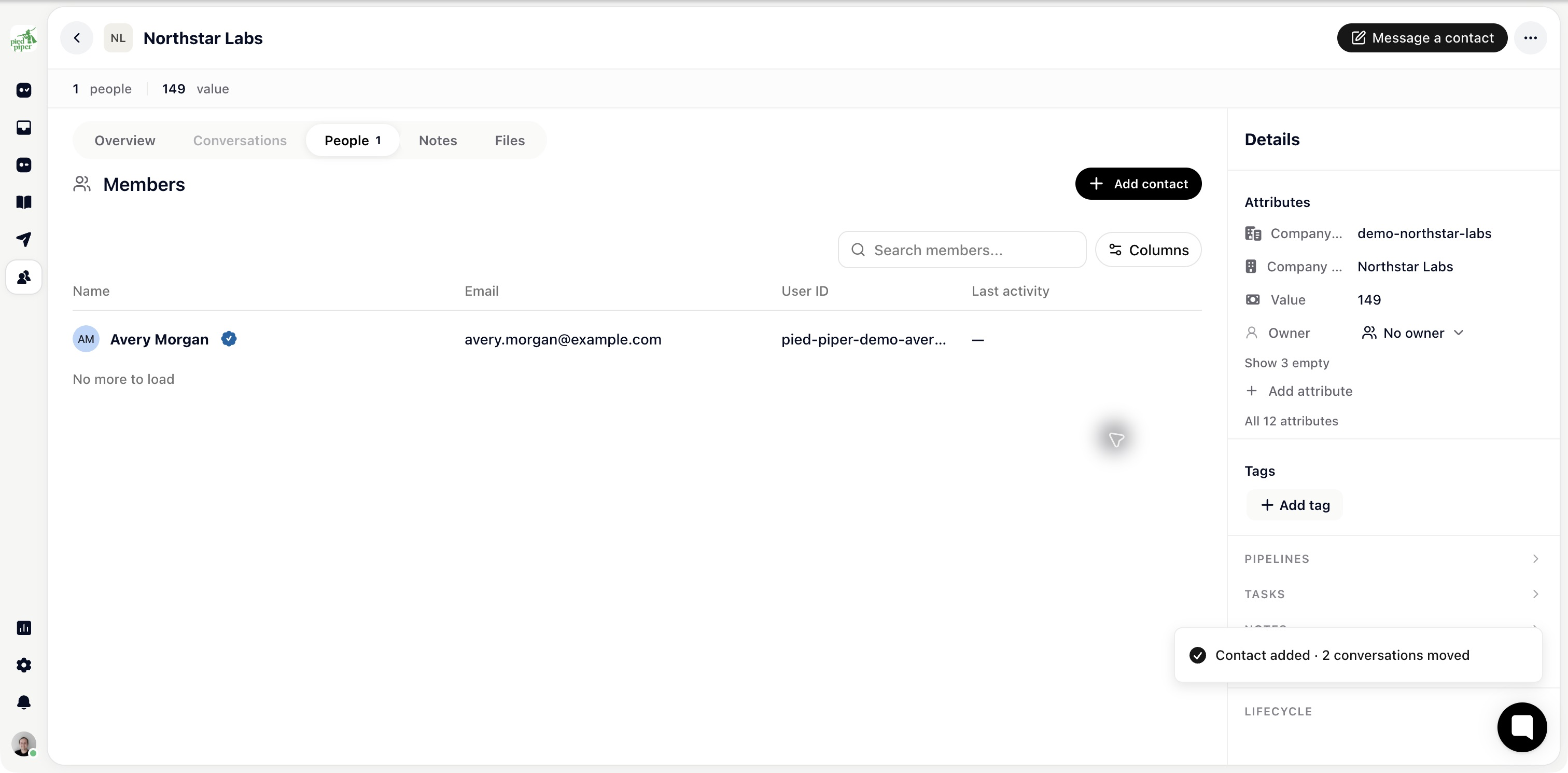
Every project starts with Company ID, Company name, Domain, Plan, Value and SLA (seconds). They're editable on the company page, and you can add your own the same way you add contact attributes. Your own attributes can hold text, numbers, dates, choices, and lists such as the modules a customer has licensed.

SLA (seconds) sets how long a first reply may take for anyone at that company. Set 3600 and their conversations escalate after an hour. When several SLAs apply to the same conversation, the most specific wins:
the company's SLA,
then the assigned team's default,
then the contact's own SLA,
then the project default.
A company or contact SLA applies even when the project-level SLA is switched off, so you can run escalations for your enterprise accounts only. If the project SLA is limited to certain ticket types, that limit still applies. The timer stops when an agent replies.
A ticket's sidebar shows the company behind the contact. Pipelines can track companies rather than contacts. Workflows and Kai can read company attributes, which is how "what plan is this account on?" gets answered without anyone looking it up.

