Tags are what make it possible to say "billing questions doubled this month". They're also the first thing that stops being maintained: manual tagging survives a week of good intentions and then quietly lapses. Two workflow steps apply tags without anyone remembering to: Tag with AI reads the conversation and picks from your list, and Add tag applies a fixed tag every time.
Go to AI agents, click Workflows in the sidebar, then New workflow and choose Conversation workflow.
Name it, for example "Tag new conversations", and set the trigger to On ticket created.
Click Add step and choose Tag with AI (under AI actions).
Add a tag and describe in When to apply this tag? what it means, for example "billing: questions about invoices, payments or plan changes". Use Add tag for the next one. The step's panel is titled AI based tagging.
Switch on Apply only one tag if each conversation should get exactly one.
Click Publish. New conversations are tagged from now on.
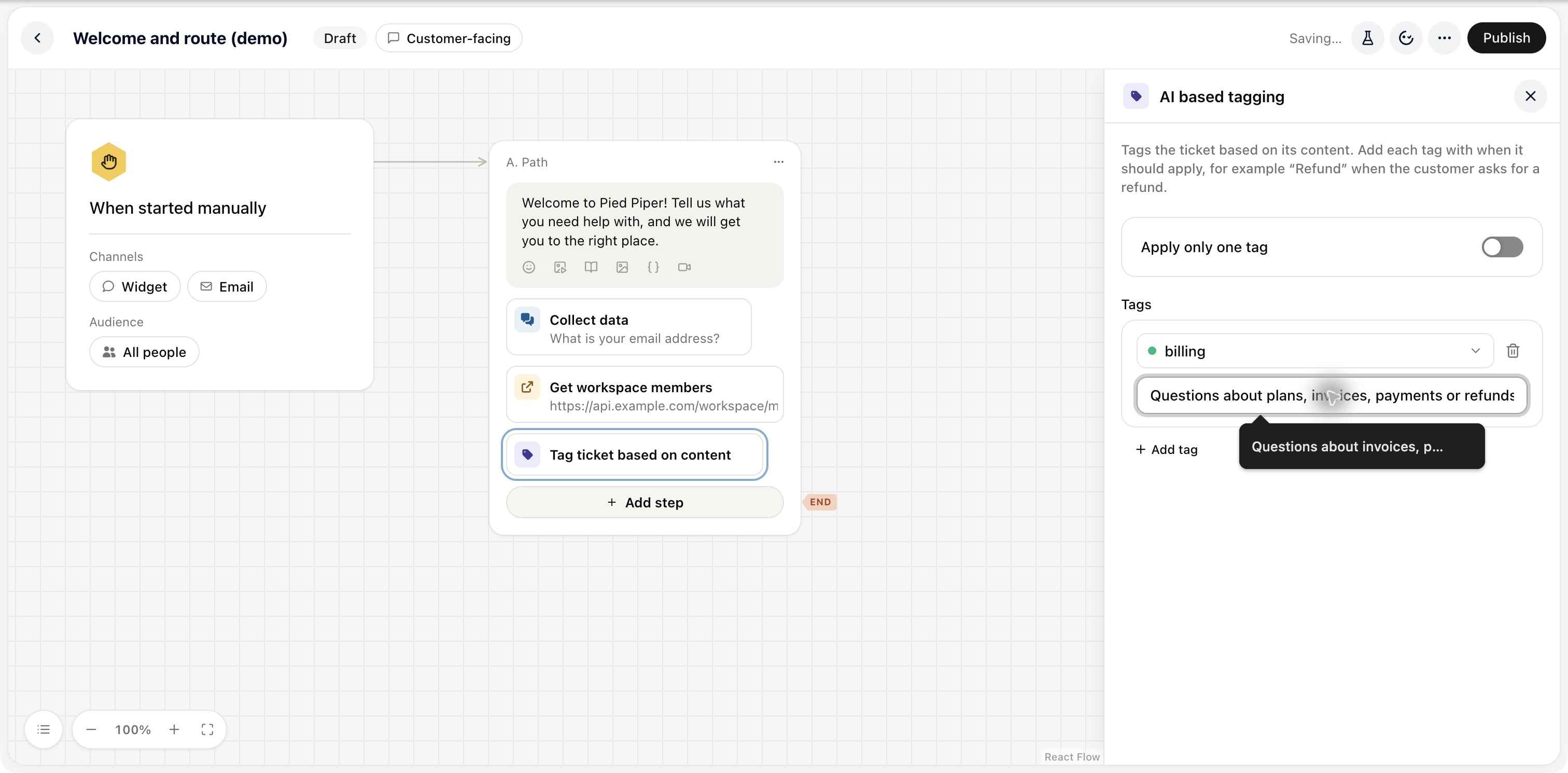
Because this workflow only tags, it's a background workflow: it runs next to your customer-facing workflows instead of competing with them. You can also put Tag with AI at a specific point in a flow, such as a returns flow tagging by reason.
The Add tag step applies the tags you name, every time, with no interpretation involved. It can set Ticket tags and Contact tags.
This is the right one whenever the tag follows from the path instead of the content. If someone chose "Report a bug" from your menu, tagging it "bug" needs no cleverness, and a deterministic tag is one you can trust in a report.

Whichever step you use, the quality depends on the list. Keep it short and keep the meanings separate: "billing" and "payment" as two tags guarantees inconsistency, because no rule and no model can reliably tell which one a given conversation is.
Ten distinct tags applied reliably are worth far more than forty precise ones applied at random. And a tag nobody has looked at in a report is a tag you can delete. Tags themselves are managed under Settings → Inbox & tickets → Tags, and your team can still add or remove tags by hand with Shift+T.
After a week, read fifty tagged conversations and ask whether you'd have tagged them the same way. That's the only test that matters, and it's how you find the overlapping pair that's quietly making your reporting meaningless.
Older projects may still see AI-based auto tagging under Settings → Inbox & tickets → AI assist. It's deprecated and only shows while a project still has rules saved there. Move those tags and descriptions into a Tag with AI step as above, then remove the old rules.

