Not everything in the queue should be answered right now, and not everything is a separate conversation. Four actions handle the rest: merge, snooze, archive and close. They're easy to confuse, and the choice changes what your reports say.
Same conversation as another: merge.
Real work, not actionable yet: snooze.
Not work at all: archive.
Work, finished: close it properly, so a rating request can go out and Kai can learn from the conversation.
Use it when the same person wrote twice, or one problem arrived through two channels, such as an email and a chat about the same thing. Open the duplicate and choose Merge with similar in its ⋯ menu. The conversation you pick is the one that stays; the duplicate is archived and linked to it.
Which one stays, what moves across and what doesn't is explained step by step in Merge two conversations: which one stays.
Snoozing hides a conversation until a time you pick and brings it back to the Open list then.
In the Inbox, open the conversation.
Click Snooze at the top of the conversation, or press Z.
Pick a time: Later today (offered until 18:00), Tomorrow, Three days, Next week, One week, Next month, or Custom date.
To reply and snooze in one go, choose Send & snooze in the composer's send menu.
Snooze anything that's blocked: waiting on a customer, a release or a colleague. It keeps the queue honest, because what's in front of you is what you can act on.

Archiving takes a conversation out of the queue without treating it as resolved work. It suits automated mail that landed in support, a message sent to the wrong address, or a test someone left behind.
In the Inbox, open the conversation.
Press E, or choose Archive ticket in its ⋯ menu.
The E key acts at once, with no confirmation, so admins can switch it off with Archive with the "E" shortcut under Settings → Project → General → Ticket handling. The menu item keeps working either way.
Waiting for reply in the same menu archives the conversation until the customer answers, which suits "let us know if it happens again" endings.
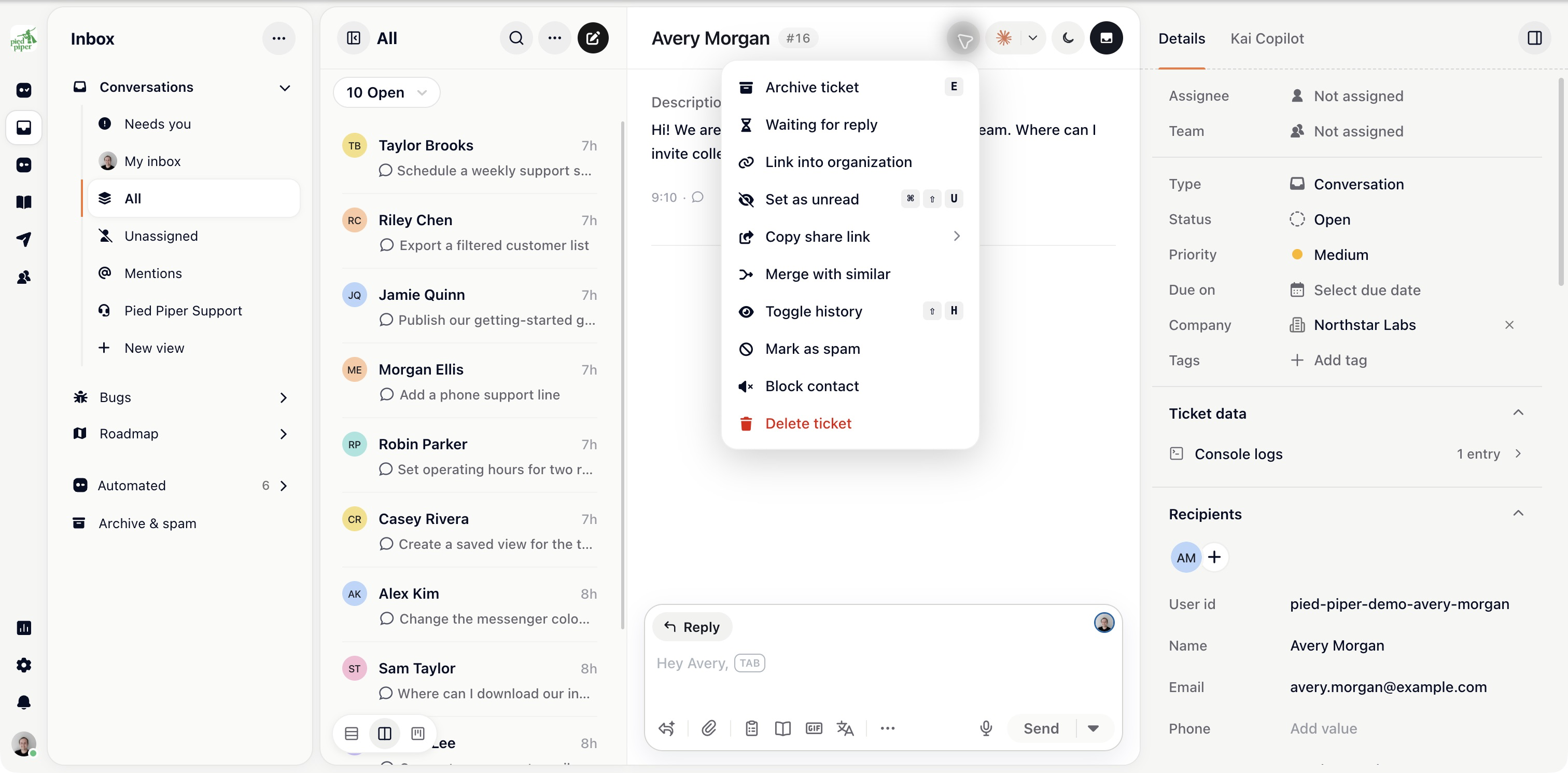
The distinction from closing matters for your numbers: closed means you handled something, archived means there was nothing to handle.
Archived conversations are under Archive & spam at the bottom of the inbox sidebar, with Conversations, Automated, Spam and Waiting for customer tabs. To bring one back, hover over it and click Restore, or open it and choose Unarchive ticket in the ⋯ menu (Cmd/Ctrl+Shift+O).
Bot conversations are the ones a workflow or Kai is still handling, shown in the Automated view. A conversation that never reaches your team is closed and archived automatically after a few days, so it leaves the Automated view by itself. If it was handed to your team, it moved to the inbox instead.


