By default, anyone with the link can read your help center. Let visitors sign in with the account they already have in your product, and you can keep the whole help center for customers only, or show "Users only" articles to the right people. You need your own login page for this. The help center is available on the Team plan and up.
Go to Help center > Settings > General.
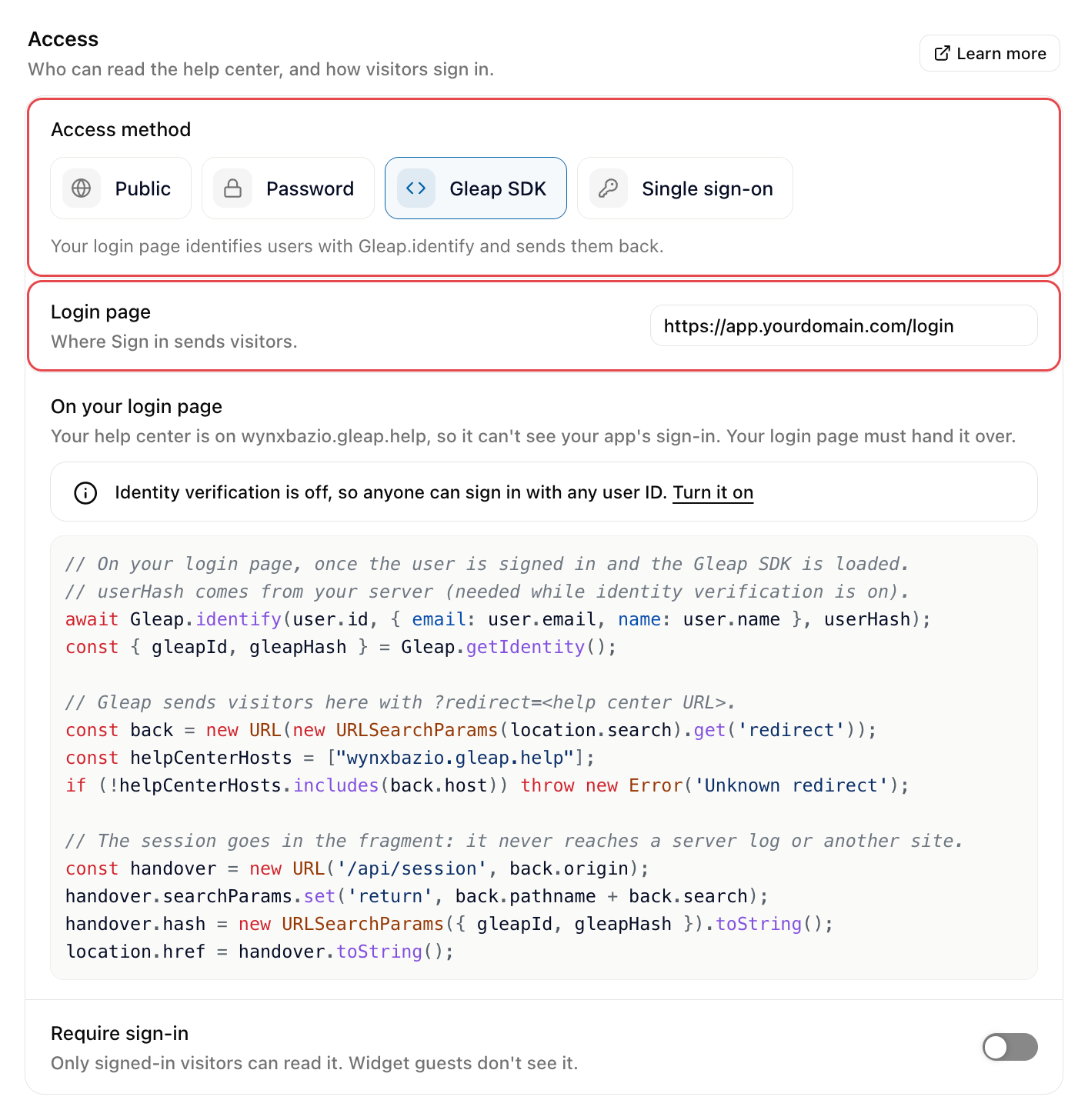
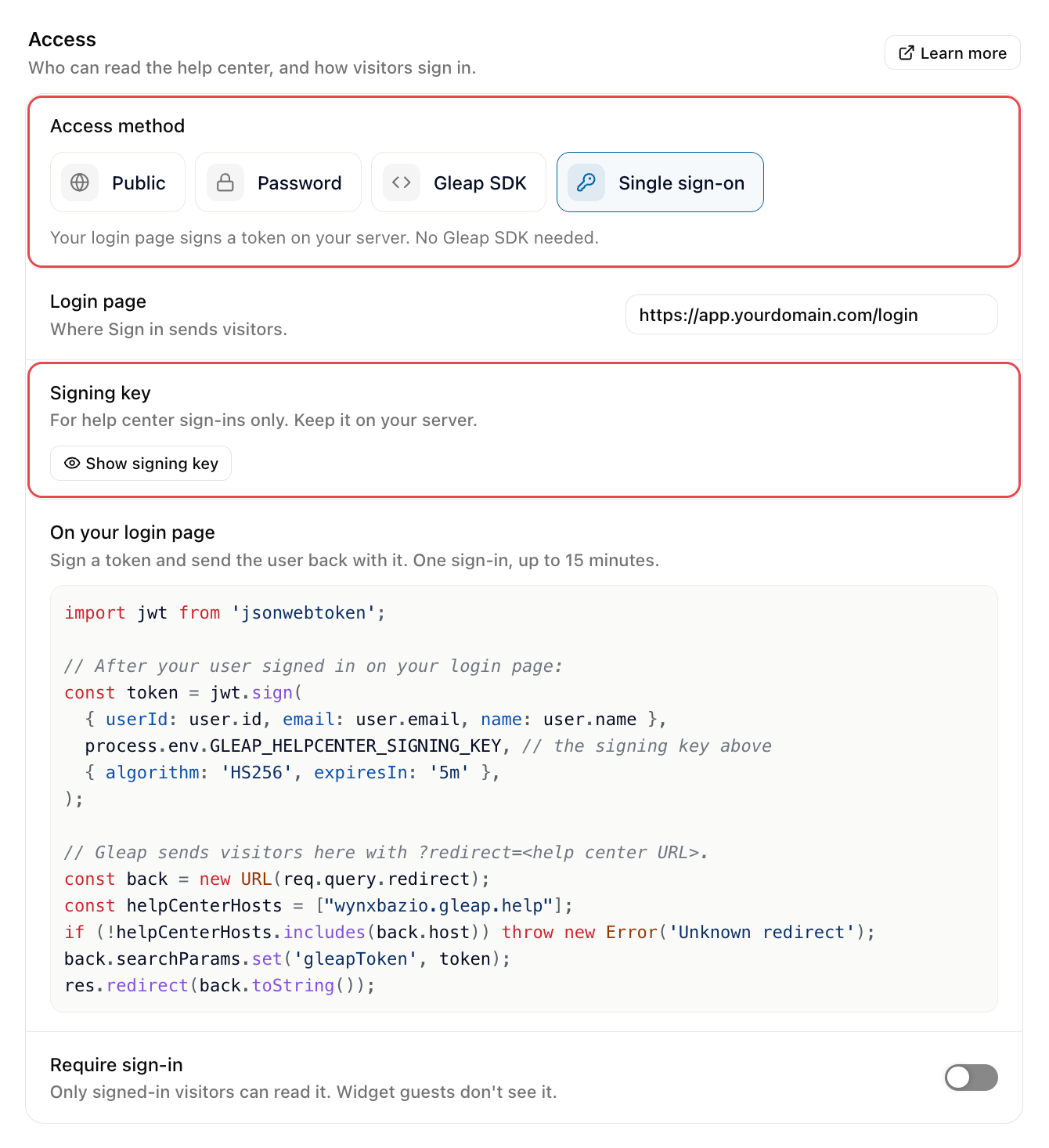
Under Access, choose an Access method: Gleap SDK or Single sign-on.
Enter your Login page, for example https://app.yourdomain.com/login. Sign in on the help center sends visitors there.
Add the code shown under On your login page to that page.
Which one to pick:
Gleap SDK fits when the Gleap SDK already runs in your web app. Your login page identifies the user with the SDK and hands their Gleap session to the help center.
Single sign-on needs no Gleap SDK on your login page. Your server signs a short token for the user, and the help center turns it into their session. It's the better choice when your login page is a server-rendered page or a separate auth app.
When a visitor needs to sign in, the help center opens your login page with a redirect parameter: the help center address to send them back to. Once they're signed in, your page sends them back to that address with proof of who they are. Always check that the redirect points to your help center before you send anyone there. The code on the settings page lists your help center's addresses for that.
If your help center runs on your own domain, for example help.yourdomain.com, and your app runs on the same domain, for example app.yourdomain.com, the help center can see who is signed in to your app. Visitors your app already identified with the Gleap SDK get in without passing your login page. The settings page tells you which case applies to you, right above the code.
The code on your login page is still needed: it covers everyone else. That includes a help center on a gleap.help address, an app on a different domain, people coming from your mobile app, and apps that turned cookies off with Gleap.setUseCookies(false).
On your login page, once the user is signed in and the Gleap SDK is loaded:
await Gleap.identify(user.id, { email: user.email, name: user.name }, userHash);
const { gleapId, gleapHash } = Gleap.getIdentity();

// Gleap sends visitors here with ?redirect=<help center URL>.
const back = new URL(new URLSearchParams(location.search).get('redirect'));
const helpCenterHosts = ['help.yourdomain.com'];
if (!helpCenterHosts.includes(back.host)) throw new Error('Unknown redirect');

// The session goes in the fragment: it never reaches a server log or another site.
const handover = new URL('/api/session', back.origin);
handover.searchParams.set('return', back.pathname + back.search);
handover.hash = new URLSearchParams({ gleapId, gleapHash }).toString();
location.href = handover.toString();
The userHash comes from your server, as in Identify users and send attributes and events. You only need it when identity verification is on.
We recommend turning identity verification on. Without it, anyone who knows how the Gleap SDK works can identify as any user ID and read what that user can read. While it's off, the settings page shows a note with a link to turn it on under Project settings > User identity.
Does your login page already send visitors back with ?gleapId=…&gleapHash=… added to the redirect? That keeps working. The code above is the safer way: the session stays out of server logs and browser history.
Single sign-on uses a Signing key. It's made from your project's identity verification secret, works for help center sign-ins only, and appears on the settings page once you pick Single sign-on: click Show signing key. Admins, managers and agents can see it. Keep it on your server, never in the browser.
The help center has its own signing key. If you also use single sign-on for the feedback portal, its key won't work here, and the other way round.
On your server, after the user signed in on your login page:
import jwt from 'jsonwebtoken';

const token = jwt.sign(
  { userId: user.id, email: user.email, name: user.name },
  process.env.GLEAP_HELPCENTER_SIGNING_KEY,
  { algorithm: 'HS256', expiresIn: '5m' },
);

// Gleap sends visitors here with ?redirect=<help center URL>.
const back = new URL(req.query.redirect);
const helpCenterHosts = ['help.yourdomain.com'];
if (!helpCenterHosts.includes(back.host)) throw new Error('Unknown redirect');
back.searchParams.set('gleapToken', token);
res.redirect(back.toString());
A token is valid for one sign-in and for at most 15 minutes. userId is required; email and name fill in the contact. Any library that signs HS256 JSON Web Tokens works, in any language.
Sign-in always starts at the help center. A token your login page sends without the visitor coming from the help center first is refused, so nobody can sign someone else in with their own token.
With a sign-in method set, turn on Require sign-in and visitors must sign in before they can read anything:
On the help center, visitors who aren't signed in go straight to your login page, and come back to the page they wanted afterwards.
In the Gleap widget, the help center is hidden for visitors your app hasn't identified: no help center tab, no help center search on the home screen and no suggested articles. Identified users see everything as before.
AI answers in help center search need a sign-in too.
Search engines no longer find the help center: Gleap stops listing it in the sitemap and asks search engines not to index it.
Leave Require sign-in off if most of your content is public. Visitors then see a Sign in link in the help center header, and articles with the Users only audience filter show up for them once they sign in.
If you don't have a login page, choose Password as the Access method and set the Password. Visitors enter it before they can read anything, in the widget too. It's simple and fine for a closed beta, but a shared password is only as private as the least careful person who has it.
A password and sign-in don't combine: picking Password turns sign-in off, and picking Gleap SDK or Single sign-on removes the password. Gleap asks first either way.
If a visitor sees "Sign-in didn't work" after your login page, check these:
Single sign-on: the token was signed with the help center's signing key (not the feedback portal's), it's at most 15 minutes old, it's sent only once, and it has a userId.
Single sign-on: the visitor started at the help center. Opening your login page directly and sending a token back doesn't work.
Gleap SDK: Gleap.identify finished before you read Gleap.getIdentity(). If the visitor is still a guest, the help center can't sign them in. With identity verification on, check the userHash too.
Both: the browser allows cookies for the help center.
If visitors bounce between the help center and your login page, your login page sends them back without the code above. That only works when the help center can see your app's sign-in on its own (see When visitors get in on their own).
If your code throws "Unknown redirect", add the help center address to the list in the code. After you connect a custom domain, copy the code from the settings page again: it lists both addresses.
Choose Public. Gleap asks first, because it removes your login page from the settings, turns Require sign-in off and removes the Sign in link from the help center. If you used a password, it's removed too.