By default, feedback portal visitors are anonymous. Let them sign in with the account they already have in your product, and their votes and comments carry their name, count towards their company's revenue, and can be limited to customers. When you pass their email, they also vote and subscribe to changelog emails without typing it. You need your own login page for this. The portal is available on the Team plan and up.
Go to Feedback portal > Portal settings > Security.
Under Access, choose an Access method: Gleap SDK or Single sign-on.
Enter your Login page, for example https://app.yourdomain.com/login. Sign in on the portal sends visitors there.
Add the code shown under On your login page to that page.
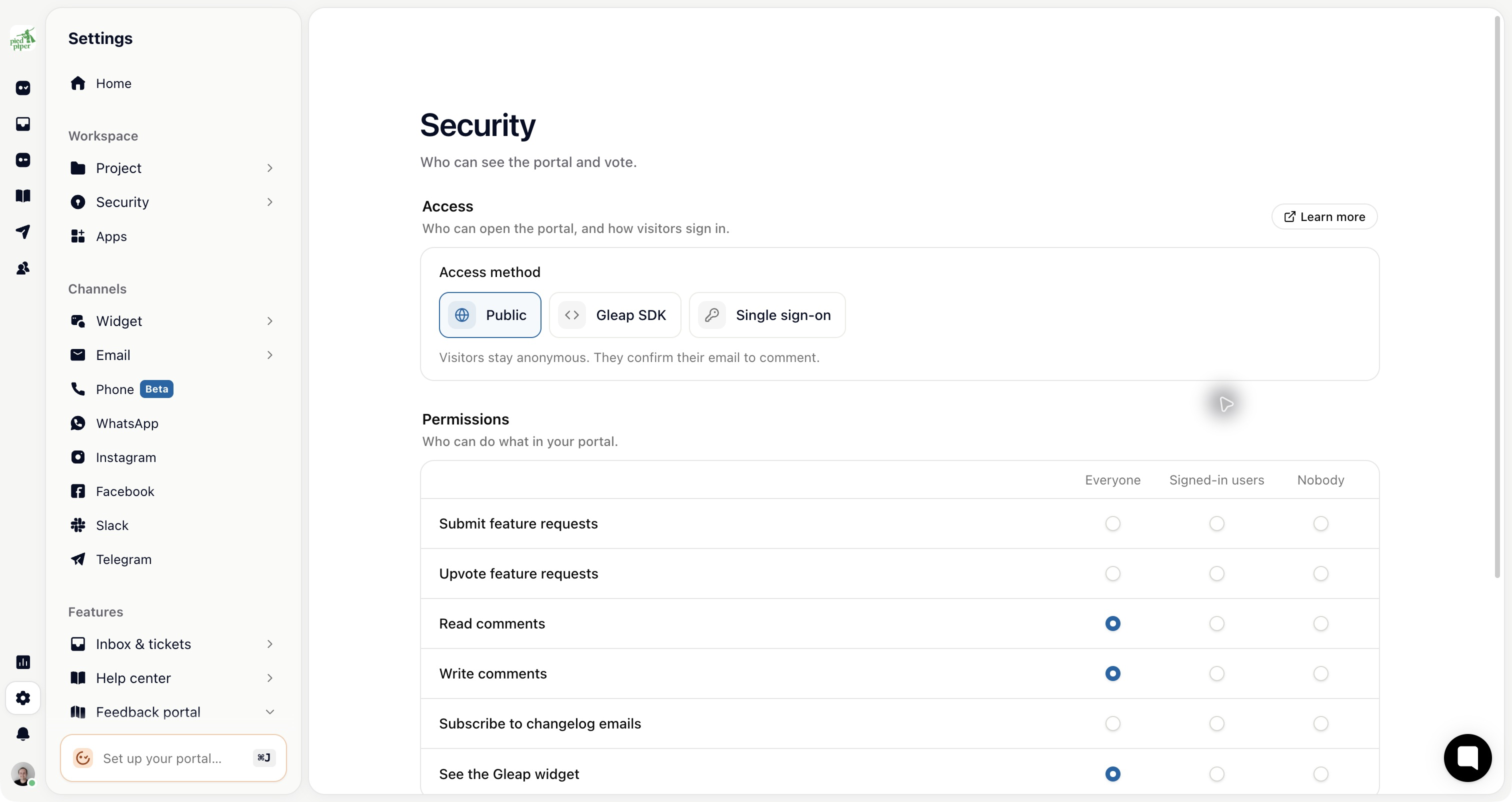
Which one to pick:
Gleap SDK fits when the Gleap SDK already runs in your web app. Your login page signs the user in with the SDK and hands their Gleap session to the portal.
Single sign-on needs no Gleap SDK on your login page. Your server signs a short token for the user, and the portal turns it into their session. It's the better choice when your login page is a server-rendered page or a separate auth app.
Both use an identity key from Settings → Security → Customer identity → Identity keys. Only admins can create one, and Gleap shows its secret once. Keep it on your server, never in the browser.
When a visitor clicks Sign in, the portal opens your login page with a redirect parameter: the portal address to send them back to. Once they're signed in, your page sends them back to that address with proof of who they are. Always check that the redirect points to your portal before you send anyone there; the code on the settings page lists your portal's addresses for that.
If your portal runs on your own domain, for example feedback.yourdomain.com, and your app runs on the same domain, for example app.yourdomain.com, the portal can see who is signed in to your app. Visitors your app already signed in with the Gleap SDK get in without passing your login page. The settings page tells you which case applies to you, right above the code.
The code on your login page is still needed: it covers everyone else. That includes a portal on a gleap.feedback address, an app on a different domain, and apps that turned cookies off with Gleap.setUseCookies(false).
On your login page, once the user is signed in and the Gleap SDK is loaded:
// token: an identity token your server signed for this user
await Gleap.setUserJwt(token);
const { gleapId, gleapHash, grant } = Gleap.getIdentity();

// Gleap sends visitors here with ?redirect=<portal URL>.
const back = new URL(new URLSearchParams(location.search).get('redirect'));
const portalHosts = ['feedback.yourdomain.com'];
if (!portalHosts.includes(back.host)) throw new Error('Unknown redirect');

// The session goes in the fragment: it never reaches a server log or another site.
const handover = new URL('/api/portal/session', back.origin);
handover.searchParams.set('return', back.pathname + back.search);
const params = new URLSearchParams({ gleapId, gleapHash });
if (grant) params.set('grant', grant);
handover.hash = params.toString();
location.href = handover.toString();
The token comes from your server, signed with your identity key, as in Identify users and send attributes and events. The grant tells the portal that the sign-in was signed. A session without a grant counts as signed out, so nobody can vote or comment in another user's name by claiming their user ID. Add grant only when it's set: getIdentity() returns grant: null when there is none, and passing "null" makes the sign-in fail.
Single sign-on uses an identity token, signed with your identity key. It's the same kind of token your app passes to setUserJwt, with two differences: it has aud: "sso", and its exp is at most 10 minutes ahead. Sign a separate token for single sign-on, because setUserJwt refuses a token with aud: "sso".
On your server, after the user signed in on your login page:
import jwt from 'jsonwebtoken';

const token = jwt.sign(
  { userId: String(user.id), email: user.email, name: user.name, aud: 'sso' },
  process.env.GLEAP_IDENTITY_SECRET,
  { algorithm: 'HS256', keyid: process.env.GLEAP_IDENTITY_KEY_ID, expiresIn: '5m' },
);

// Gleap sends visitors here with ?redirect=<portal URL>.
const back = new URL(req.query.redirect);
const portalHosts = ['feedback.yourdomain.com'];
if (!portalHosts.includes(back.host)) throw new Error('Unknown redirect');
back.searchParams.set('gleapToken', token);
res.redirect(back.toString());
A token is valid for one sign-in. userId is required; email and name fill in the contact. Any library that signs HS256 JSON Web Tokens works, in any language: put the key ID in the kid header. Code for other server languages is in the developer guide Customer identity.
Sign-in always starts at the portal. A token your login page sends without the visitor coming from the portal first is refused, so nobody can sign someone else in with their own token.
With a sign-in method set, turn on Require sign-in on the same page and visitors must sign in before they can open the portal at all. Visitors who aren't signed in go straight to your login page and come back to the page they wanted afterwards. That turns a public roadmap into a customers-only one.
Feature requests and changelogs inside the Gleap widget aren't affected: they keep following your Permissions.
To keep the portal public but limit who votes, comments or submits, set those Permissions to Signed-in users instead.
If a visitor sees "Sign-in didn't work" after your login page, check these:
Single sign-on: the token was signed with an active identity key, has its key ID in the kid header, has aud: "sso", an exp at most 10 minutes ahead and a userId, and was sent only once.
Single sign-on: the visitor started at the portal. Opening your login page directly and sending a token back doesn't work.
Gleap SDK: Gleap.setUserJwt finished before you read Gleap.getIdentity(), and the handover includes the grant when it's set, never the text "null". If the visitor is still a guest, the portal can't sign them in.
Both: the browser allows cookies for the portal. Embedded portals need cookies in iframes.
If visitors bounce between the portal and your login page, your login page sends them back without the code above. That only works when the portal can see your app's sign-in on its own (see When visitors get in on their own).
Choose Public. Gleap asks first, because it removes your login page from the settings and the Sign in link from the portal.