The feedback portal is the public face of your feature requests, roadmap and changelog. It works out of the box on a Gleap address; the settings below make it look and behave like part of your product. The portal is available on the Team plan and up.
Open Settings → Feedback portal. Its pages are General, Custom domain, Security and SEO & customization.
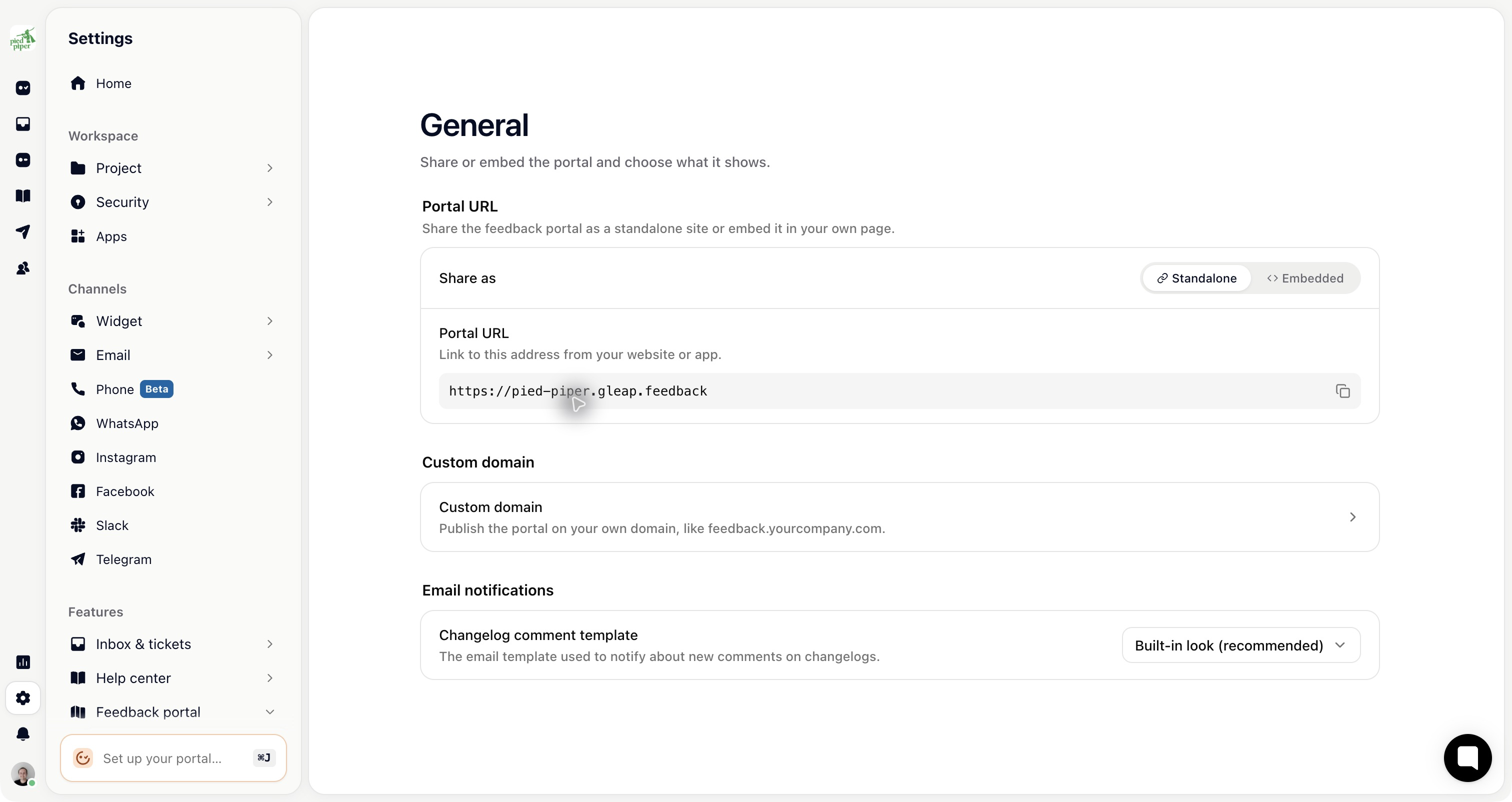
Go to Settings → Feedback portal → General.
In the Portal URL section, under Share as, choose Standalone to copy the portal's link, or Embedded for an iframe snippet.
For an embed, use Content to show All of it or just the Feature list, the Roadmap or the Changelog, then copy the embed code into a page of your site.
Embedding one part often works best: a “What's new” page carrying only the changelog reads far better than a full portal squeezed into a marketing site. This link or embed also replaces old public board links that now show “This board has moved”.
Open Settings → Feedback portal → Custom domain and choose Add domain.
Enter a subdomain such as feedback.yourdomain.com.
Add the records the page shows you at your DNS provider.
The page shows the status of the DNS record and the SSL certificate while they're verified, so you can see whether the records have propagated rather than guessing. A portal on your own domain reads as your product, and people are less cautious about signing in to it.
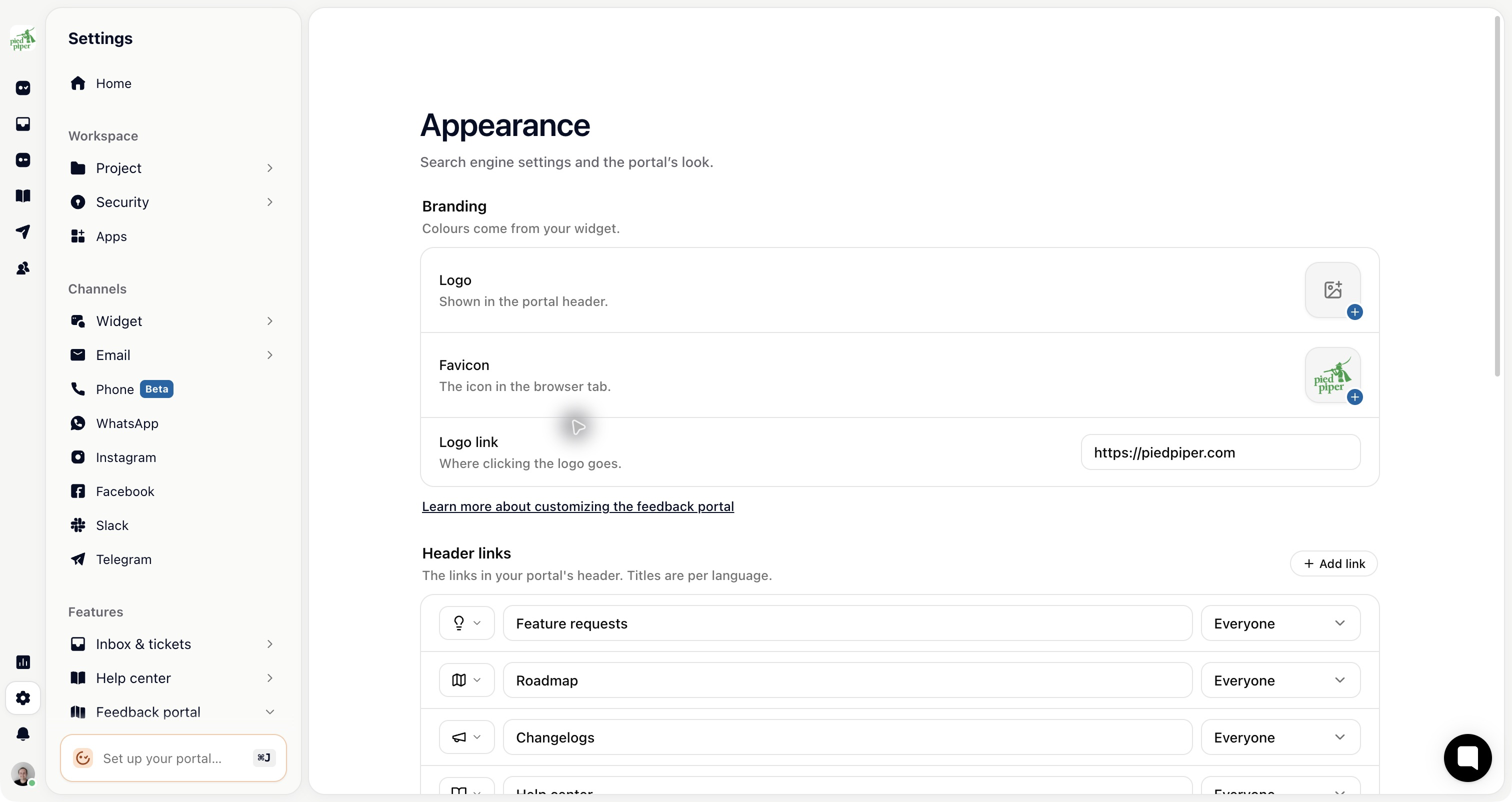
On **SEO & customization**, Branding sets the Logo, the Favicon and the Logo link: point it back at your main site so the portal isn't a dead end. Colours aren't set here; the portal uses your widget's colours.
Header links is one list of everything in the portal's header. The portal's own pages come first: Feature requests, Roadmap, Changelogs and Help center. For each one, click the icon to pick another, change the title (titles are per language), and choose who sees it: Everyone, Signed-in users or Nobody. Setting Roadmap to Nobody is how you hide the roadmap. Add link puts your own links in the same list.
Changelog sets the Post layout: Full post, Preview (the first 250 words and a “Continue reading” link) or Compact (cover image, title and a two-line summary). Opening a post always shows it in full. The changelog also has an RSS feed, linked from the changelog page, so people can follow your releases in their feed reader.
Gleap generates static pages for the portal. Under Search and code on **SEO & customization**, Allow search engines decides whether Google and others list the portal, and links to its sitemap. While it's on, a public roadmap shows up in search, so competitors read it as easily as customers. Decide that rather than discover it.
Custom head code takes code that loads on every page, for analytics and the like. It's added after the page loads, so a meta tag for verifying the domain with a search console won't be picked up.
On Security, Access sets how visitors get in. Under Access method, pick one:
Public: visitors stay anonymous. They can still vote and comment where your permissions allow it.
Gleap SDK: your login page identifies the user with the Gleap SDK and sends them back to the portal.
Single sign-on: your server signs a short-lived token for the user. No Gleap SDK is needed on your login page.
With either sign-in method, enter your Login page: that's where Sign in on the portal sends visitors. The code for your login page is shown right below, and Sign visitors in to the feedback portal walks through it.
Turn on Require sign-in and visitors must sign in before they can open the portal at all, which turns a public roadmap into a customers-only one.
On Security, Permissions sets six things independently, each to Everyone, Signed-in users or Nobody:
Setting | What it controls |
|---|---|
Submit feature requests | Creating new requests |
Upvote feature requests | Voting for existing requests |
Read comments | Reading public comments on feature requests and changelogs |
Write comments | Commenting on feature requests, and commenting on or reacting to changelogs |
Subscribe to changelog emails | Signing up for changelog emails |
See the Gleap widget | Who sees the Gleap widget inside the portal |
“Signed-in users” means visitors who signed in through your login page, so it only works with a sign-in method set. It's the setting that keeps a portal usable: anyone can read, and only your customers post or vote. Open submission on a public portal tends to collect spam.
Visitors who aren't signed in confirm their email before their first comment. They enter their email (and their name, unless commenters stay anonymous) and get a link. The comment goes live once they open the link and press Publish. After that, that browser comments right away. Unused links expire after 7 days.
Under Comments on Security:
Commenter names decides what others see next to a comment: Show name and photo, Keep commenters anonymous (everyone appears as a guest), or Let commenters choose, which asks each commenter once. Switching to anonymous hides every name at once; switching back never reveals people who commented while it was anonymous.
Comments on changelog posts turns the comment section on changelog posts on or off. Emoji reactions stay either way.
Commenters can edit or delete their own comment for 15 minutes after posting. A comment that already has replies can't be deleted.
Each feature request has two conversations: the public discussion on the portal, and a private thread between your team and the person who requested it. Public team replies are emailed to everyone who upvoted; replies to the requester stay private.
On General, Email notifications has the Changelog comment template, used for emails about new changelog comments, so they look like the rest of your email.

