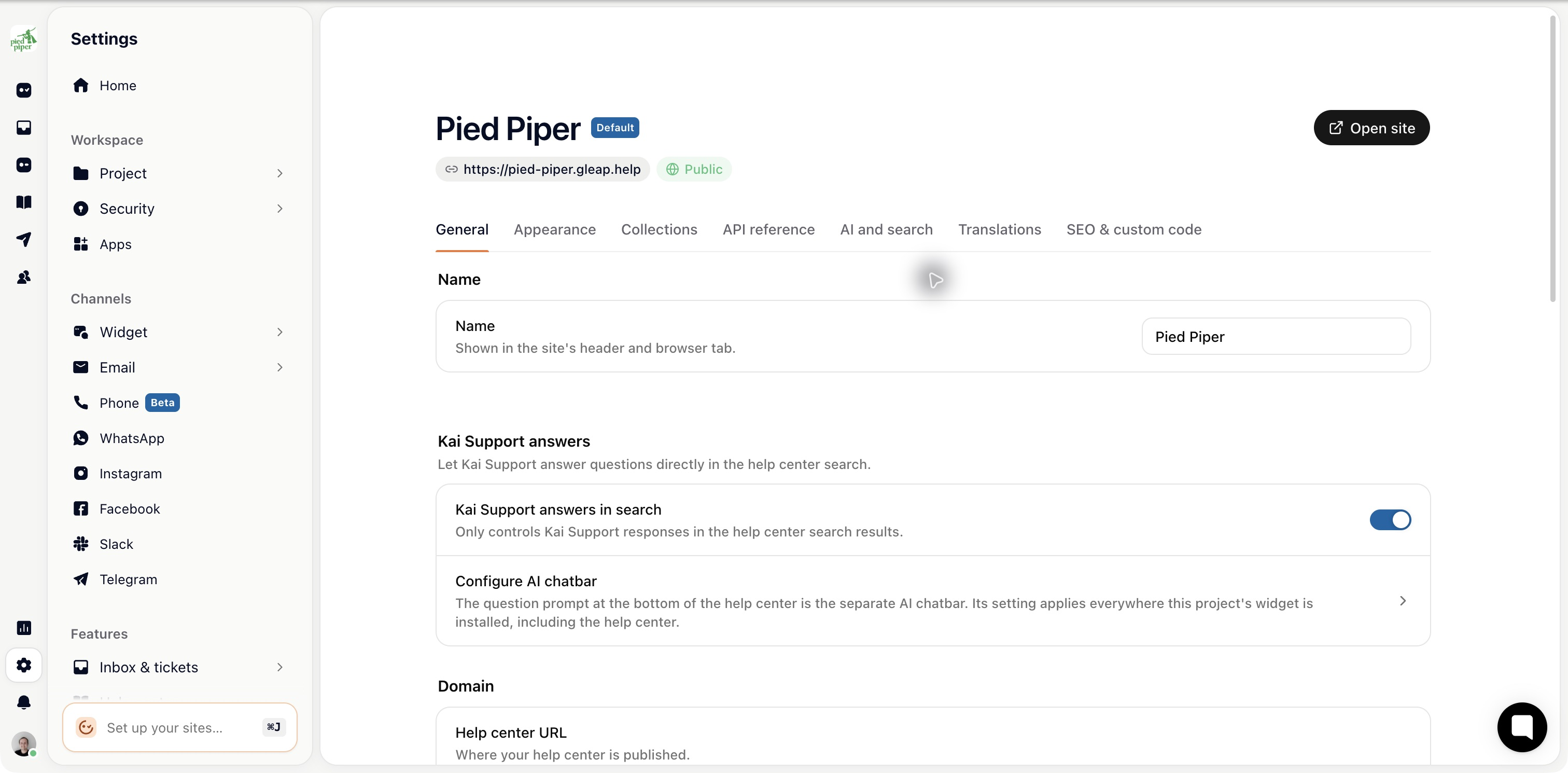
Write articles under Knowledge and configure the site under Settings → Help center. Open Sites, then select the site you want to change. Each site has General, Appearance, Collections, API reference, AI and search, Translations and SEO & custom code tabs.
The help center needs a plan that includes it. Site limits and available access methods are shown in the app.
Open the site’s General tab.
In the domain settings, choose Add domain and enter a subdomain such as help.example.com.
Add the DNS records shown by Gleap at your DNS provider.
Follow the status checks until the domain and certificate are ready.
For records that require DNS-only configuration, follow the instructions shown rather than proxying them through another service. Gleap manages the certificate for the configured domain.
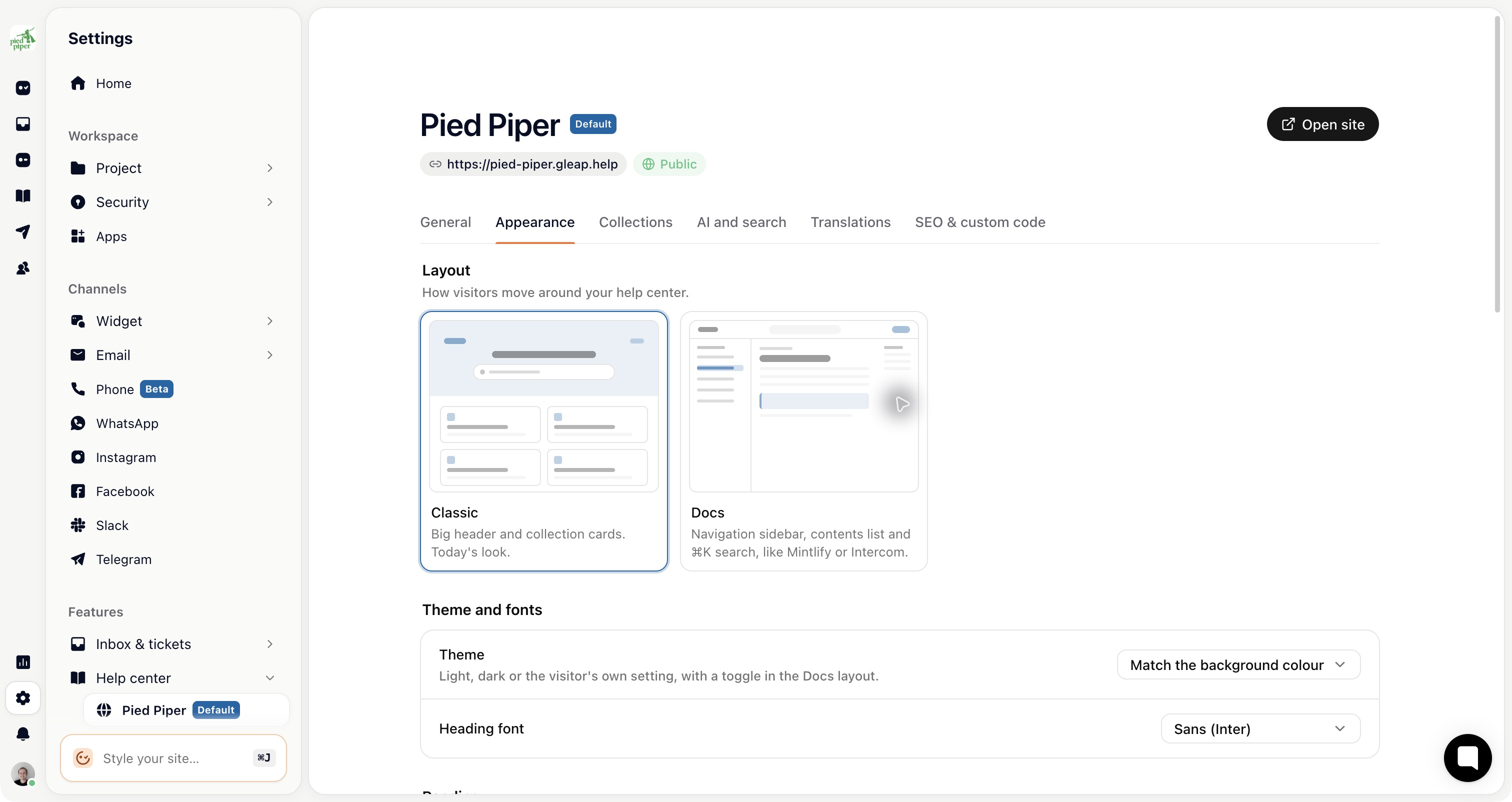
Open Appearance for the layout, theme, colours, fonts, logo and supported header or footer options. The available controls depend on the chosen layout.
Check both a collection and an article after changing the layout. Use the site’s Open site action to inspect the published result.
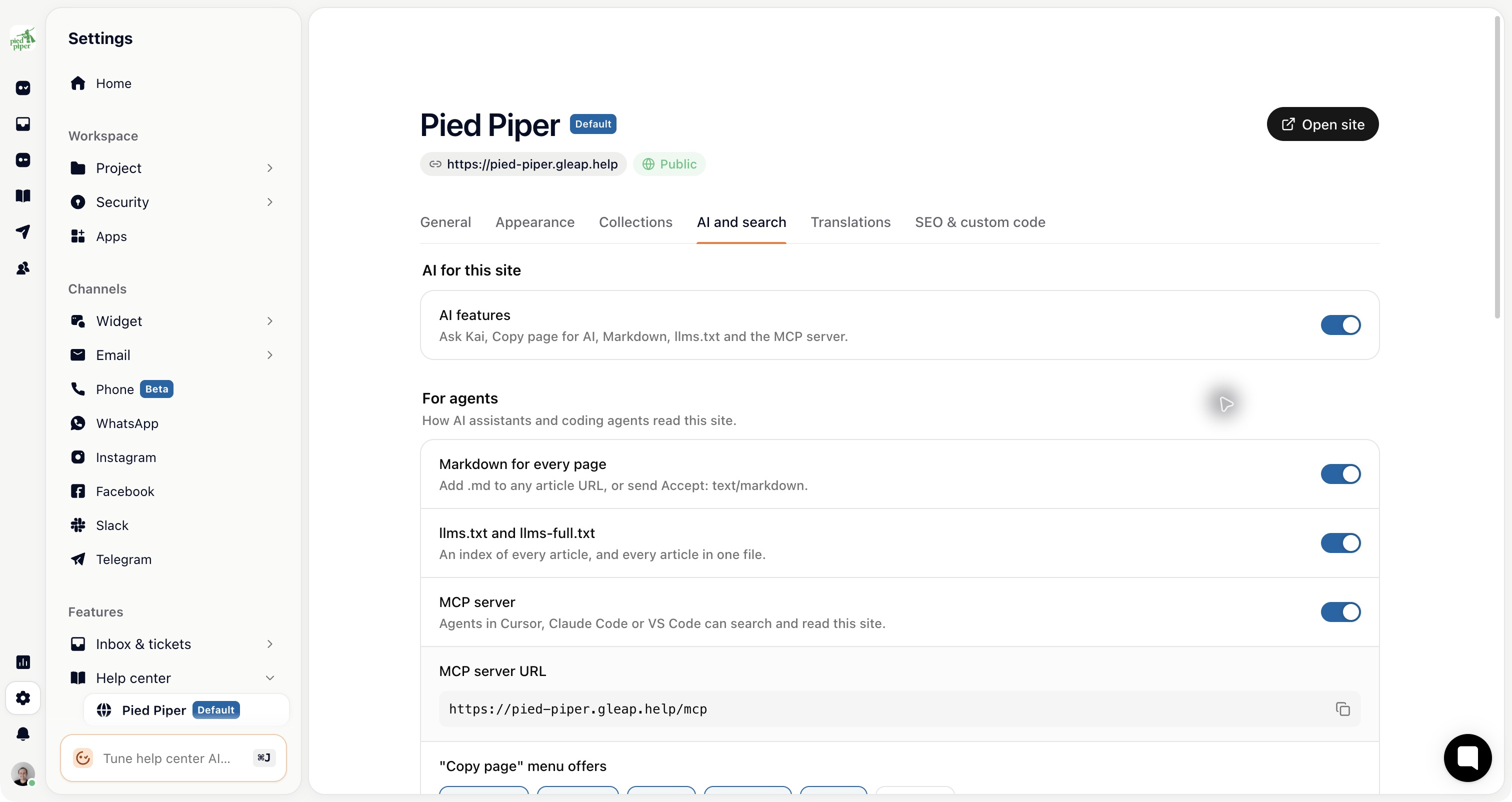
Review the site’s search and AI options, including Kai Support answers in search where available. Configure the AI chatbar under Settings → Widget → AI chatbar; the Sites overview explains the settings shared by all sites.
AI-use settings and the agent’s knowledge scope determine what Kai can answer from. Reader access still applies.
On the site’s General tab, review its Access settings. Depending on the site, options can include public access, a shared password, customer sign-in or team access. Customer sign-in can use the Gleap SDK or single sign-on.
Use article and collection audiences for content that only some readers should see. An internal tag affects AI scope; it does not make a public article private.
See Sign visitors in to your help center for customer sign-in.
Review the site’s display settings for the author, collection navigation, article ratings and copying content for an AI assistant. Controls can be grouped by the selected layout.
For more than one site, check Collections before moving content. A collection belongs to one site; moving it also moves its articles and subcollections.
Use the site’s API reference tab to import an OpenAPI spec and generate endpoint pages with code samples and Try it. See Publish an API reference from OpenAPI for setup and syncing.