
Creating a pipeline takes one dialog. Only one of the choices in it is permanent: what the pipeline tracks.
Open Contacts and choose New pipeline in the Pipelines group. An empty workspace may instead offer Create your first pipeline.
In Name, name it after the process rather than the team: “Enterprise onboarding” rather than “CS board”. It's the only required field.
Under Track, choose Companies or Contacts. The dialog says it plainly: this can't be changed later.
Leave Visible to all users on so everyone with pipelines sees it, or turn it off to keep it to yourself.
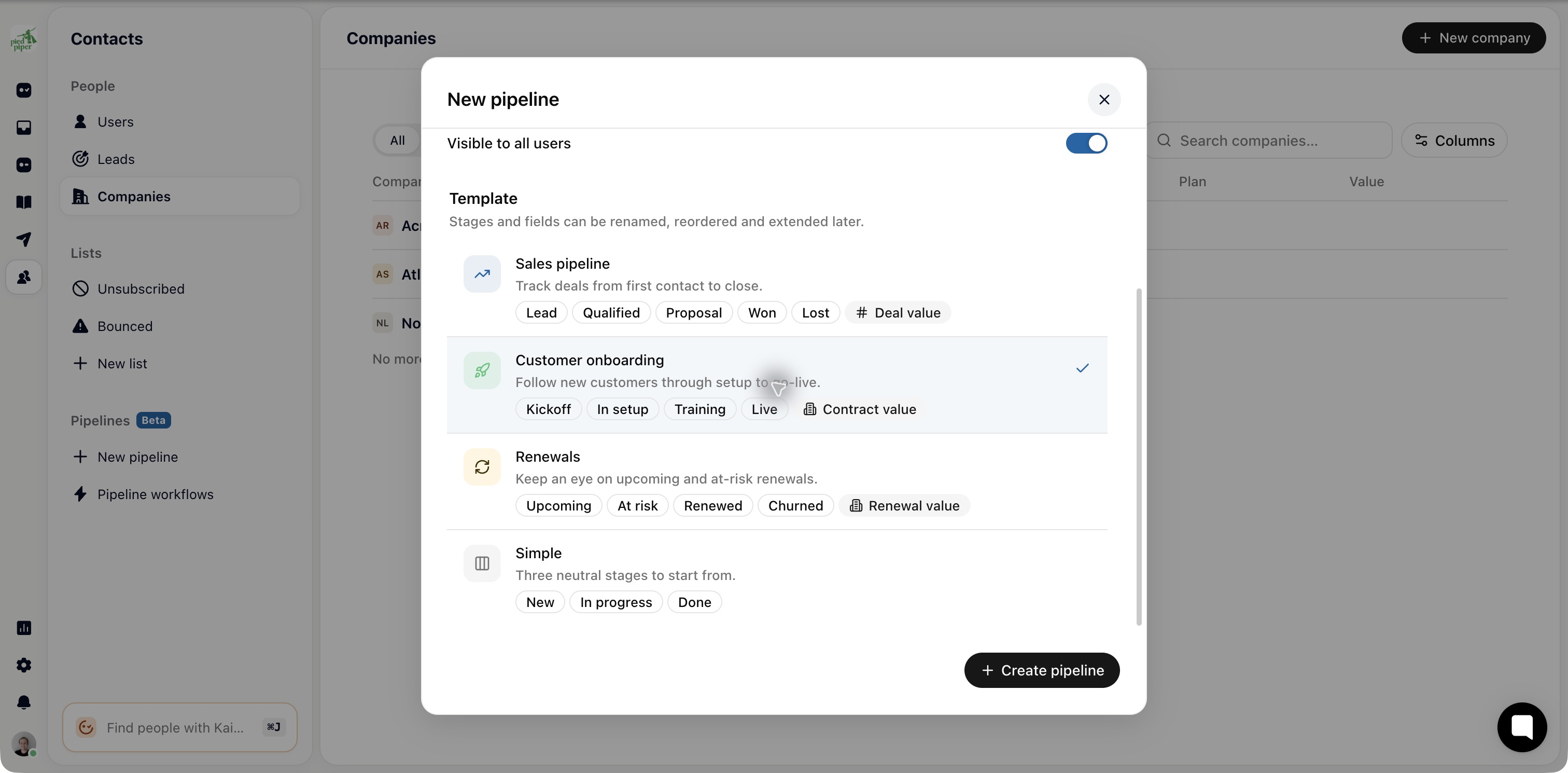
Under Template, pick the closest starting point.
Click Create pipeline.
You land on the new, empty board. Add companies or contacts next; the pipeline stays empty until you do.
Pick by who the process is really about. Onboarding and renewals are usually company-level: the account moves through the stages, not one person. Qualification and outreach are usually contact-level, because you're dealing with an individual who may not have a company recorded at all.

Each template sets the stages and, for three of them, one field:
Sales pipeline: Lead, Qualified, Proposal, Won, Lost. Adds a Deal value field on the entry, in euros, summed per stage.
Customer onboarding: Kickoff, In setup, Training, Live. Adds Contract value, read from the company's or contact's own Value.
Renewals: Upcoming, At risk, Renewed, Churned. Adds Renewal value, also read from the record's Value.
Simple: New, In progress, Done. No fields.
Stages and fields can be renamed, reordered and extended afterwards. When you rename a stage, name it for the state something is in rather than the action you'll take: “Waiting on customer” says where a thing stands, “Follow up” stops being true the moment someone does it.
On, the default, lists the pipeline for everyone in the project who has pipelines. Off keeps it to you. You can change this later in the pipeline's settings, and it's the first thing to check when a colleague says your new pipeline doesn't appear for them.
