Sometimes the reply is ready and the moment isn't. Scheduling lets you write it now and have it go out at a time you choose. It works for replies to the customer; internal notes are always posted straight away.
Write the reply as usual.
Click the arrow beside Send and choose Schedule send.
Pick one of the suggested times, such as Tomorrow or Next Monday, or choose your own date and time within the next 30 days.
The reply appears in the thread as scheduled, with its send time, until it goes out.
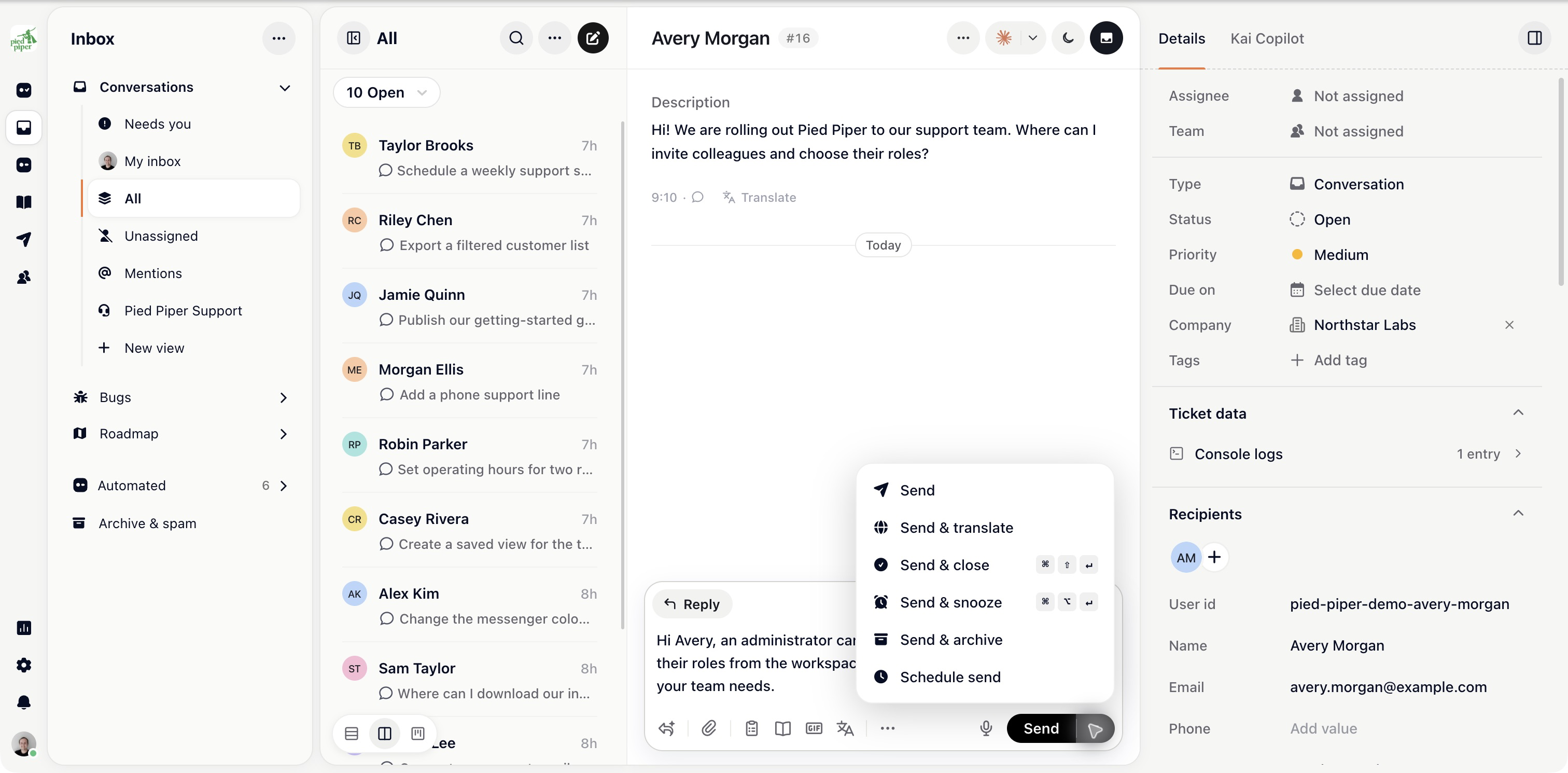
Scheduling never becomes what the send button does by default, however often you use it. So you can't schedule a reply by accident.
Find the scheduled reply in the thread.
Click Edit to pull it back into the composer, change it, and schedule it again.
Click Delete to cancel it. Its content is restored to the composer, so nothing you wrote is lost.
Across time zones: a reply written at 22:00 your time arriving at 09:00 theirs reads as attentive instead of nocturnal.
After a late fix: you deployed at midnight; the customer doesn't need to know that.
Before a planned change: write the follow-up while the detail is fresh, send it when it becomes true.
Clearing a backlog: thirty answers can go out spread over the morning instead of as thirty notifications at once.

A scheduled reply is written against what you knew when you wrote it. If the customer writes again in the meantime, or someone else picks up the conversation, it still goes out as drafted unless someone edits or deletes it.
For anything that might change, such as an incident in progress or a decision awaiting approval, snoozing the conversation and writing later is safer than scheduling something that may be wrong by the time it arrives.

