Every support team answers the same twenty questions most of the time. A macro saves that answer once, and a good one does more than paste text: it can carry attachments and run the steps that always go with that reply. Saved replies (once called message templates) are called macros in Gleap.
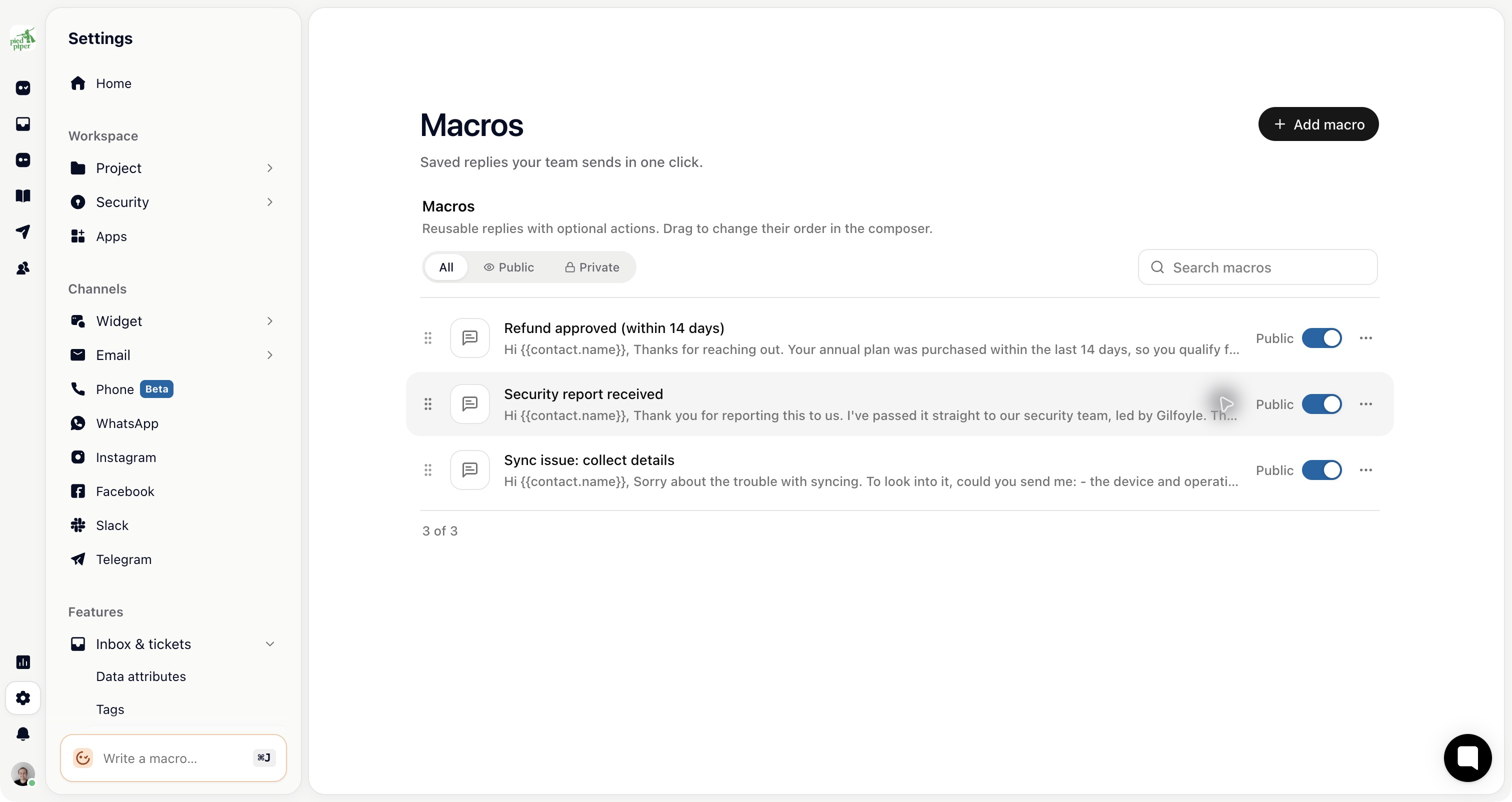
Go to Settings → Inbox & tickets → Macros and click Add macro. The New macro dialog opens.
Give it a Name you'll recognise while typing quickly. The name is what you search for, so "Refund: outside 30 days" beats "Refund 2".
Write the reply in Content. Type / to add variables, such as the agent name or email, where the text should adapt. That keeps a macro personal without anyone editing it each time.
Under Actions, add the steps that should run when the macro is used (see below).
Optionally add Attachments (images, documents, video, audio and PDF up to 8 MB), Tags, and limits.
Click Create macro. The macro now appears in the composer's macro picker.
In the composer, open the macro picker or press Cmd+Shift+E (Mac) or Ctrl+Shift+E (Windows and Linux), then search for the macro by name. Its text lands in the composer, and its actions run when you use it.
A macro's Actions run automatically when it's used: apply a tag, set the status to Open or Done, close or archive the ticket, wait for the customer's reply and then archive, or run a workflow.
This is the part most teams don't set up and then wish they had. If every "we've passed this to engineering" reply is followed by the same tag and the same workflow, put those in the macro and they stop being forgotten on a busy afternoon.
Limit to teams and Limit to ticket types keep a billing team from scrolling past technical macros to reach theirs.
Tags let agents filter the macro list while they reply.
Visible to all users shares a macro with the team; off keeps it private to you.
Personal macros are underrated. Something you use daily and nobody else needs is better kept out of the shared list, and twelve good shared macros are worth more than sixty nobody can find their way through. Teammates who can't open the settings can still keep personal macros with Add personal macro in the composer's macro list.

Macros go stale exactly like help articles, and more quietly: nobody reviews them, because they're not published anywhere. When a price, a policy or a screen changes, the macros mentioning it need the same pass as your documentation.

