Kai Support can answer on every channel Gleap supports: the messenger in your product, email, WhatsApp, Instagram, Facebook, Telegram and Slack. Its settings are the same everywhere. What changes is which channels its workflow runs on. On Starter, Kai Support answers in the widget only; the other channels come with Team and up.
A channel has to be connected before Kai can answer on it:
Email: forward your support address under Settings → Email → Email forwarding. See Forward your support address to Gleap.
WhatsApp, Instagram, Facebook, Slack and Telegram: connect them from Settings → Apps → Add app, or open the channel directly in Settings.
Open AI agents → Kai Support → Settings → Channels.
Open Channels and scroll to Channels.
Switch on the channel groups Kai should answer: Website & app widget, Email, Social & messaging (WhatsApp, Instagram, Facebook, Telegram and Slack).
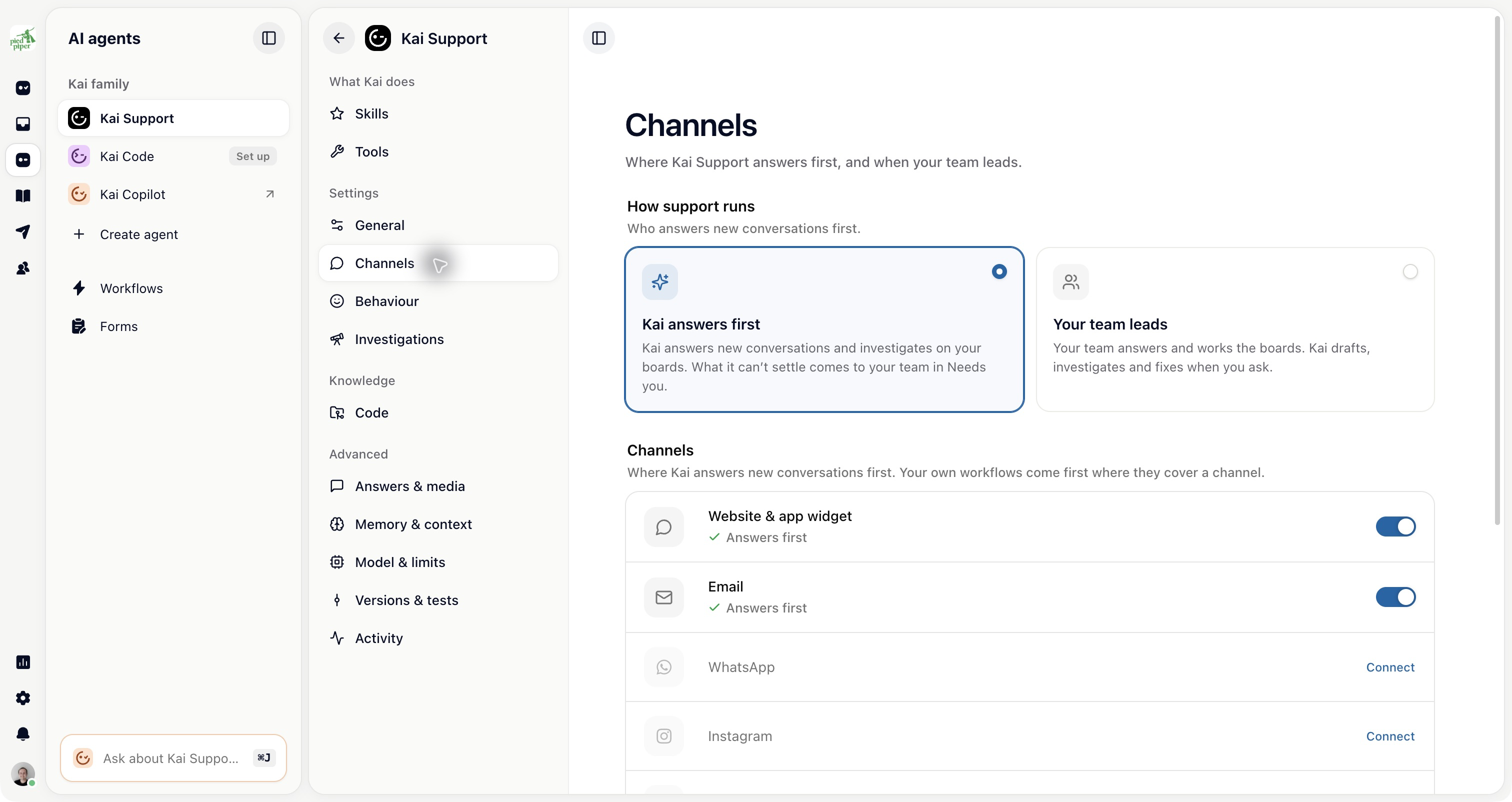
Changes save straight away. At least one channel stays on. If a channel isn't connected yet, the note under the switches says so, and Kai starts answering there as soon as you connect it.
These switches change the workflow that starts Kai Support, named at the top of the section. Open workflow takes you there.
To have different workflows on different channels, set it on the workflow itself:
Go to AI agents → Workflows and open the workflow with the Let Kai Support answer step.
Select the trigger at the top of the workflow.
Under Platform, switch on each channel this workflow should cover.
Click Publish changes (or Publish for a new workflow), then send a test message on each channel.

With two WhatsApp numbers or several Facebook pages, you may want Kai on one and not the other. When more than one account of a type is connected, a list appears under Platform where you pick the specific accounts. With only one connected, the list stays hidden. Leaving them all unselected means every connected account of that type, which is also what happens to workflows built before you added the second account.
People write differently on WhatsApp than in a support email, and answers that read well in the messenger can feel long in a chat app. Revisit Answer length on Kai Support's Behaviour page once you've read a few real conversations from each channel.
On WhatsApp you may only write freely for 24 hours after the customer's last message. After that, a reply needs an approved template, for your team and for Kai alike. See WhatsApp message templates and when you need them.