You probably already have an address customers write to. Rather than asking them to change habits, you forward that address into Gleap, and the emails arrive as tickets alongside everything else. The email inbox is available on Team and up. Project admins set it up.
Go to Settings → Email → Email forwarding.
Under General email inbox, copy the Inbox address. That's your project's forwarding address.
At your mail provider (Google Workspace, Microsoft 365 or whoever hosts your domain), forward everything that arrives at your support address to the Inbox address. This part happens outside Gleap.
Send a test email (see below).
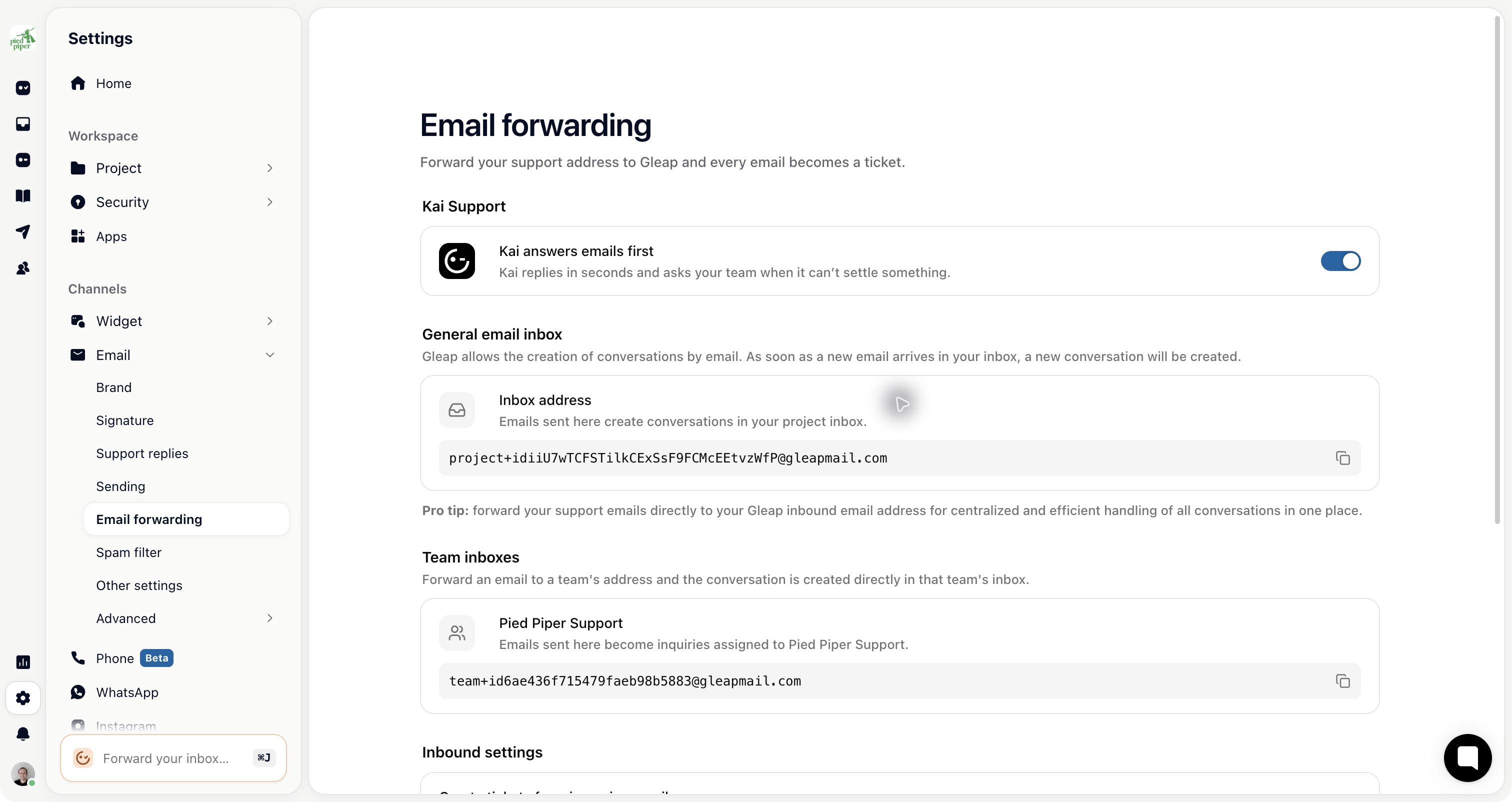
Each team also has its own address under Team inboxes. Mail sent there becomes a ticket assigned to that team.
Create tickets from incoming emails, at the top of the page, is on by default. While it's off, Gleap discards incoming mail on arrival instead of creating tickets, including replies to existing email tickets. Nothing is kept to deliver later.
When your mail provider forwards an email, the customer's address stays in the From line. Gleap makes that address the contact, so the ticket belongs to the customer and your replies go back to them. If the email has a Reply-To address, Gleap uses that one instead.
A teammate who forwards a customer's email into Gleap by hand is a different case: the email now comes from the teammate, so by default the teammate becomes the contact. Turn on Use the original sender of forwarded emails as the contact and Gleap reads the From line of the forwarded message and makes the original sender the contact instead. Your replies then go to the customer, and an internal note records who forwarded the email.
This only applies to emails that start a new ticket and are forwarded from the email address of a Gleap account in your project or organisation. Forwards from anyone else are handled as normal emails. If Gleap can't find the original sender in the forwarded text, the teammate stays the contact.

Default language: Gleap detects the language of incoming emails. When it can't, it uses this one.
Link email contacts to companies by domain: a contact who writes from a company's domain is added to that company. Free email providers never match, and contacts who already have a company keep it.
Send an email to your support address from an outside account, such as a personal address. That way you see exactly what a customer sees.
Check three things: the ticket appears, the contact is the person who wrote rather than your support address, and your reply reaches them. The third is the one people forget to test, and it's the one customers notice.
If you turned on the original-sender setting, also forward a customer's email from your Gleap account's address and check that the customer, not you, is the contact.
Forwarding covers mail coming in. Replies going out come from a Gleap address until you verify your own domain under Settings → Email → Sending. Do it at the same time: customers who wrote to your support address expect an answer from it.