Until you verify a domain, replies go out from a Gleap address. Verifying lets them come from yours, which customers recognise and spam filters treat far better. Sending from your own domain is available on Team and up. Project admins set it up.
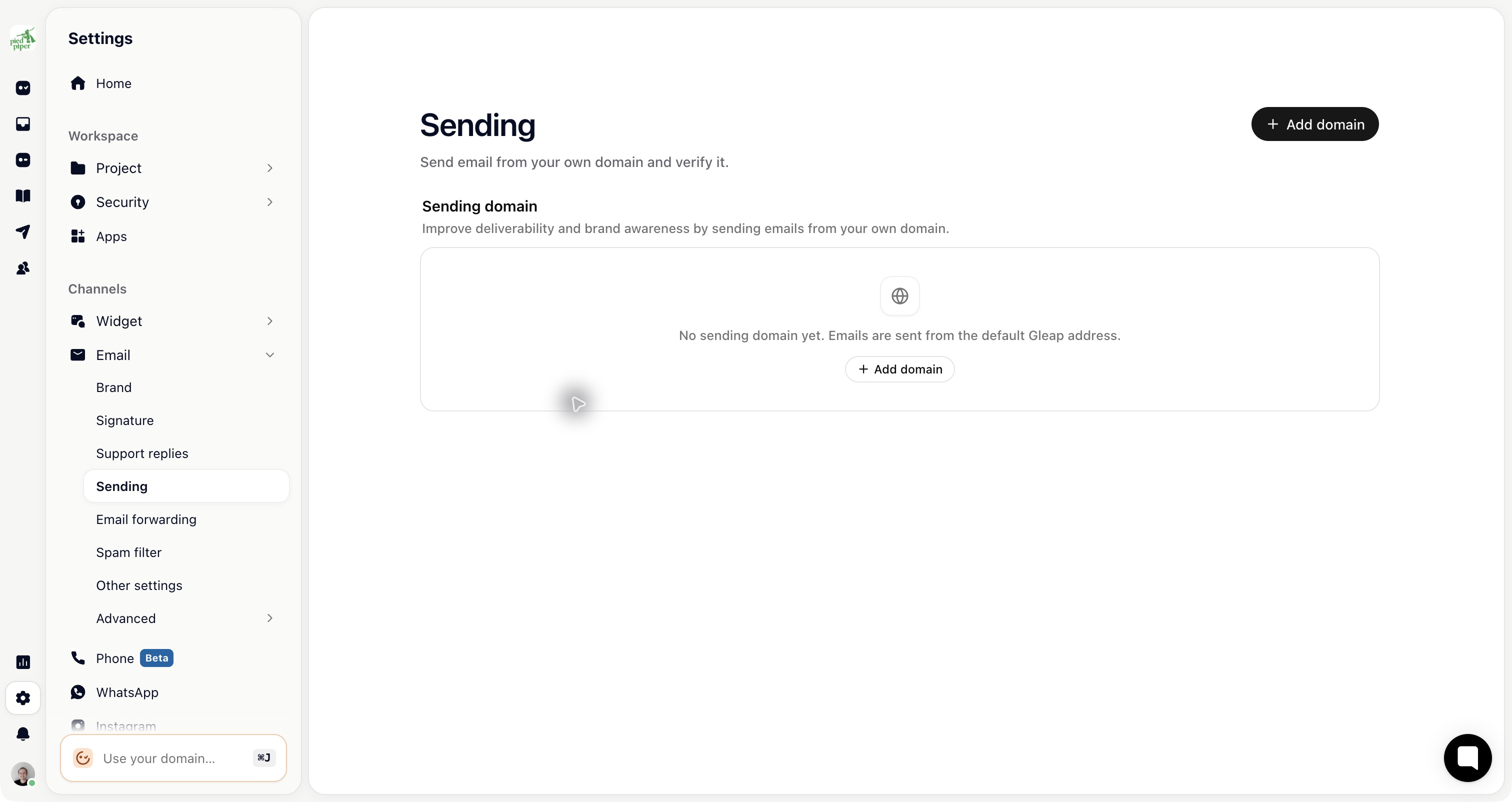
Go to Settings → Email → Sending and click Add domain.
Enter the domain without http://, for example example.com.
At whoever hosts your DNS, add the two records shown under DNS records: a DKIM TXT record and a Return-Path CNAME. Use the copy buttons and add them exactly as shown.
Come back to the page. Each record shows Pending until it's found, then Verified.
Together the two records prove the domain is yours and let receiving servers check that mail really came from you.

DNS changes can take up to 48 hours to be visible, though it's usually much quicker. If it hasn't verified after a day, check the records for a trailing dot or a domain suffix that your DNS provider added twice before assuming it's still propagating.
Once the domain is verified, set the Sender name and Sender email under Default sender. That's what customers see in their inbox, so use something they'd expect: your product name rather than an internal team name.
By default, replies go to a Gleap reply-to address, so every answer lands back in your inbox automatically. Under Custom reply-to email you can switch on Use sender email as reply-to address and enter your own address instead. That only works if the address forwards to your Gleap inbox; otherwise replies won't show up in Gleap.
With Use personal email alias for sending (under Email alias mapping) switched on, each teammate's replies are sent from their own alias on your domain, with their name as the sender name. Customers see a message from a named person rather than from support@, which reads as more personal.
The alias is the part before the @ in the teammate's Gleap login email, so it only makes sense if those addresses genuinely exist on your domain. It works best on small teams where the same person tends to see a case through.
Send yourself a reply from a ticket and open it at a couple of providers, ideally a Gmail address and an Outlook one. Confirm it arrives in the inbox rather than in spam, that the sender name reads correctly, and that replying to it comes back into Gleap.

