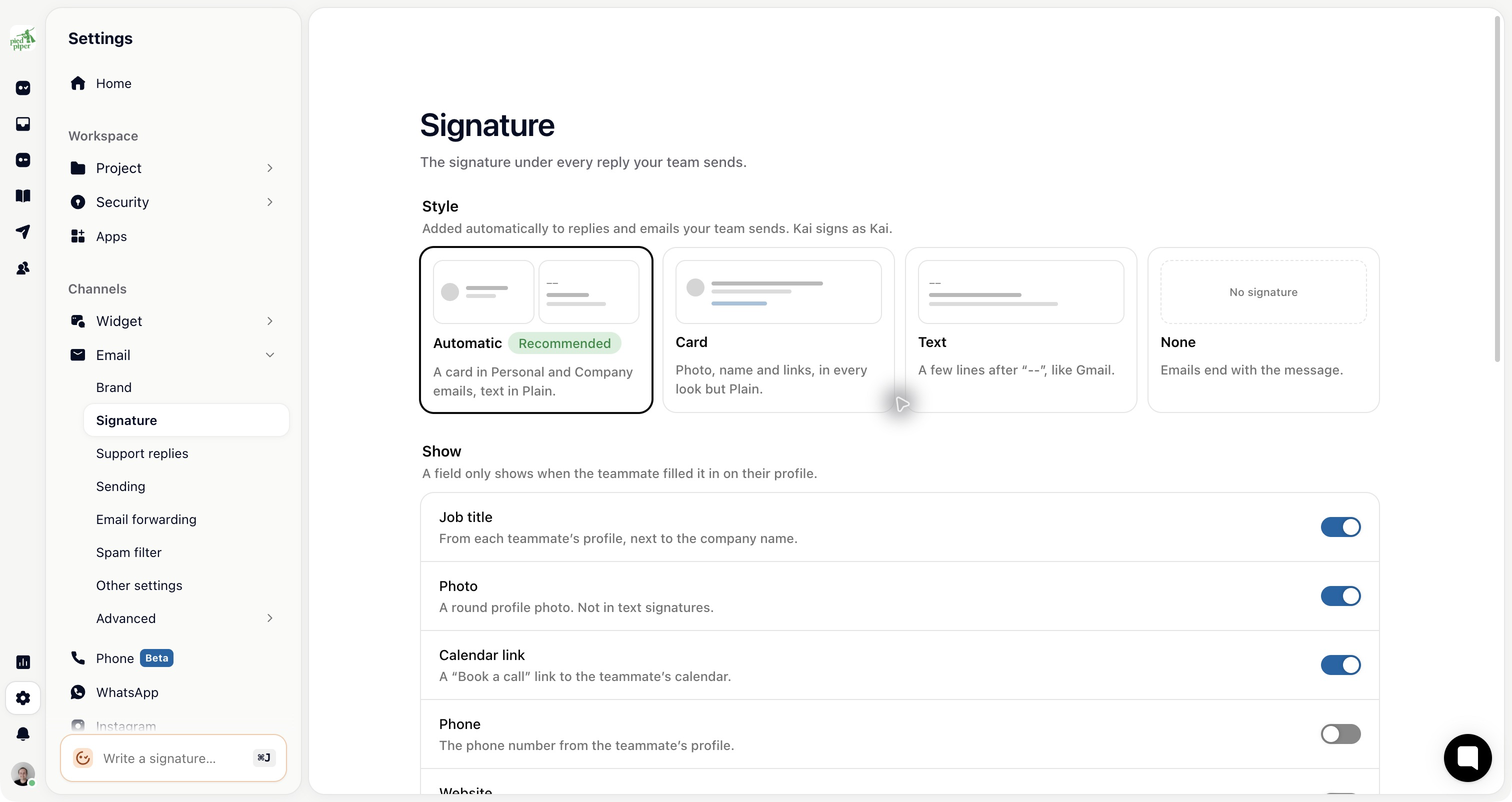
A signature is built once for the whole team and filled in per person when an email goes out. Nobody maintains their own, and everything stays consistent when someone changes job title. It's added automatically to replies and emails your team sends. Replies from Kai are signed as Kai. Project admins set it up.
Go to Settings → Email → Signature.
Under Style, pick Automatic, Card, Text, None or Custom HTML.
For Automatic, Card and Text, choose under Show which profile fields appear.
Check the Preview. Pick someone in the Teammate menu to see the signature as them.
Changes save as you make them.
Go to Settings → Email → Advanced → Custom HTML signatures and create a signature.
Write the layout once, with placeholders where each person's details belong (see below).
Go back to Settings → Email → Signature and pick it under Style → Custom HTML.
For the person sending the message:
{{user.firstName}}, {{user.lastName}}, {{user.jobTitle}}, {{user.department}}
{{user.email}}, {{user.phone}}, {{user.photo}}
{{user.calendarLink}}, {{user.socialLink}} and {{user.otherLink}}: for booking a call or linking a profile.
And for the organisation: {{company}} and {{companyLogo}}.

Assume some fields will be empty. A signature that depends on a phone number looks broken for the half of your team who don't have one on file, so put optional details on their own line rather than in the middle of a sentence.
Keep it short. A signature repeats on every message in a thread, and four lines that were charming the first time are tiresome by the fifth reply. Name, role, company: anything beyond that should earn its place.
The Preview can show the signature as any teammate, and the custom HTML editor fills the placeholders from your own profile. Before you rely on it, still send a real reply from a teammate's account. The email shows what happens when someone's job title is longer than you expected, or when a photo is missing.

