When Gleap emails a reply, your message is placed inside a layout. For most teams the built-in looks are enough. If you want full control, you can write your own HTML template and assign it per ticket type. Project admins set this up.
Go to Settings → Email → Support replies.
Under Look, choose one:
Personal: reads like one person replying, with the teammate's photo and signature.
Plain: looks hand-typed, like an email from Gmail. No images or colours.
Custom HTML: uses your own reply email template.
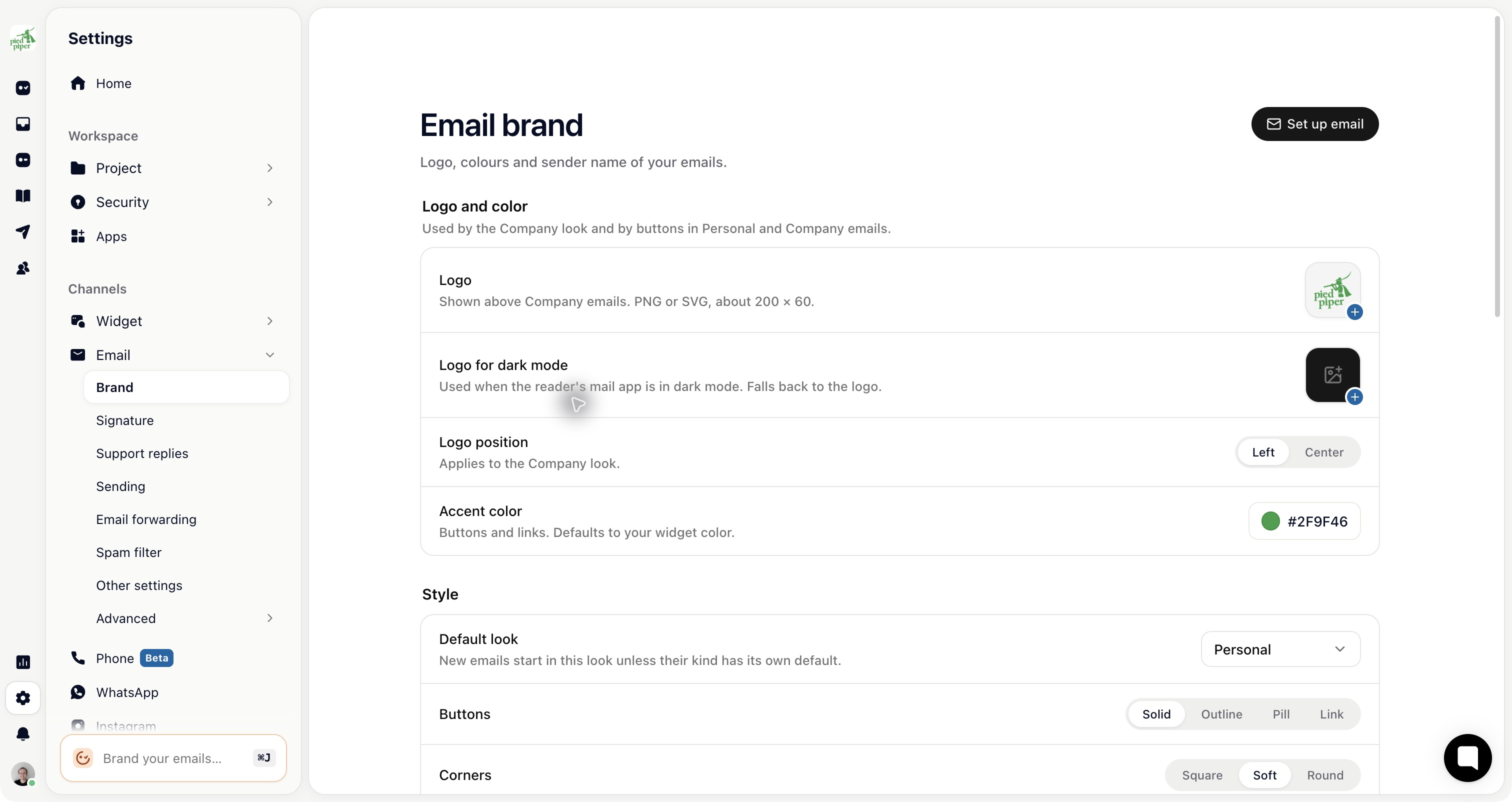
Changes save straight away. Sample reply at the bottom of the page shows how the email will look; with Custom HTML it links to your template instead. Your brand colour, set under Settings → Email → Brand, is used for buttons in Personal emails.
Go to Settings → Email → Support replies and set Look to Custom HTML.
Click Reply email template per ticket type. On the page that opens, pick a template for each ticket type, such as Bug, Inquiry and Roadmap. Built-in look keeps Gleap's layout for that type. This covers the replies your team and Kai send.
Back on Support replies, under Request received confirmation, click Confirmation text per ticket type to set the email confirming a ticket was received.
To edit a template or add your own, go to Settings → Email → Advanced → Custom HTML templates.
Replies and confirmations are kept apart because they do different jobs. A reply should look like a message from a person; a receipt is a notification, and can carry more structure without feeling cold.
A template is HTML with placeholders filled in at send time. The important one is {{{htmlContent}}}, the actual message, in triple braces so its HTML isn't escaped. Remove it, and your emails go out beautifully styled and completely empty. The editor warns you when it's missing.
The others let the template adapt to the message and to your branding:
{{title}}: the ticket's title.
{{color}} and {{contrastColor}}: your brand colour and a readable colour to put on top of it, so buttons stay legible whichever colour you choose.
{{profileImageUrl}} and {{name}}, inside the {{#user}} block: the photo and name of whoever is writing, which is what makes a reply feel like it came from a person. {{projectName}} in the same block adds your project's name.
{{bugRef}}: the ticket's internal ID. The default template puts it on a GLEAPID: line that helps match email replies to the right ticket, so keep that line.
{{unsubscribeLink}} and {{unsubscribeText}}: filled in on mail that carries an unsubscribe option, such as changelog emails, and empty on replies.
{{{signature "slug"}}}: places one of your custom HTML signatures. The editor lists the exact line for each one.

Email clients are unforgiving. Layout techniques that work in a browser fall apart in Outlook, so keep changes conservative: swap colours, add your logo, adjust spacing. Rebuilding the structure is where templates usually break.
Test in more than one client before you rely on a change. The same template renders differently in Gmail, Outlook and Apple Mail, and dark mode is where most surprises live: a logo with a white background can end up as a bright rectangle in an otherwise dark email.
Saved replies for the inbox are called Macros, and WhatsApp has its own message templates. See Where are message templates? They're called macros now.

