Kai Support is the AI agent that answers your customers. One rule explains most of its behaviour: it answers only from content it retrieves from your knowledge sources at the moment of asking. It doesn't answer from what the underlying model learned in training, and it doesn't treat its own earlier replies as facts. Kai Support is on every plan.
For each new factual question, Kai searches your knowledge sources again, even when the same topic came up earlier in the conversation. An answer it gave three messages ago might have been incomplete, so reusing it would repeat the mistake.
A single turn is limited to three searches. For a question with several parts, Kai searches each part once and may rephrase a search once if it comes back empty. Then it answers the parts it can support and says what it couldn't find. This limit keeps Kai from searching for a long time and then saying nothing useful.

Four narrow cases: greetings and thanks, questions about who it is, closing messages when someone says they're done, and asking for a detail it needs before it can act. Everything else goes through a search first.
It never fills the gap with a guess. What happens instead depends on the question and on the Let Kai Support answer step in your workflow:
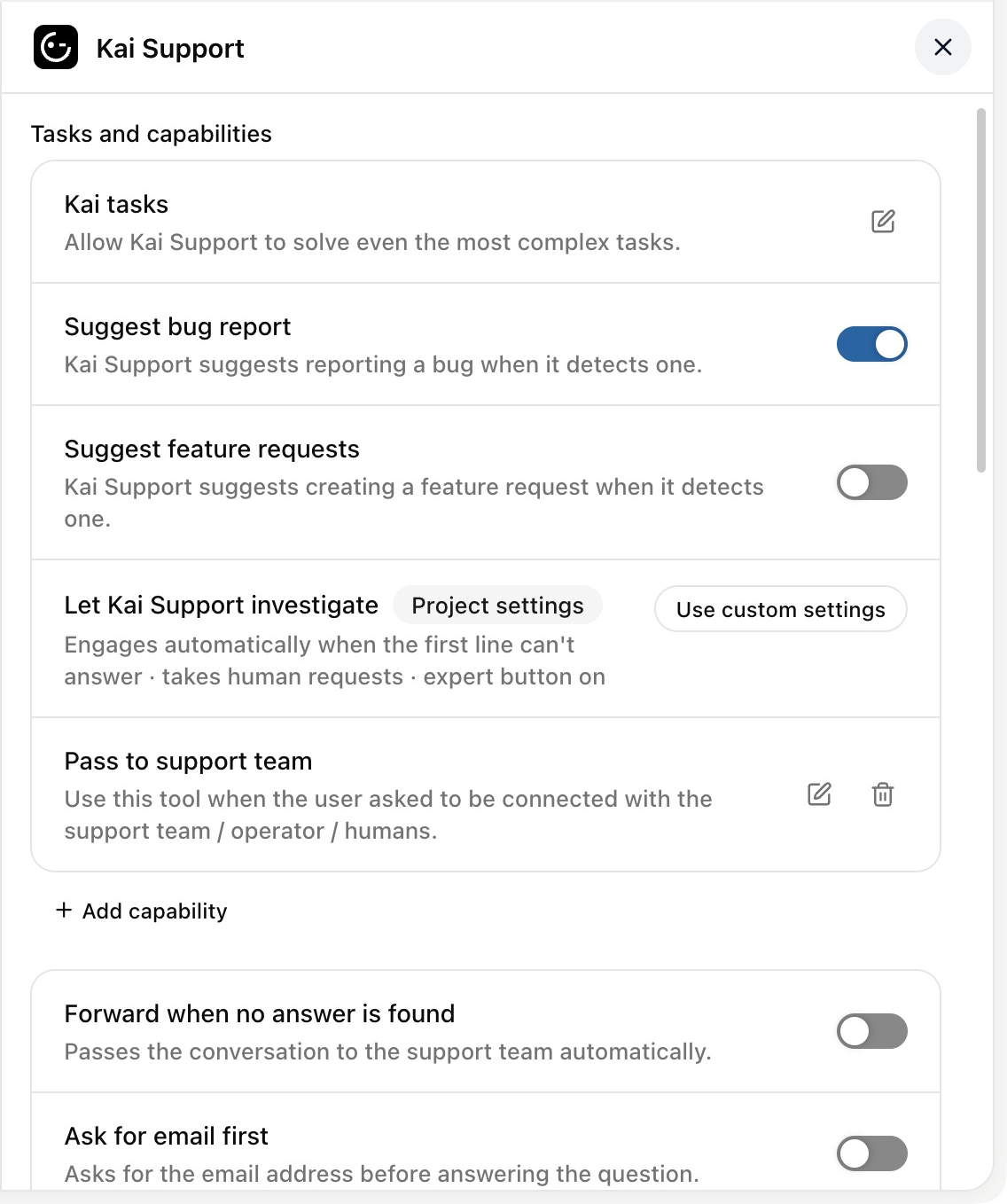
The question describes a bug. Kai offers a button to report it, pre-filled with a summary. This is on unless you switch off Suggest bug report.
It's a feature request, or asks whether something exists. Kai offers to submit a feature request. This is off unless you switch on Suggest feature requests, and it needs a plan with the roadmap (Team and up).
It's support, billing, account, order, refund or cancellation work Kai can't resolve, or the person asks for a human. Kai hands the conversation to your team, but only once you've set up a handover (below). If Kai Support investigations is on, it looks first, see Kai Support investigations: a second level of support before your team.
Otherwise, Kai says it doesn't have that information. When a handover is set up and your team could help, it offers to connect the customer with your team.

Go to AI agents → Workflows and open the workflow that greets your customers.
Select the Let Kai Support answer step.
Switch on Automatically forward the conversation to the support team if no answer was found.
Optional: under Tasks & capabilities, click + to add a Pass to support team capability. Kai uses it when a customer asks for a person or the matter needs your team.
Click Publish changes at the top of the workflow.
The details of when Kai hands over are in Let Kai hand a conversation to your team.
When Show sources is on, Kai links the articles it used beneath its reply. Customers can open a source and read it in full, and you can check where an answer came from when it looks wrong. It's on by default. Change it under AI agents → Kai Support → Settings → Answers & media.
The model affects phrasing and cost, not what Kai is allowed to say: the grounding rule above applies on every model. See Choose which model Kai uses.
Kai doesn't reveal its instructions, its configuration or the names of the tools it can call. If someone tries to talk it into acting as a developer or administrator, or asks it to print its own instructions, it declines and offers to help with a normal question instead.