Tags are short labels such as "Bug", "Billing" or "VIP". You use them to filter the inbox, route conversations with workflows and see trends in reports. Creating, renaming and deleting tags needs the Manage tags permission. Adding tags to tickets needs Apply tags.
Gleap has three kinds of tags, each on its own tab:
Ticket tags label tickets so you can filter, route and report on them.
Contact tags segment contacts and companies for targeting and outreach.
Content tags decide which snippets, articles and website pages Kai Support uses in a given situation.
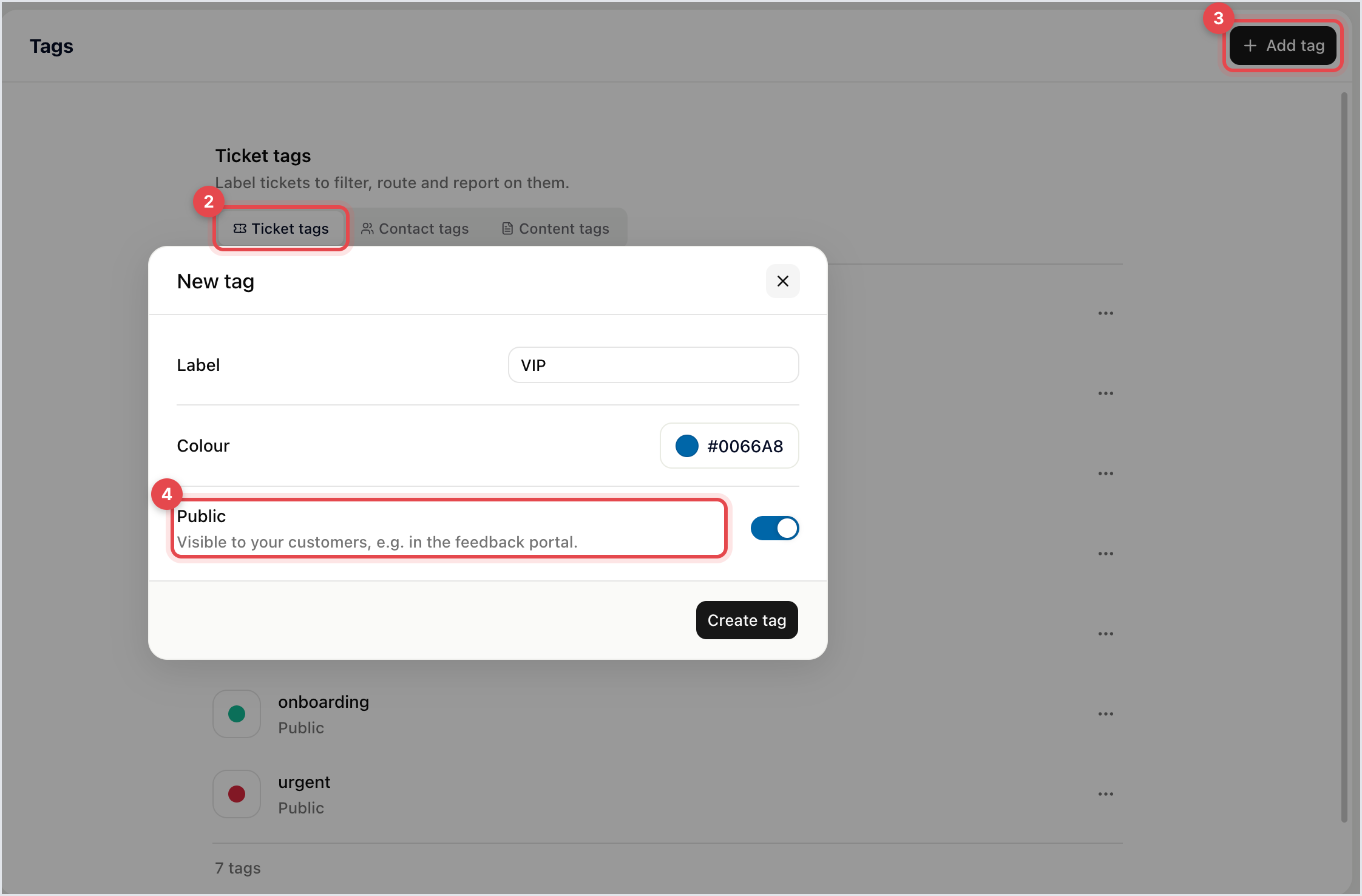
Go to Settings → Inbox → Tags.
Pick the tab: Ticket tags, Contact tags or Content tags.
Click Add tag (or Add contact tag, Add content tag).
Enter a Label, choose a Colour, and decide whether the tag is Public. Public tags are visible to your customers, for example in the feedback portal.
Click Create tag.
The tag appears in the list with its colour and shows whether it's public or private.
Go to Settings → Inbox → Tags and open the right tab.
Click the tag, or open its row menu and choose Edit.
Change the label or colour and click Save. To remove the tag, click Delete and confirm.
Renaming a ticket tag renames it on every ticket that carries it. Deleting a ticket tag removes it from every ticket. Renaming or deleting a content tag does the same on the snippets, articles and website pages that carry it.

In a ticket: use the tag field in the ticket's sidebar (Add tag). If you have Manage tags, you can type a new label to create a tag on the spot.
With the keyboard: press Shift+T in a ticket, search for the tag and select it. You can toggle several tags in a row.
Several at once: select conversations in the inbox list, open the bulk actions menu in the bar that shows how many you selected, choose Tag and pick the tag. Gleap asks you to confirm, then adds the tag to every selected ticket.
To tag conversations without anyone lifting a finger, use a workflow. See the related articles below.
Filter the inbox: add the Tag filter to narrow the list, then save it as a view.
Reports: Reports → Tickets has a New tickets by tag chart. It shows the 25 most used tags, and tickets without a tag aren't counted in it.
Workflows and targeting: conditions can check whether a ticket or contact has a tag.

