Gleap connects the conversations customers start, the work your team does and the AI that helps with both. Each project has its own inbox, widget, knowledge and settings. An organisation holds your people and billing.
The main navigation has eight areas. Hover over the navigation to see its labels, or use Pin navigation to keep them visible. Which areas appear depends on your role and plan.
Ask questions about your workspace, get help setting up Gleap and ask Kai to do work with your connected tools. Its sidebar holds your chats, Routines, Artifacts and Settings. In a new workspace, this area can be called Onboarding while setup is running.
Roadmap work previously called Kai PM is now part of Kai Copilot. Its Roadmap & changelog settings control feature-request decisions, release notes, newsletters and updates to requesters.
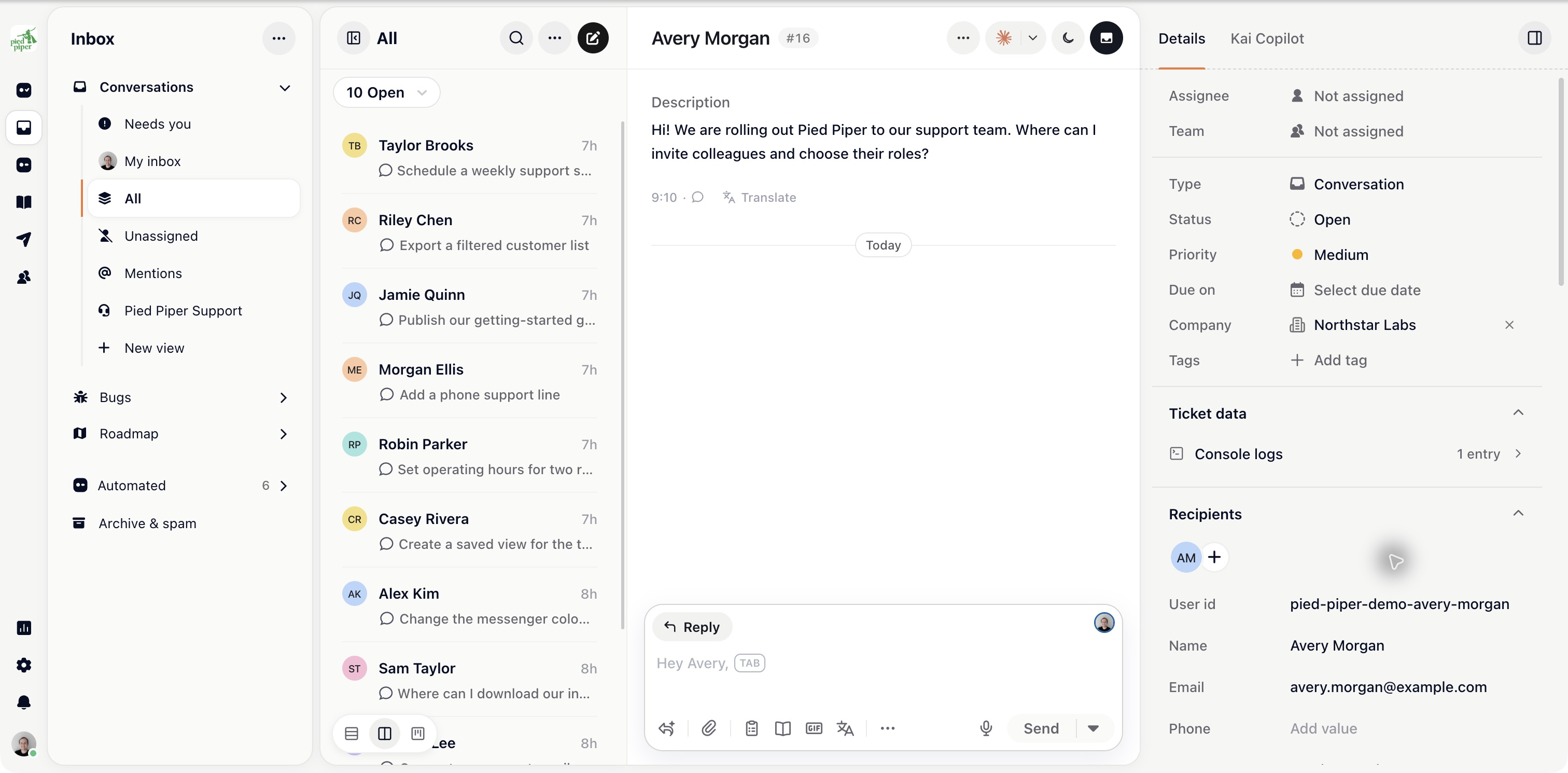
All ticket work lives here. Conversations holds customer conversations. Bugs, Roadmap and any custom boards appear in the same sidebar. Automated separates conversations currently handled by workflows or AI, and Archive & spam holds archived work.
Open a conversation to reply, leave a note, check customer details or ask an AI agent for help. See How the inbox works.
Open Kai Support, Kai Code or your custom agents here. Workflows and Forms also live in this area.
Kai Support answers customers and can investigate harder cases. Its Investigations settings replace the separate Kai Resolve setup. Kai Code works in your repositories and prepares changes for review. Custom agents can work for your team or talk to customers.
Write and organise help articles under Collections and Articles. The same area holds the other sources Kai reads: snippets, websites, files, news and changelogs, code repositories, Notion and YouTube. Improve turns solved conversations into knowledge suggestions.
Start a message or guide customers through your product: surveys, News, Changelog, emails, chat messages, sequences, push, WhatsApp, banners, checklists, tours, tooltips and info cards. Each item has its own audience and delivery settings.
Look up people and Companies, save lists and work with Pipelines. A contact or company page brings together its conversations, attributes, notes and other account context.
Review support performance, AI results, calls, customer ratings, article usage and other reports. You can also create report pages, subject to your plan and permissions.
Use Home to search for a setting. Groups include Project, Security, Apps, Widget, Email, Phone, Inbox & tickets, Help center, Feedback portal and Developer.
Connected services are under Apps, previously called Connectors. Widget settings are grouped into Install, Look, Content and Conversations, with AI chatbar alongside them.

