Gleap accounts have no password. There's nothing to forget, nothing to reuse from another site, and nothing to steal from a breach somewhere else. Instead there are four ways in, and which one applies depends on how your account is set up.
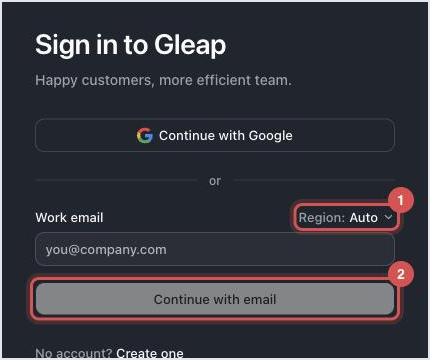
This is the default.
Enter your work email and click Continue with email.
Check your inbox for a six-digit code.
Type the code in.
The next screen says a code is on its way if an account exists for that email. It doesn't confirm whether an account exists. If you picked a specific data region next to the email field and there's no account with that email in it, the form says so: choose Auto or the other region.
If the code doesn't arrive, check your spam folder, and check that you used the address you were invited with rather than an alias.
A passkey signs you in with what already unlocks your device: Face ID, a fingerprint or your laptop's PIN. It's the strongest option, because there's no code to intercept and nothing that can be phished.
Open your profile menu (your avatar) and choose Profile.
Go to 2FA and click Add passkey.
Give it a recognisable name, like "My iPhone", and confirm on your device.

Two habits avoid that. Register a passkey on each device you actually use. And when you're on a device without one, choose to use a phone or tablet in your browser's passkey prompt. Your phone approves the sign-in, and you can then add a passkey for that device.
Continue with Google uses your Google account. It's convenient if your company already runs on Google Workspace, and the account's security follows whatever you've set up there.
On the Enterprise plan, organisations can connect their own identity provider. People then sign in through the SSO login link their admin shares, and someone signing in for the first time joins automatically with a default role, as long as there's a free seat. Set up single sign-on explains the setup.
For a small team: email codes are fine, and passkeys are better on the machines people work on daily.
For a company with an identity provider: SSO, so people sign in with the account they already use for everything else, and new colleagues join without an invite. Removing someone from your identity provider doesn't remove them from Gleap, so remove them in Gleap as well.
If email codes don't arrive, an administrator in your organisation can check which address you were invited with. If you lost the only device with your passkey, nobody in your organisation can remove it for you: write to us from your account's email address and we'll help.

