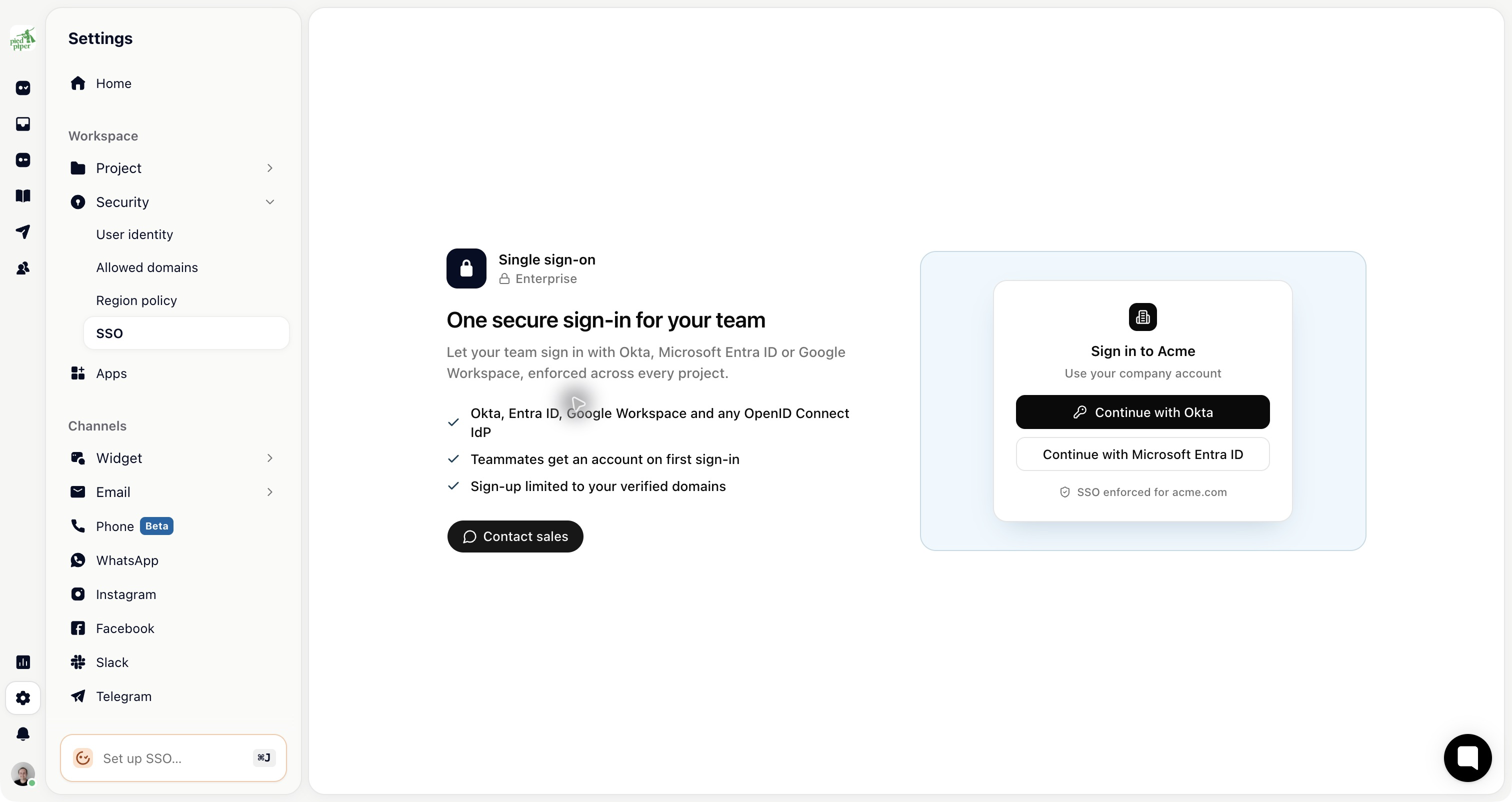
With single sign-on (SSO), your team signs in through your own identity provider. Access follows the accounts your IT team already manages, so somebody leaving the company loses Gleap along with everything else. SSO is part of the Enterprise plan; on other plans the SSO page shows an upgrade card. Only organisation administrators can set it up.

In your identity provider, create an OIDC application and keep its Issuer URL, Client ID and Client secret to hand. You'll register Gleap's redirect URI there in step 2. If your organisation isn't on Enterprise, SSO configuration shows an Enterprise badge and Contact sales instead of the form.
Open your profile menu (your avatar), choose Organizations, then SSO configuration.
Copy the Redirect URI under Provider and register it in your identity provider's OIDC application exactly as shown. A mismatch here is the most common reason a first attempt fails, and providers reject it rather than explaining.
Pick a Provider template: Google Workspace, Azure AD, Okta or Custom. It fills in the issuer URL for the common providers.
Enter the Issuer URL, the Client ID and the Client secret.
Check the Scope. openid email profile covers it; without email, Gleap can't tell who is signing in.
Under Access, add your Allowed email domains. Leave it empty and any domain your provider authenticates is accepted, so set it to your own domains unless you have a reason not to.
Pick the Default role: the role every new person signing in through SSO gets.
Turn on Enable SSO.
Changes save as you go. Once SSO is on, the page shows the SSO login URL. That's the link to give your team, or to put behind your provider's app launcher: people arrive already authenticated, without going through the normal login screen.

The page above signs people into your whole organisation. A project can also have its own SSO under Settings → Security → SSO, with the same fields, a project role as the default and its own login URL. Use it when one project, and only that project, should be reached through a particular identity provider.
Before you tell the team, sign in through the SSO login URL as somebody who isn't you, ideally in a private window. That's what confirms the redirect URI, the allowed domains and the default role are right. Testing with your own already-signed-in session proves nothing.
Most failures are one of three things: the redirect URI doesn't match, the scope is missing email, or the person's address is on a domain you didn't allow. A person who would need a new seat when none is free is refused too.
The error your provider shows is usually more specific than the one Gleap can display, so read that first.