Gleap uses a handful of keys and IDs, and they're easy to mix up. This page lists each one, where it lives in the dashboard and what it's for. Every value belongs to one project, so open the right project first. The REST API keys and the identity verification secret are on pages only project admins can open. REST API keys need the Team plan or higher.
What | Where | Used for |
|---|---|---|
API key (the SDK key) | Settings → Widget → Installation, then Install myself | Initialising the Gleap SDK in your website or app |
REST API keys | Settings → Developer → API keys | Calling the Gleap REST API from your server |
Project ID | Settings → Developer → API keys, under Project | The |
Identity verification secret | Settings → Security → User identity | Computing the user hash on your server, and the Segment destination |
MCP server URL | Settings → Developer → MCP server | Connecting Claude, Cursor, ChatGPT and other AI tools |
The dashboard calls it the API key on the installation page. Every SDK is initialised with it, for example Gleap.initialize("YOUR_SDK_KEY") on the web. It identifies the project, not a user, so it's fine for it to sit in your website or app code.
Go to Settings → Widget → Installation.
Choose Install myself.
Copy the key from the API key card, or pick your platform below it to get a setup snippet with the key already filled in.
REST API keys belong to service accounts. Requests made with a key act as that service account, and its name shows next to everything it does.
Go to Settings → Developer → API keys.
Click Generate API key.
Give the service account a Name, and optionally an Avatar.
Click Create service account.
The new key appears in the list with a copy button. Under Project on the same page you'll find the Project ID, and, if your workspace can use more than one data region, a Data region row with the API host to call.
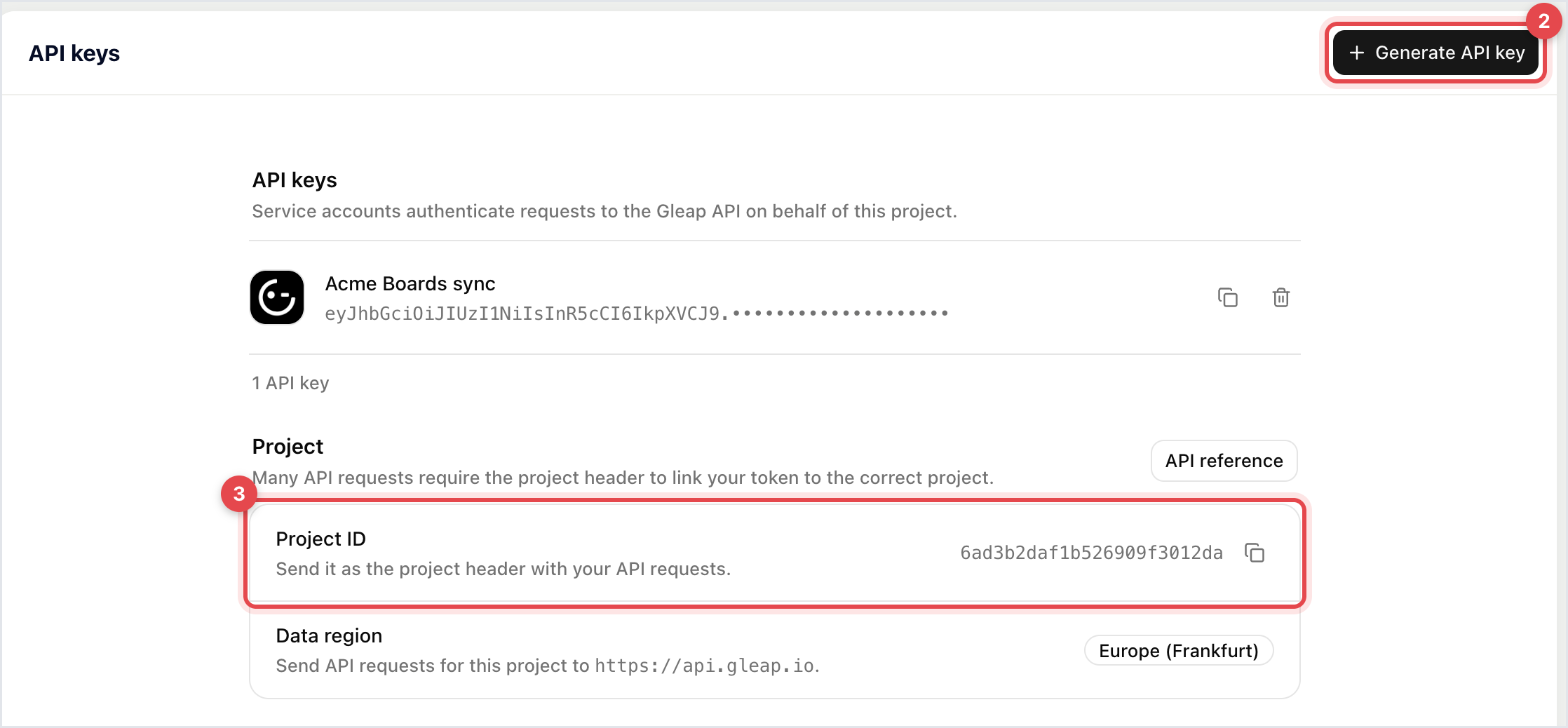
Send both values with every request:
curl https://api.gleap.io/v3/tickets \
  -H "Authorization: Bearer YOUR_API_KEY" \
  -H "Project: YOUR_PROJECT_ID"
Projects in the US region call https://api.us.gleap.ai instead. A key only works in its own project's region. The project ID is also the part of the dashboard address that follows /projects/.

With identity verification on, your server signs each logged-in user's ID with this secret and passes the resulting user hash to the SDK, so nobody can pose as one of your users.
Go to Settings → Security → User identity.
Under Identity verification secret, click Show secret and copy it.
The page itself reminds you that this is not your API key. The Segment destination authenticates with this secret too.
Every project member can open Settings → Developer → MCP server. The Server URL is the same for all projects in a region. AI tools that support sign-in connect with just the URL: you pick the project when you sign in, and the tool acts with your role. For a client without sign-in support, the page shows two headers to send instead, an API key and the project ID. The key then acts as its service account. See Connect an AI assistant with the Gleap MCP server.

