A trigger decides when a workflow starts by itself: a new ticket, a customer who went quiet, a finished survey. Here is every trigger, how Gleap picks a workflow when several match, and a recipe for closing inactive chats. Workflows are on every plan.
You set the trigger on the card at the top of the workflow builder. A new workflow shows When started manually. Click the card and pick from the Trigger list.
On ticket created: a new ticket arrives. It also fires when someone changes a ticket's type, unless you switch on Trigger workflow ONLY on new ticket creation. Pick the ticket type Automation to run the workflow from the very first message of a new chat.
On ticket reopened: a closed ticket is opened again.
On ticket closed: a ticket is closed, for example to ask for a rating.
On ticket status update: a ticket moves to another status. Pick a ticket type, then a status, to narrow it.
On ticket due date: the start of the ticket's due day. Changing the due date reschedules the run. Closed and archived tickets are skipped.
On conversation started is a legacy trigger. Existing workflows keep it; new ones use On ticket created with the type Automation.
On no customer response (after agent message): your team replied and the customer didn't answer in time. The countdown restarts with every teammate message and stops when the customer replies.
On no agent reply: the customer wrote and nobody from your team or Kai answered in time.
Both ask how long to wait, in minutes, hours or days. Only send during office hours holds the run until your next opening time, and Only send outside office hours until your next closing time. Office hours come from the assigned team, or from the project.
On customer comment: the customer sends a message.
On agent comment: a teammate replies to the customer.
On agent note: a teammate adds an internal note.
On AI question: a customer asks a question in the AI chatbar on your website. Start such a workflow with Let Kai Support answer.
AI based trigger: used by AI tasks. You describe when Kai Support should use the task, and Kai starts it when a conversation fits.
On entry added to pipeline and On stage changed: belong to pipeline automations, which you build in the pipeline's Workflows tab. Choose the pipeline and, for a stage change, the stage.
On survey completed: belongs to survey automations. It runs once per finished response to the survey you pick, or to Any survey.
Choose No automatic trigger for a workflow that only starts when something starts it:
the Pass to workflow step in another workflow,
Run workflow in a conversation (Cmd+Shift+B on a Mac, Ctrl+Shift+B on Windows),
your own code, with Gleap.startBot("<workflow id>") (see Manually start this workflow in the builder).
Conversation triggers also have a Platform filter (Widget, Email, WhatsApp and the other channels) and an Audience: All people, Users only or Leads only, plus optional conditions. A workflow starts only when all of them match.
Gleap sorts each conversation workflow into one of two kinds, based on its steps:
Customer-facing workflows talk to the customer: messages, questions, hand-overs. A conversation runs one at a time.
Background workflows only use behind-the-scenes steps such as tags, assignment, status, notes, waits and webhooks. Every matching background workflow runs, alongside the customer-facing one.
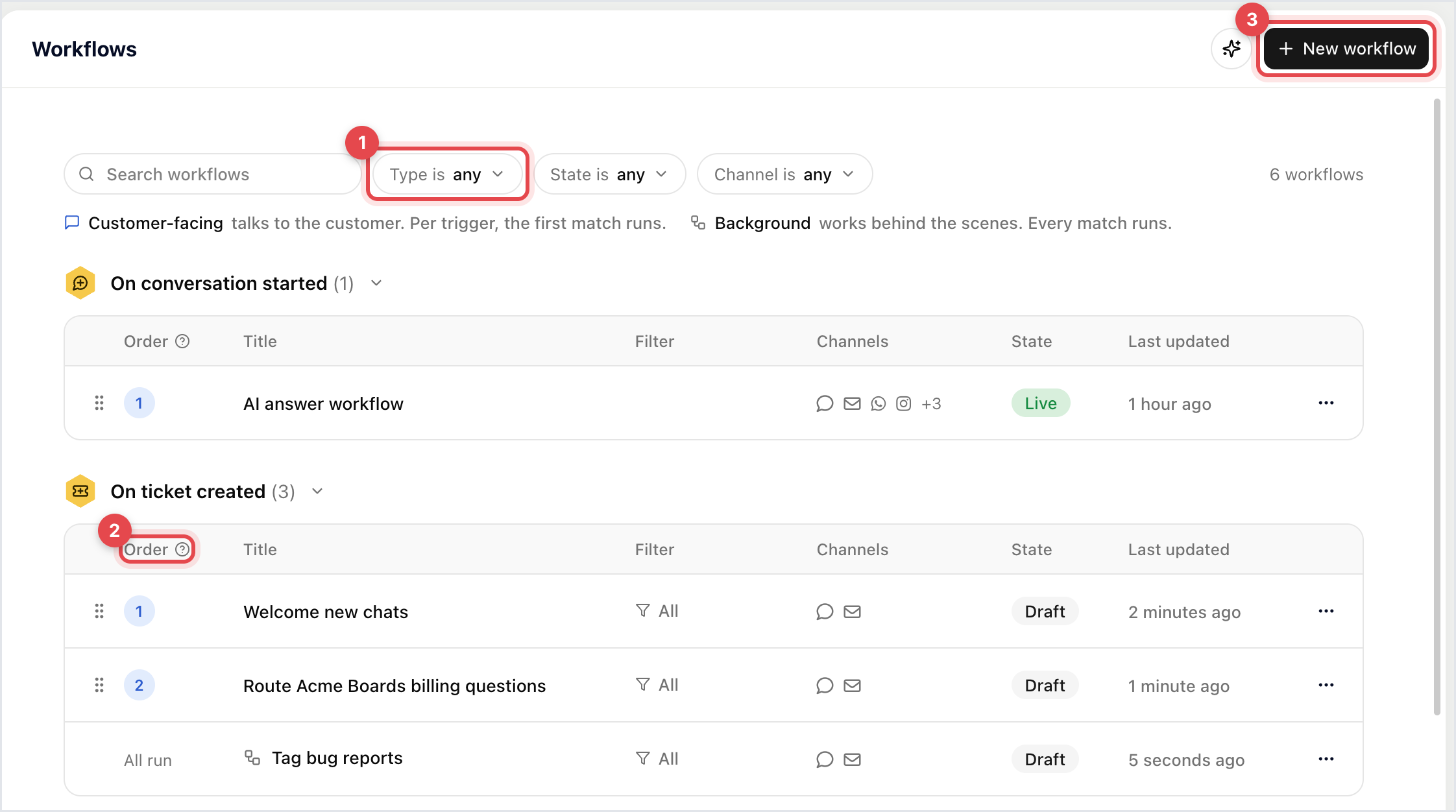
Adding a step that talks to the customer turns a background workflow into a customer-facing one, and the step picker warns you first. The list's Type filter shows one kind at a time.
For each trigger, only the first matching customer-facing workflow runs. The workflow list groups workflows by trigger and shows their place in the Order column. Drag a row, or use Move up and Move down in its menu, to change it. On a tie, the older workflow wins.

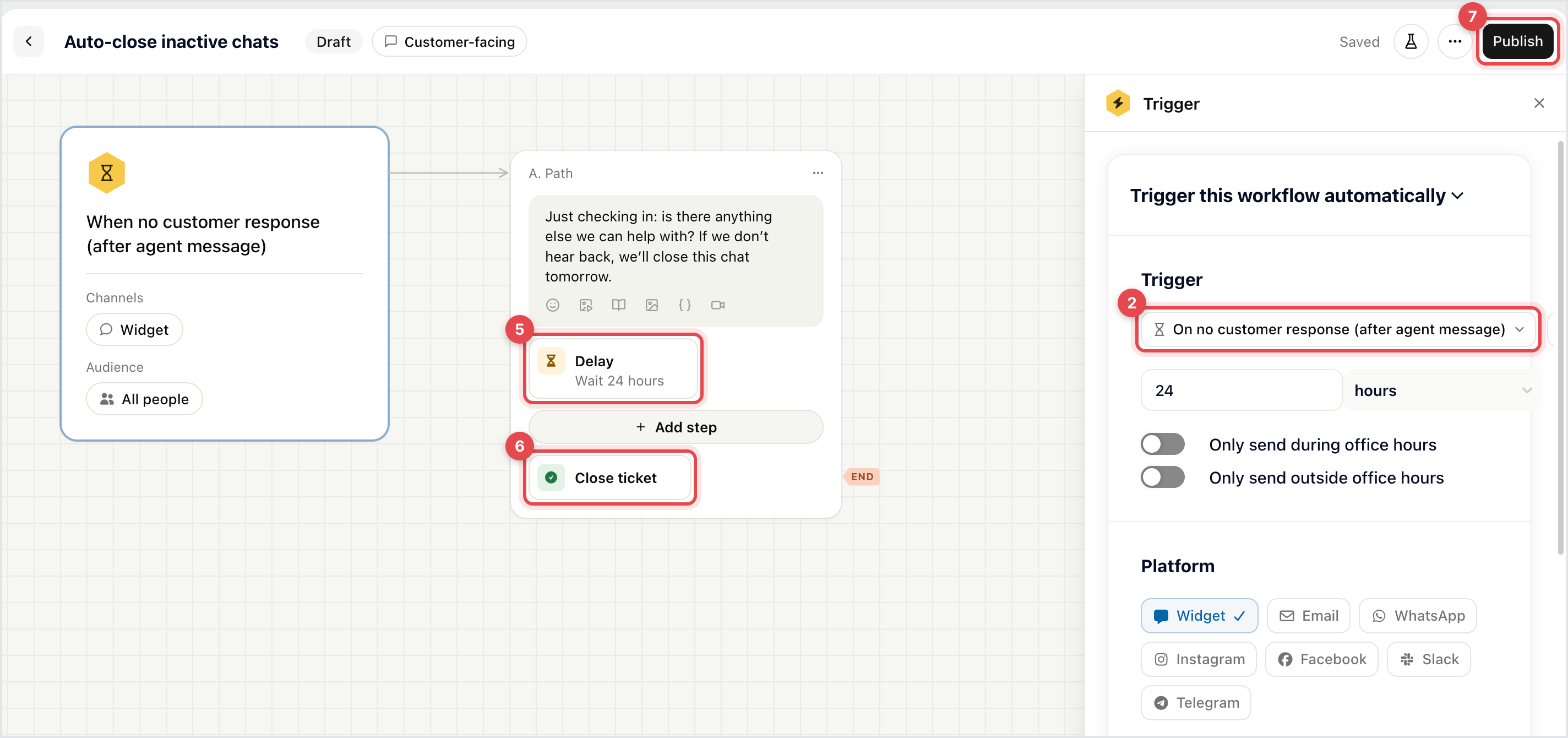
This workflow nudges a customer who stopped replying, then closes the chat a day later.
Go to AI & Automation → Agents → Workflows, click New workflow and choose Conversation workflow.
Click the trigger card and choose On no customer response (after agent message). Enter 24 and choose hours.
Under Platform, keep only the channels you want, for example Widget.
Click Add step, choose Write a message and write something like "Are you still there? We'll close this chat tomorrow if we don't hear from you."
Add a Wait step and set it to 24 Hours. On the canvas the step shows as Delay.
Add a Close ticket step. Switch on Close conversation for user if the customer shouldn't be able to reply in the widget afterwards.
Click Publish.
Now a customer who stays silent for a day after your team's last reply gets the reminder, and the chat closes a day later. If they reply during the wait, the workflow stops and the conversation stays with your team.