This article is for whoever runs your help center site. It covers adding languages and translating articles, which language a reader lands on, how search engines and AI assistants see your articles, and the redirects Gleap handles for you. The help center is available on the Team plan and up.
Go to Help center → Settings → Translations.
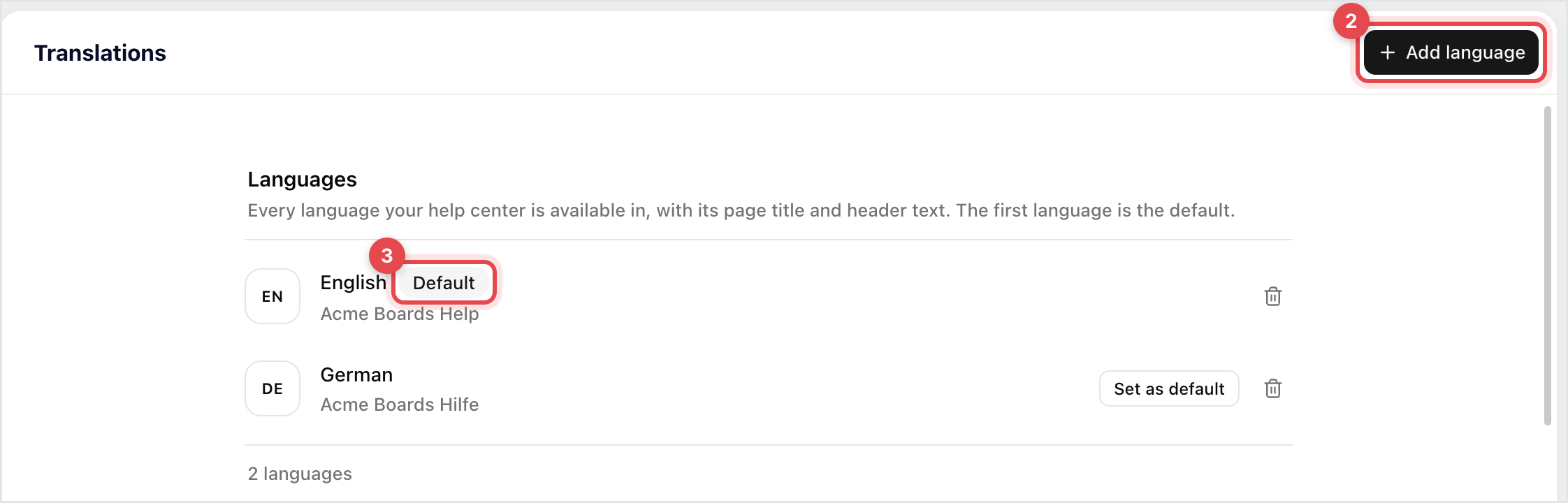
Click Add language.
Pick the Language, then fill in the Page title (the browser title of the help center) and the Header text (shown in the header of the start page).
Click Add language.
The language appears in the Languages list. The first language is the default, marked Default. To change it, click Set as default on another language. Below the list, Translations lets you override the built-in texts, such as the search placeholder and the rating prompt, for each language.
Go to Help center → Articles and open an article.
Next to the language menu, click the Translate button (the magic wand). On an article that already has translations it's called Update translations.
Check the Source language, choose the Target languages (or Select all) and click Translate.
Kai translates the title, description and content into each language. Switch languages in the language menu to review them. On a published article, the translations go live when you click Publish changes. You can also translate an article from its row menu in a collection by choosing Translate.
The start page sends readers to the language their browser uses, if your help center has it. Otherwise they get the default language.
Links without a language, such as an article link starting with /articles/, open in the reader's preferred language in the same way.
The language switcher appears in the header once you have more than one language. Switching keeps the reader on the same page.
Every article is a static page that search engines can read. The page title is the article title followed by your project name, and the search result text is the article's description. That's why the description field under the title is required. The start page uses the Page title and Header text of each language.
Go to Help center → Settings → SEO & custom code.
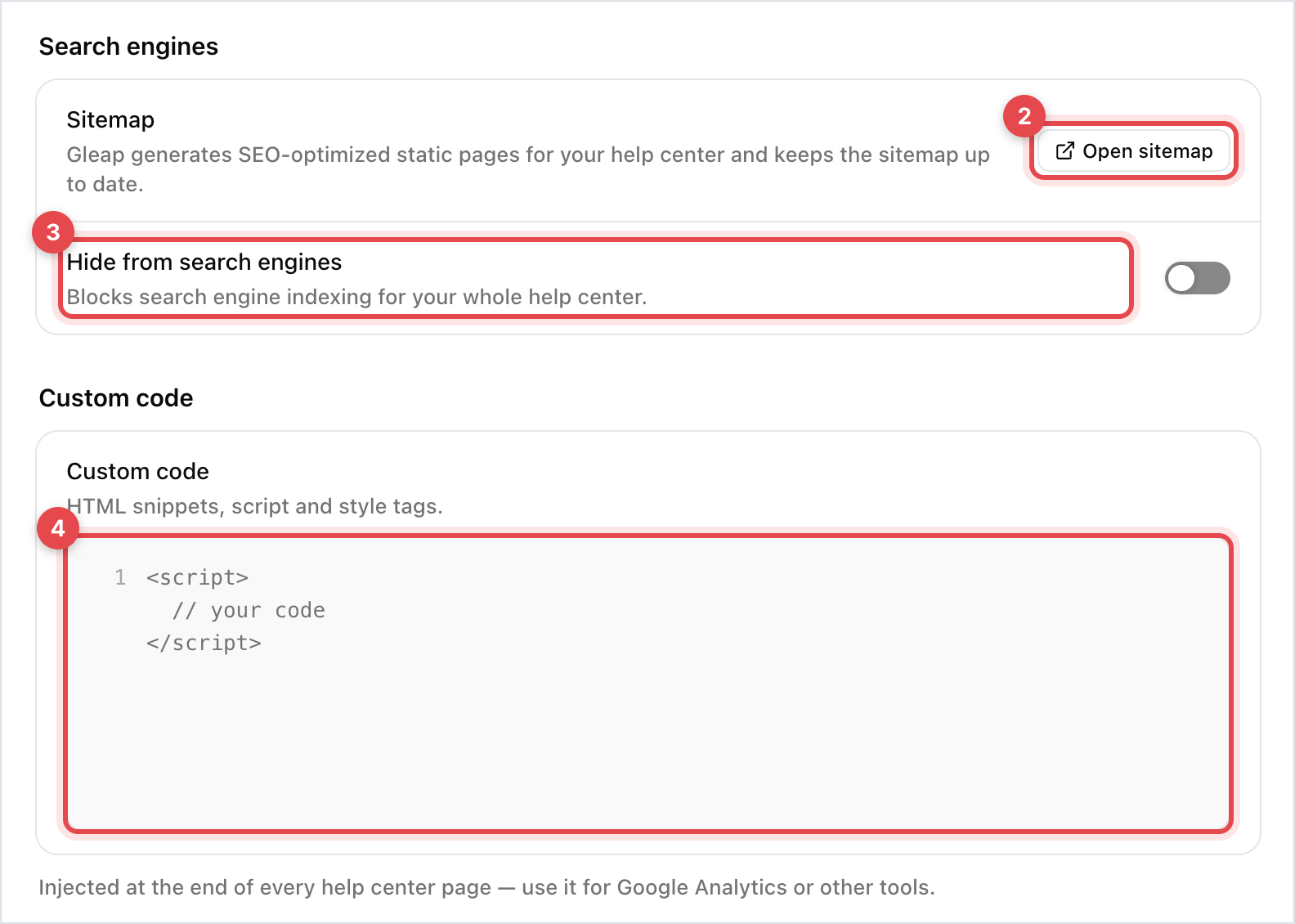
Click Open sitemap to see the sitemap Gleap keeps up to date for every language. Submit its address to Google Search Console if you like.
To keep the whole help center out of search results, switch on Hide from search engines.
Under Custom code, paste snippets such as Google Analytics. They're added to the end of every help center page.

llms.txt: your help center publishes a plain list of its collections and articles at /llms.txt, with one file per language at /en/llms.txt, /de/llms.txt and so on. AI tools use it to find your content. It isn't published when the help center is hidden from search engines, password protected or requires a login.
Copy for LLM: every article has a button that copies it as Markdown, so readers can paste it into their AI assistant. To remove it, go to Help center → Settings → General and switch off Show "Copy for LLM" button under Display.
Your own domain: once you connect a custom domain, visits to your default help center address are sent to your domain, keeping the path. Search engines are told your domain is the main address.
Renamed articles: an article's link is its number plus its title. Only the number counts, so old links keep working after you rename an article.
Language: links without a language go to the reader's language, as described above.


