A field's type decides what can be entered, how it's displayed and, more importantly, what you can do with it afterwards in filters, routing rules and workflows. You pick it in the Type list when you add a field under Settings → Inbox & tickets → Data attributes → Add attribute. The names below are written exactly as that list shows them.
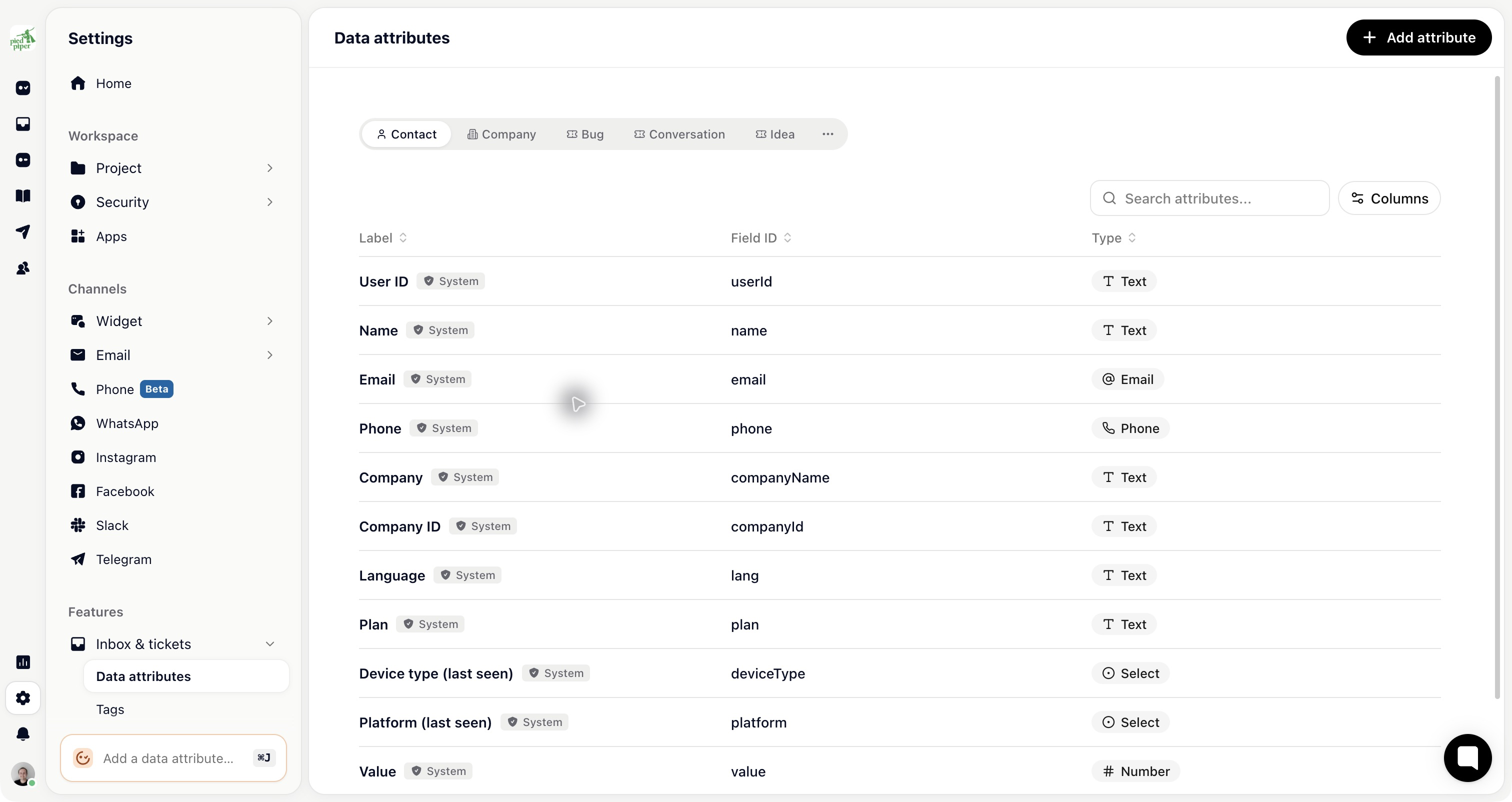
text: a single line. For short identifiers: an order number, a licence key, an account reference.
textarea: several lines of plain text, for notes and descriptions.
richtext: formatted text with headings, lists and links, for anything that needs structure.
select: one option from a list you define.
multiselect: several options at once.
boolean: true or false, for something that's simply yes or no.

number: for anything you'd compare or add up, such as an amount, a quantity or a score.
date: a calendar date, such as a deadline or a purchase date.
time: a time of day, for appointments and windows.
Use number instead of text for anything numeric. "Greater than 500" only works on a number field; on text it compares character by character and gives you nonsense.
email and phone: an email field only accepts a valid address, and a phone field comes with a country picker and formatting.
upload: a file attached to the ticket, for receipts, logs and screenshots that belong to a field instead of to the conversation.
Work backwards from what you'll do with it. If you want to filter or route on a field, it needs a type with well-defined comparisons: select, number, date or boolean. If it's only ever read by a person, text is fine.
Getting this right at the start saves the awkward migration later, when a text field holding "high", "High" and "very high" has to become the select it should always have been.