Open Inbox for customer conversations, bug reports, feature requests and custom ticket boards. Each ticket has a type, a status and its own customer history.
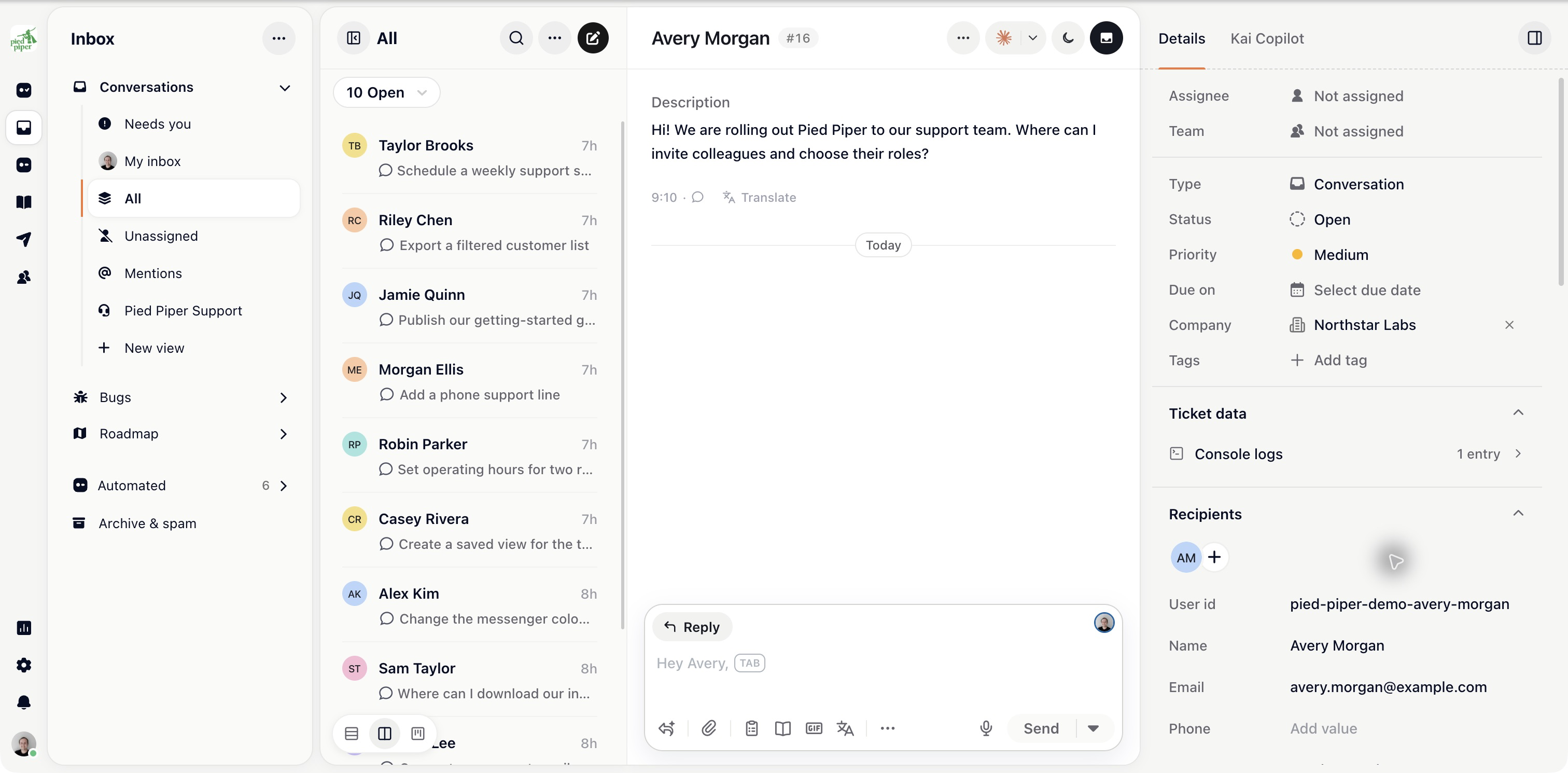
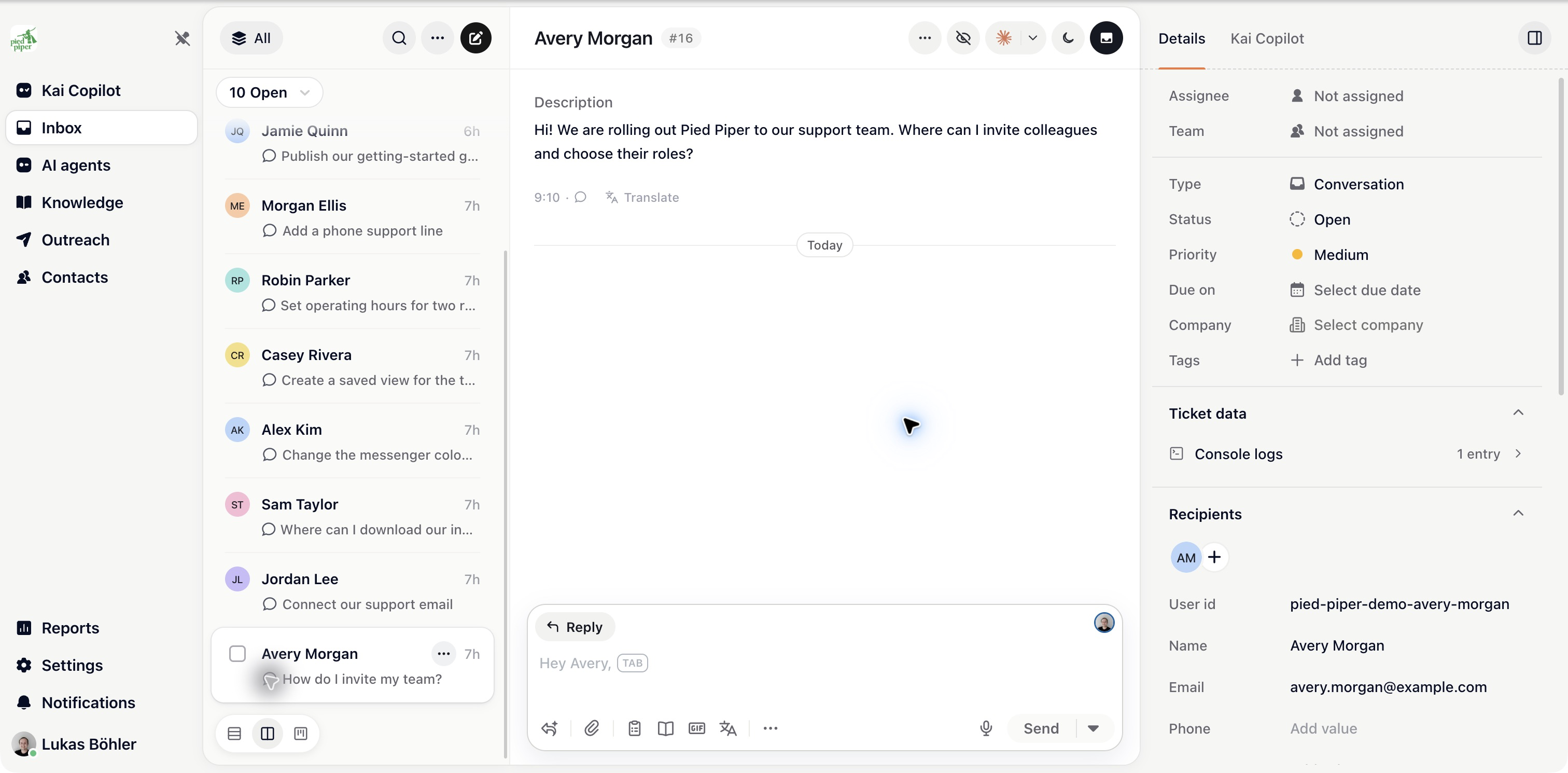
The Inbox sidebar contains Conversations, Bugs, Roadmap and any custom boards you can access. Expand a board to see its views. The Inbox remembers the board you last opened in a project.
Under Conversations you will find Needs you, My inbox, All, Unassigned, Mentions and team views. Automated separates the conversations still being handled automatically. Archive & spam holds archived work.
Use the button beside the list title to show or hide the Inbox navigation when you need more space.
The view-style controls let you choose List view, Conversation view or Board view where available. Conversation view keeps the list beside the selected conversation; List view gives more room to the ticket list; Board view groups work into status columns.
Choose the layout for the work you are doing. A conversation queue and a bug board no longer require separate main-navigation areas.
Conversations have Open, Snoozed and Closed states, selected at the top of the list. A ticket board’s statuses are its columns. Boards can have their own columns, fields and priorities.
Assign a ticket to a teammate or team so ownership is clear. Teams can route tickets automatically according to their settings. See Set up teams and how tickets are assigned.
Open the ticket to read the thread and customer details. Use Reply for a customer message and Note for internal work. The AI area lets your team ask an agent for help with that ticket.
Close a conversation when the work is finished. Closing can run workflows such as a rating request and makes the conversation eligible for later review and learning.
A new customer reply can reopen a closed conversation according to the project’s rules. Reopen on customer reply is under Settings → Project → General → Ticket handling for the additional ticket types it supports.
Snooze work you need to revisit. Archive tests and conversations you no longer need in the active queue. Mark junk as spam so it is kept apart from real requests.
Use New view to save a queue for a particular team, filter or priority. Board settings and imports are in the board’s actions menu.