A customer-facing custom agent can open from your own interface, appear as an embedded conversation or answer through code. The calls below are part of the Gleap JavaScript SDK. Team agents are intended for internal work; use a customer agent with the Reply to customer tool for these customer-facing experiences.
Open the agent under AI agents.
Open the ⋯ menu in the header and choose Use in SDK.
Pick Managed UI, Headless or Component and copy the code. Your agent's ID is already filled in.
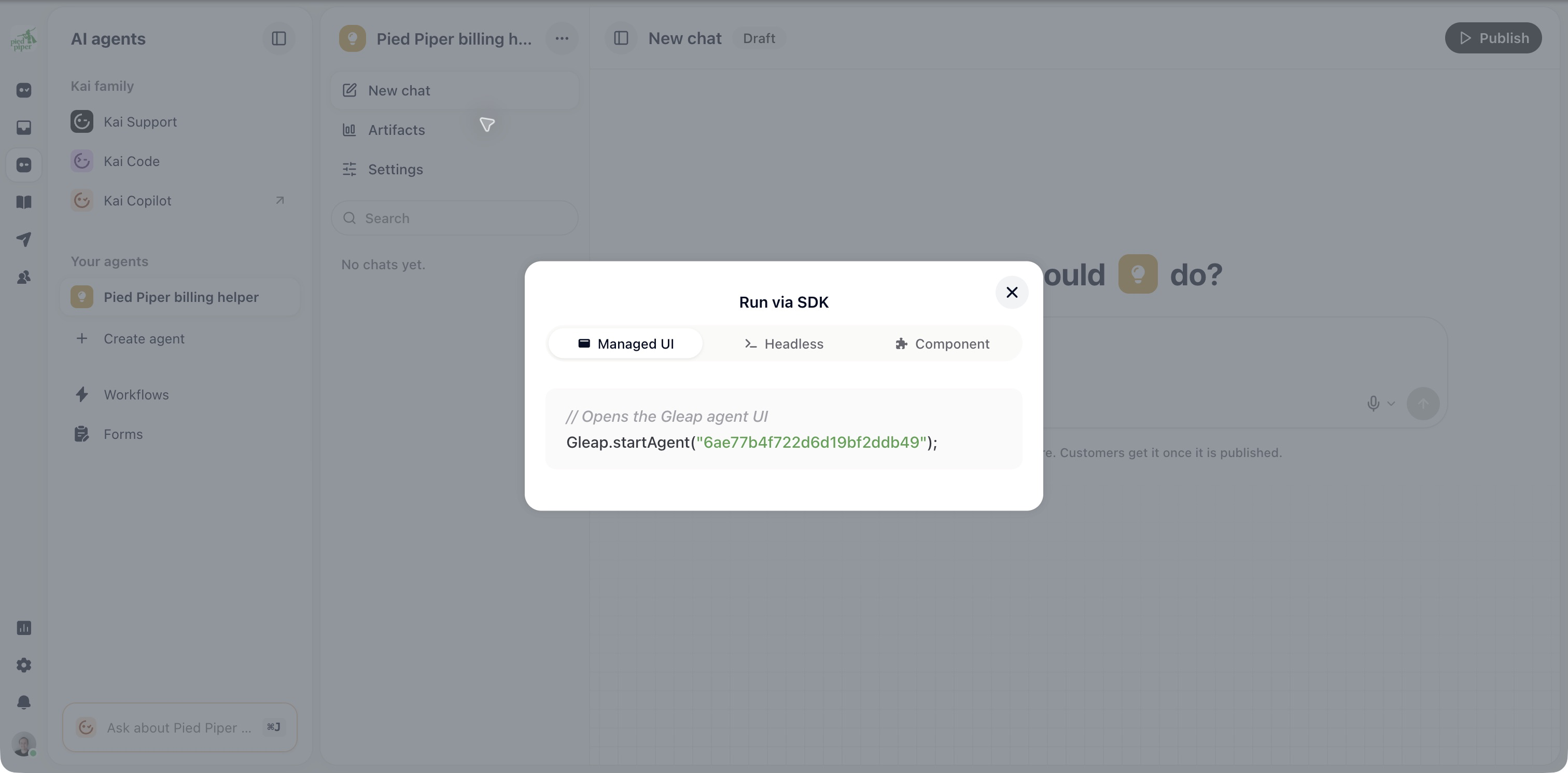

The simplest option. Call this from a button in your product and the agent's chat opens:
Gleap.startAgent("YOUR_AGENT_ID");You can open it with a first question already asked (initialQuestion), or with a greeting from the agent (initialMessage), so the user doesn't face an empty box:
Gleap.startAgent("YOUR_AGENT_ID", {
  initialQuestion: "Where is my order?"
});If the agent should sit inside a page instead of opening over it, use the conversation element:
<gleap-agent-conversation agentId="YOUR_AGENT_ID" />This suits a dedicated support page or a panel next to what the user is working on.
When you want the answer but not Gleap's interface, send a message and use the result in your own UI. The call returns the answer text, a run ID, a status and a conversation ID:
const { response, conversationId } = await Gleap.sendAgentMessage(
  "YOUR_AGENT_ID",
  "Where is my order?"
);
Pass that conversation ID on the next call to continue the same thread, so the agent still knows what was said:
const next = await Gleap.sendAgentMessage(
  "YOUR_AGENT_ID",
  "And when does it arrive?",
  { conversationId }
);Use the chat when the agent is something the user talks to. Use the component when it belongs inside a page you already own. Use the headless call when the agent works behind your own interface, such as filling in a field or drafting text the user then edits, and a chat window would be in the way.

