Most tools run on a server. A frontend tool runs in your application, in the session of the person using it. The agent can open a screen, apply a filter, start something, or read state that only exists in the browser or on the device.
It comes in two halves: you define the tool in Gleap, and you handle it in your own code. Frontend tools work with the Gleap SDKs for JavaScript, iOS, Android, React Native, Flutter and Capacitor.
Open the agent and go to Settings → Tools.
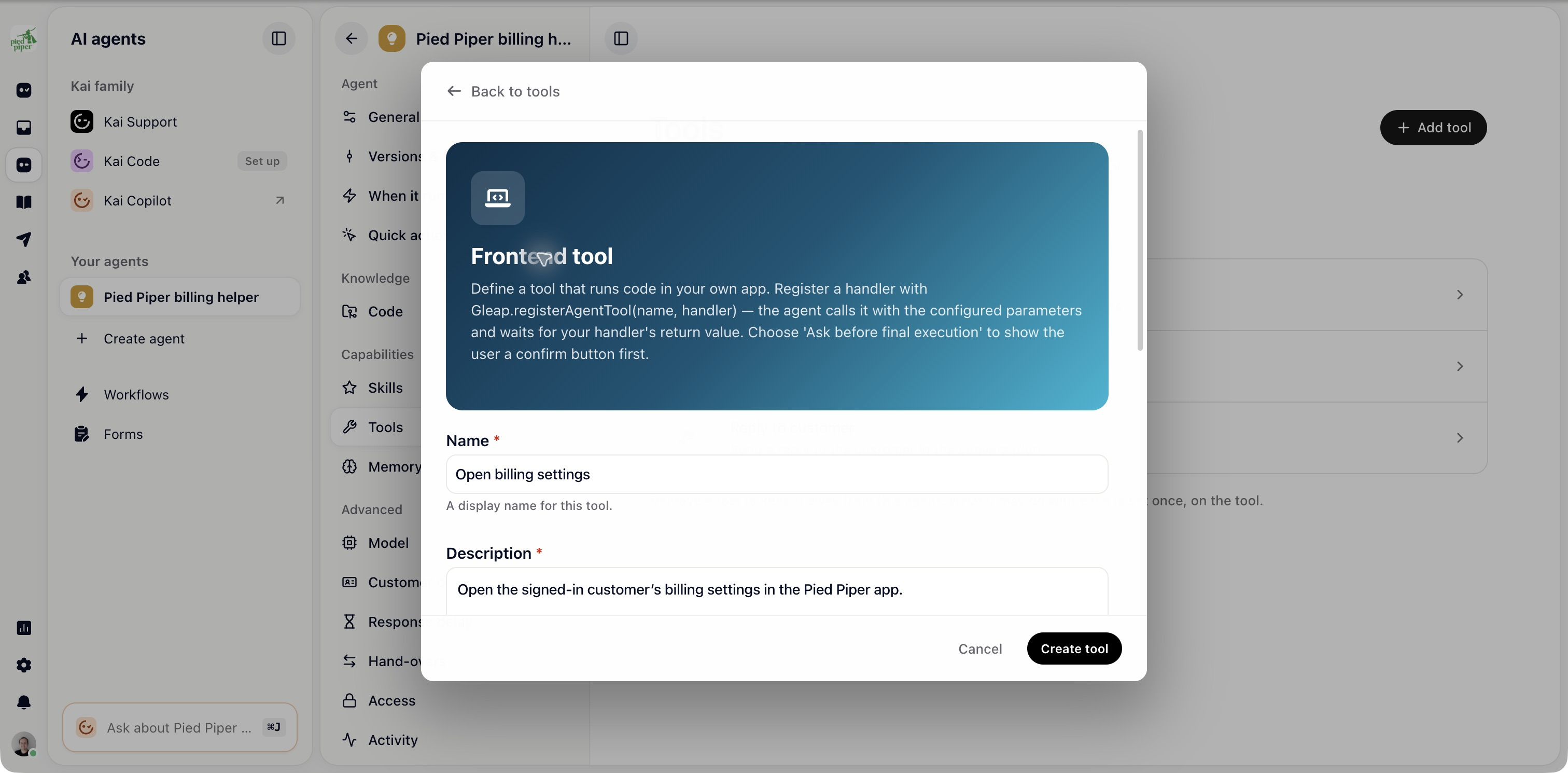
Choose Add tool, then Frontend tool.
Give it a name and a description. The description is what the agent reads to decide when to call it.
Add the parameters it should pass to your handler, each with a type and a description.
Under Execution mode, choose Auto to let the agent run it, or Ask before final execution to show the user a confirm button first.
Copy the snippet under SDK integration for your platform and save the tool.

Your handler registers under a name derived from the tool's name. It's lowercased, every run of characters other than letters and digits becomes a hyphen, and hyphens at the ends are dropped. "Create Workflow" becomes create-workflow.
You don't have to work this out yourself. The snippet in the editor already uses the exact runtime name.
Register a handler under that runtime name:
Gleap.registerAgentTool('create-workflow', async ({ name, trigger }) => {
  // Do the work in your app.
  return 'Workflow created.';
});
The agent calls your handler with the parameters you defined and waits for what you return. Return a string or an object; an object is sent as JSON. Whatever you return is all the agent knows about the outcome, so make it useful. "Workflow created, id 4821" tells it more than "ok".
If your handler throws, the error goes back to the agent instead of breaking the conversation, so it can tell the user something went wrong. If no handler is registered under that name, the agent gets a message saying so.
The difference is the session. An API call reaches your backend as Gleap. A frontend tool acts inside the user's own session, with their permissions and their view of the data. That makes it the right choice for anything the user should see happen, and for anything their existing login authorises.
It also means the tool only works while your app is open. An agent running on a schedule, or one answering an email, has no session to act in. Use a server-side tool such as an API call for those.

