A tool lets a custom agent do something instead of only writing text: call your API, update a ticket, look something up in another app. You add tools per agent, and the agent decides on its own when to use one.
Go to AI agents, open the agent and switch to Settings → Tools.
Choose Add tool.
Pick what you need. Built-in & connected lists Gleap's own tools (API call, Transfer, Web search and more) and the apps you've already connected. Connect a tool lists apps like Slack, Attio, Linear, HubSpot, Jira and GitHub. The search box covers your connectors and more than 2,000 other tools.
Fill in the tool's name, description and settings, then save it. It appears in the agent's tool list.
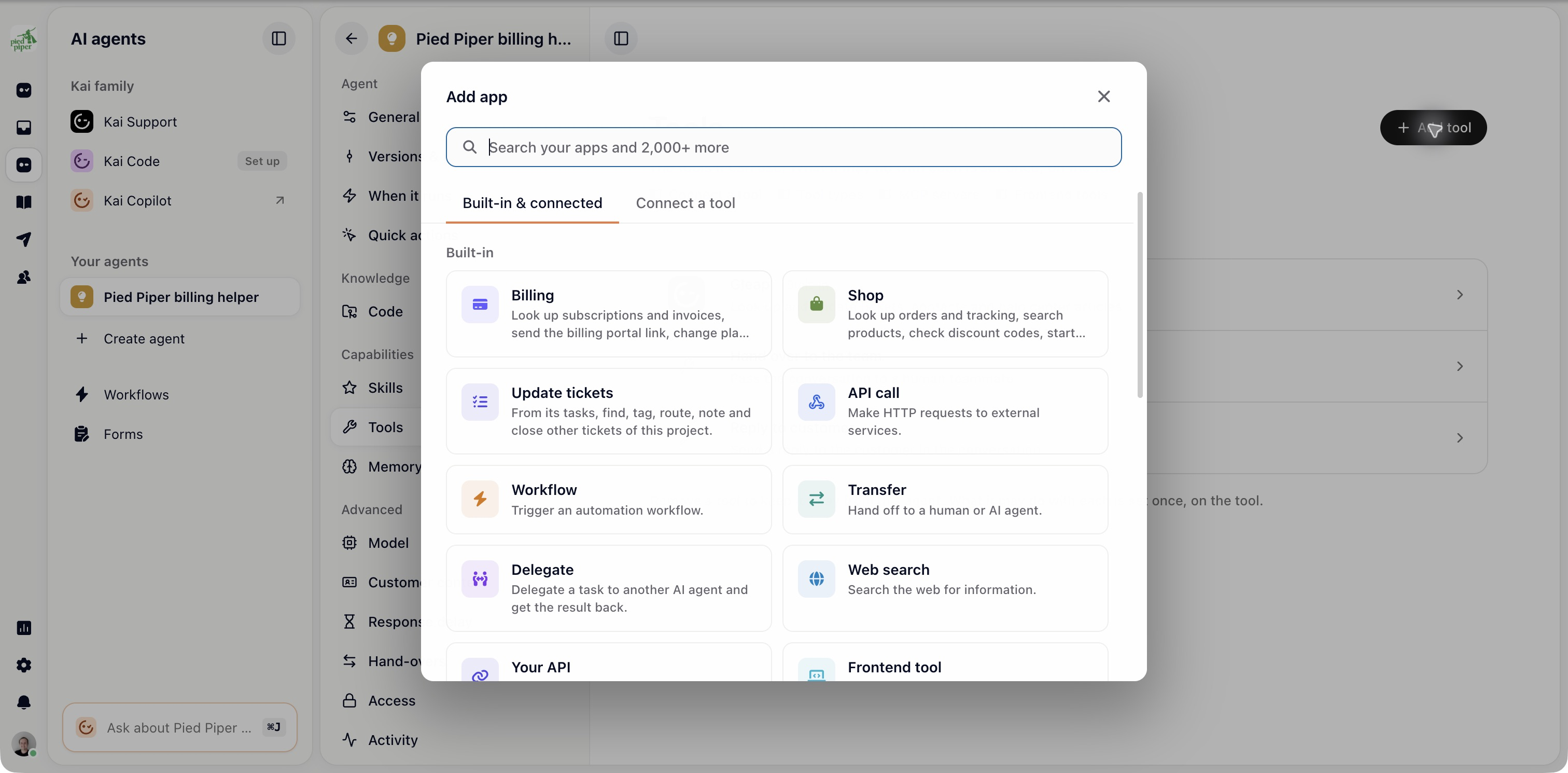
The mechanics are the same for every tool: it has a name, a description and parameters. Tool types reference lists what each built-in tool does.
The agent never sees how a tool works. It sees the name, the description and the parameter descriptions, and decides from those alone whether to call it. A tool called "lookup" described as "gets data" gets called at random or not at all.
Describe the situation it's for: "Look up the current status, items and delivery date of an order by its order number." Do the same for each parameter: "the customer's order number, without the # prefix" instead of "orderId".

In Add tool, choose API call.
Pick the Method and enter the URL of your endpoint.
Add the parameters the agent should fill in. Each has a name, a type (String, Number, Boolean, Array or Object) and a description.
For a fixed API key or bearer token, add it under Headers as a key and value.
Save the tool.
If each user needs their own credentials, don't hard-code a key. Set up the agent's Customer context page instead. Your backend then returns an access token at the start of each conversation, and the tool uses it as {{auth.token}}. Give an agent context about the current user shows how.

Open the agent's Chat tab and ask for something that should use the tool. Two things can go wrong, and they look different:
The agent doesn't call the tool at all. The description doesn't match how the request was phrased.
It calls the tool with the wrong values. The parameter descriptions are unclear.
Phrase your test the way a customer would. "Run the order lookup tool" proves nothing, because nobody will ever ask that.
You can't force a tool call, but you can make it much more likely. Name the tool in the agent's instructions: "Always check the order status with the order lookup tool before answering questions about deliveries." Type @ in the instructions to mention a tool by name. The description says what the tool is. The instructions say when it's required.

