A duplicate contact is one person who shows up twice in Contacts, for example once as an anonymous guest and once as a logged-in user, or once from an email and once from your app. Gleap merges these cases for you when it can tell for sure that both are the same person. Two contacts that each have their own user ID are never merged into each other.
Situation | What happens |
|---|---|
A visitor chats, then logs in on the same device | Your app calls |
Someone emails your support address, then your server creates them |
|
Someone chats or emails first, then logs in to your app | With Merge contacts by email switched on and a signed email in the login (see below), contacts without a user ID join the user if their email is proven: they emailed your support address, your server created them, or they confirmed the email with a code. |
A visitor confirms their email with a code in the chat | The Verify email workflow step moves the conversation to the user with that email, if your server or a signed login proved that email. See Confirm a customer's email in the chat. |
Your server decides |
|
After a merge:
The conversations, messages and survey responses belong to the user.
On the same device, custom data from both is combined (where both have a value, the user's value wins), visit and feedback counts are added together, and outbound history moves across, so the person doesn't get the same message twice.
In the other cases, details the user doesn't have yet, such as the company or custom data, come along from contacts your server or an email created. A website visitor brings its conversations only, unless your server merges it with the merge endpoint.
The merge can't be undone.

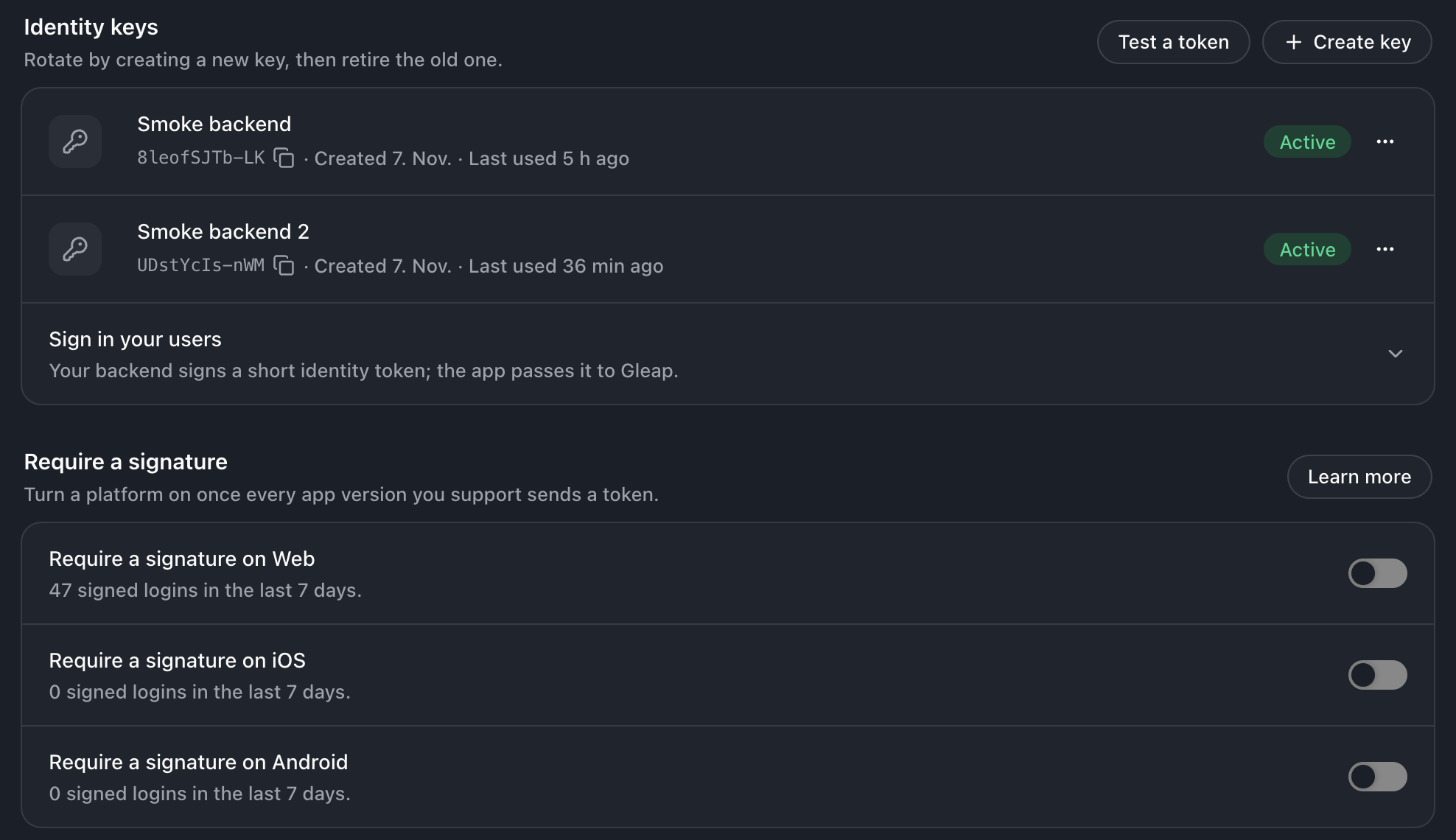
Go to Settings → Security → Customer identity. Signed sessions need to be on.
Under More settings, switch on Merge contacts by email.
Have your server put the user's email into the identity token your app passes to setUserJwt (see Identify users and send attributes and events).
From then on, when a user logs in with a signed email, contacts without a user ID that have the same email join them, once per user and email, but only if that email is proven. That means the contact came from an email sent to your support address, your server created it, or it confirmed the email with a code. A guest who only typed the email in the chat is never merged, and neither is an email contact whose inbound email failed SPF or DMARC. If another contact with its own user ID has the same email, Gleap can't tell who the earlier contacts belong to and merges nothing.

Your backend can merge contacts directly, for example after a user confirmed their email in your own product:
curl -X POST https://api.gleap.io/admin/contacts/merge \
  -H "Api-Token: YOUR_API_KEY" \
  -H "Content-Type: application/json" \
  -d '{ "into": { "userId": "user-123" }, "from": { "email": "[email protected]" } }'
from.email merges every contact without a user ID that has this email, from.id one contact by its Gleap ID. Create the API key under Settings → Developer → API keys. The developer docs list the details.
Call identify as soon as a user logs in, with the same user ID your app uses everywhere.
Always send the email address with it.
Use one user ID per person across web and mobile apps.
If your server knows your users, create them with POST /admin/identify before they first log in.
Imports and changelog sign-ups reuse an existing contact with the same email address, so they don't add duplicates.
Gleap.identify("user-123", {
  email: "[email protected]",
  name: "Ada Lovelace",
});
When contacts share an email address, Gleap still shows their conversations together: a contact's conversation list includes tickets from the other contacts with the same address, marked duplicate contact.
There's no merge button in the dashboard. Use the merge endpoint above for contacts without a user ID. Two contacts that each have a user ID can't be merged; delete the one you don't need.
Go to Contacts and open the contact you want to remove.
Check its conversations. If one is about the same thing as a conversation on the contact you keep, open that ticket and choose Merge with similar to bring both conversations together first. The Merge Preview shows which contacts are added to the remaining ticket, and every one of them can then see all its messages.
In the contact's menu, choose Export contact data if you want a copy.
Choose Delete contact and confirm.
Companies can't be merged. Send the same company ID for everyone at a company, so new people always join the one you keep.