A project can have several help center sites, subject to its plan’s site limit. Each site has its own address, appearance, access and collections. Articles are written once; a collection belongs to one site.
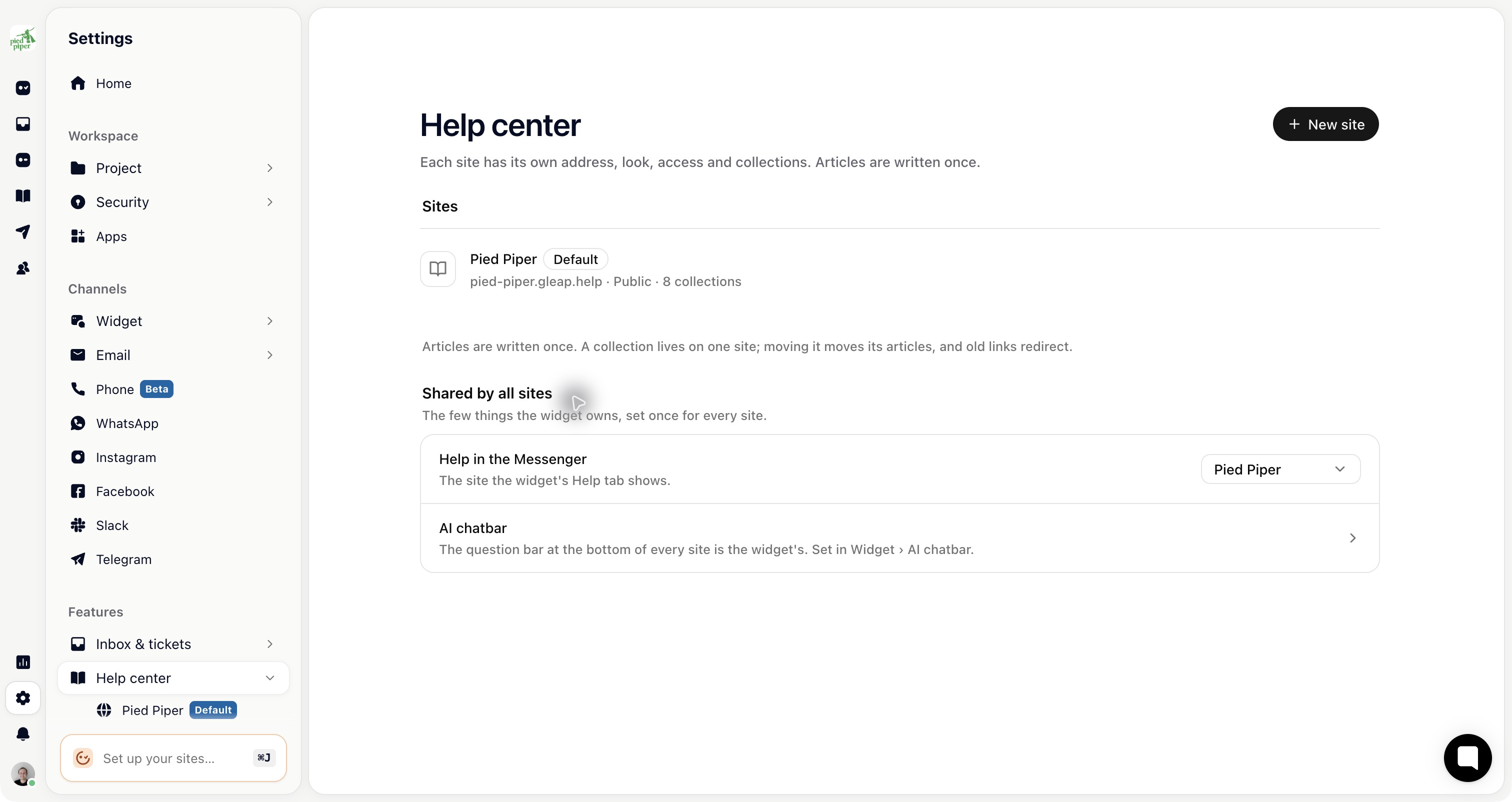
Open Settings → Help center → Sites to see the sites and the limit for your plan.
Choose New site.
Enter its name and available address.
Choose A copy of your help center or A clean start.
Choose the layout, then Create site.
Copying the starting configuration does not create a permanent link between the sites’ settings. After creation, changes are made on the new site’s own page.
Open its row to see General, Appearance, Collections, API reference, AI and search, Translations and SEO & custom code.
Set the address and access for that site, then configure its look and search settings. Check which site is selected before changing a domain or access rule.
On the site’s Collections tab, move the top-level collections it should contain. Moving a collection also moves its subcollections and articles. Old links redirect.
Moving content changes where it is served. Check the destination site’s access rules first, especially when moving between an internal and public site.
The Sites overview has Shared by all sites settings. Help in the Messenger chooses which site the widget’s Help tab shows. Password-protected and team-only sites cannot supply that tab in the same way as a public site.
The AI chatbar is shared widget configuration. Edit it under Settings → Widget → AI chatbar.
Where shown, Kai may answer from it controls the site’s use for AI. Kai does not quote a site to a visitor who cannot open it. Continue using the agent’s knowledge scope and content audience rules as appropriate.
Use the site’s API reference tab to import an OpenAPI spec and generate endpoint pages with code samples and Try it. See Publish an API reference from OpenAPI for setup and syncing.

