The messenger has two kinds of text: the wording Gleap provides (buttons, labels, system messages) and the wording you wrote yourself, such as your welcome message and menu items. They're translated in different places. Project admins manage both.
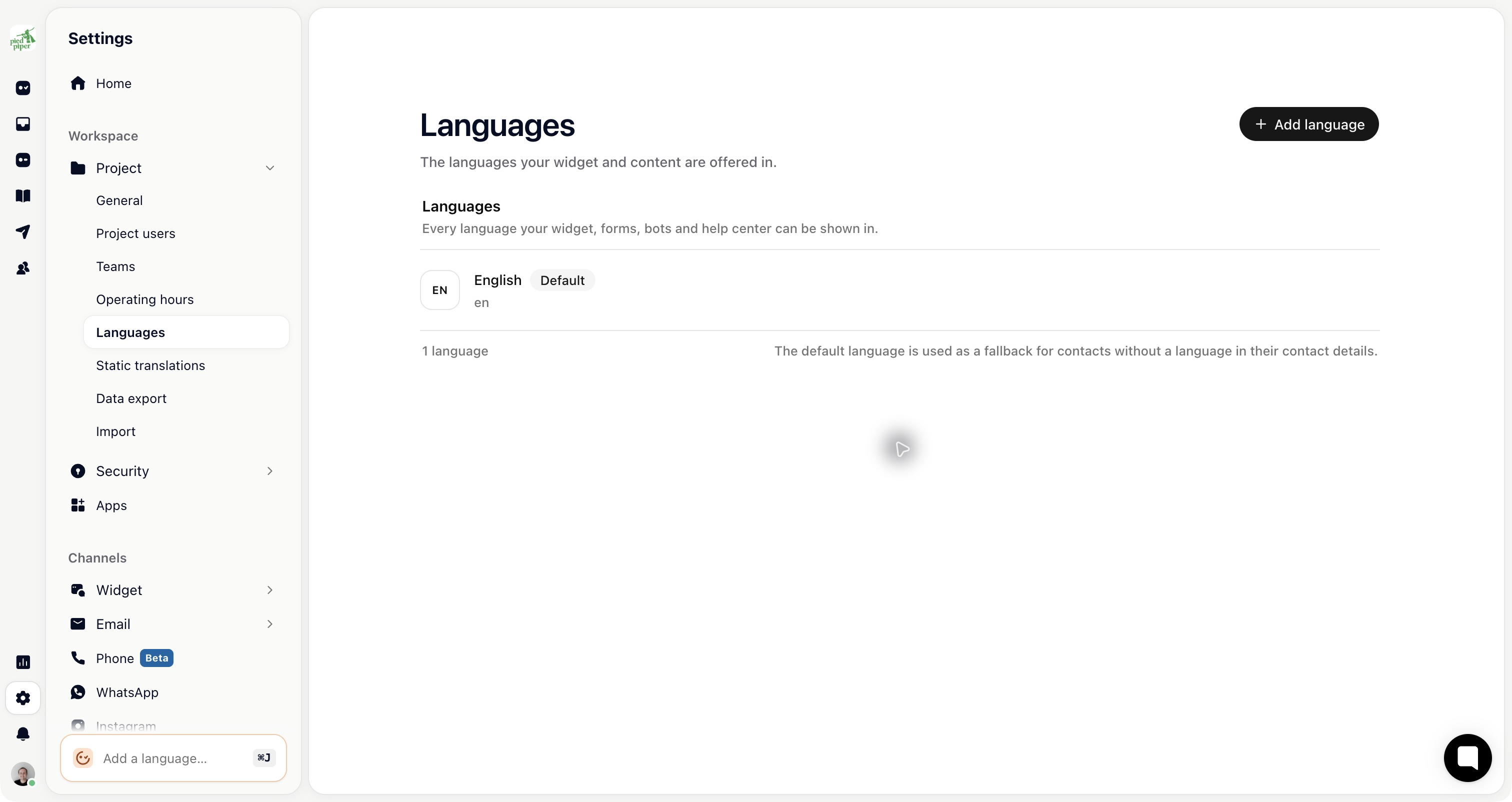
Go to Settings → Project → Languages. The page is titled Translations.
Click Add language for each language you support.
To change your main language, click Set as default on another language. The current one shows a Default badge.
Changes save on their own. The default language is the fallback: anything not translated into a customer's language is shown in it, so a partly translated messenger falls back to your main language rather than to blanks.
On the web, the messenger uses the browser's language, unless your page sets one in its <html lang> attribute, which wins. A language set from your code with Gleap.setLanguage() wins over both. Someone browsing in French sees your French version, if you have one.
Fields you fill in yourself (the welcome message, menu item titles and descriptions, form questions) get a language picker beside them once your project has more than one language. Switch the language and enter that version. The settings look the same; you're just editing a different language.
The trap here is forgetting. Adding a menu item while the editor is on English fills in only English, and customers in other languages see it in English. The only hint is the picker: a filled dot for each language that has a translation, a hollow one for each that doesn't. When you add something, fill in every language before you move on.
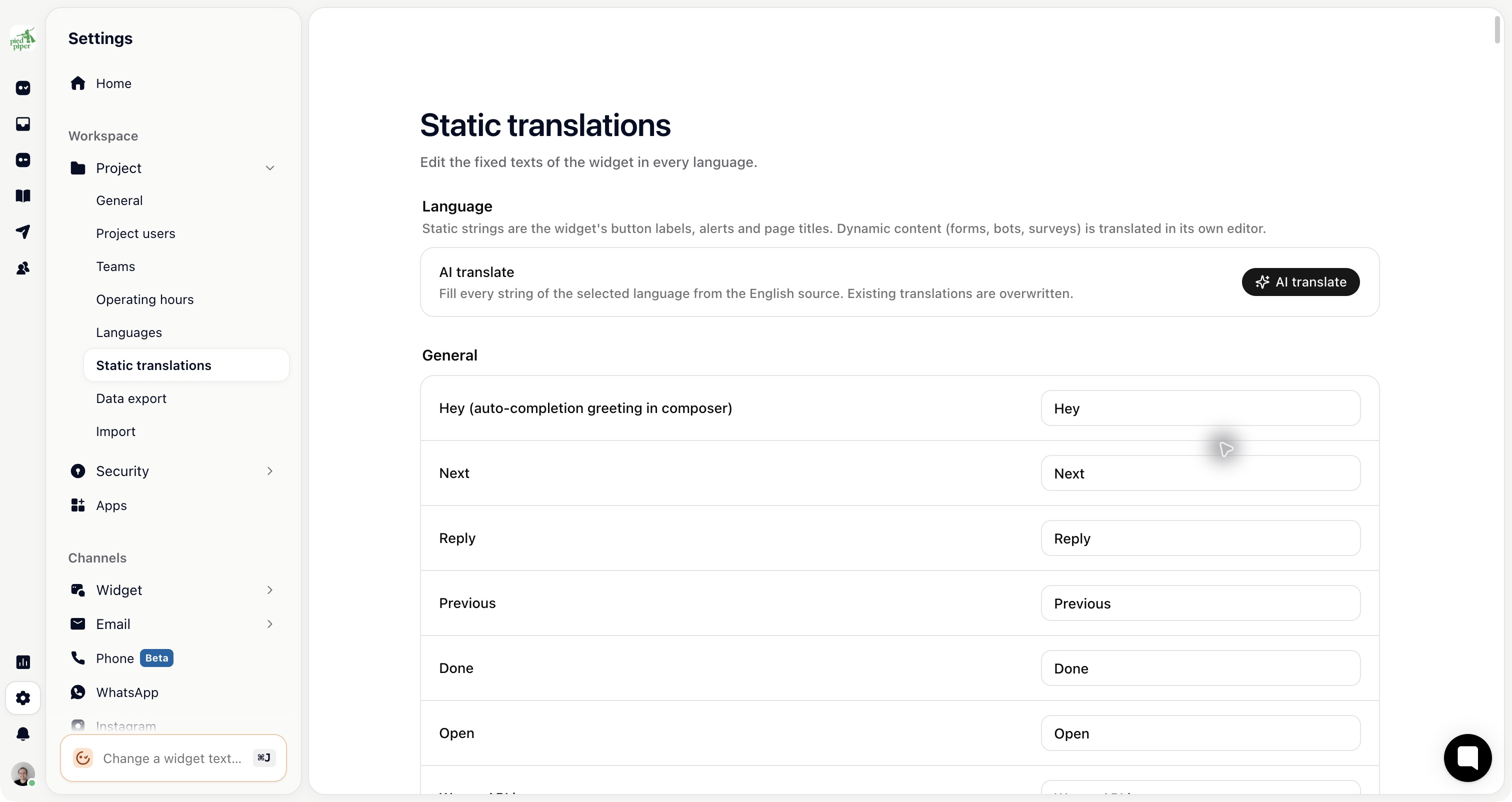
Everything else ("Send", "New conversation", "Kai joined the session") lives under Settings → Project → Static translations. It comes translated into many common languages, so you mostly go there to change wording, not to fill blanks. It's also where you adjust a form of address that doesn't match your product's voice, or swap a term for the one your customers actually use.
Go to Settings → Project → Static translations.
Pick a language.
Click AI translate. Every string for that language is filled from the English source.
It overwrites the translations that language already has, so run it before you adjust wording by hand, not after. Then read the short strings: buttons and labels are the hardest to translate without context, and a single word can come back grammatically fine and wrong for what the button does.


