An agent can run when you chat with it, when a workflow hands it a conversation, or when one of its saved starts fires. Open the agent under AI agents, then Settings → When it runs to review its routines and starts.
Team agents do background work. Customer agents take customer conversations. The controls reflect that difference.
Open When it runs and choose Add routine.
Give it a name.
Choose On a schedule or When something happens.
Set the schedule and timezone, or select the Gleap event and the tickets or other records it applies to.
Write What it does. Explain where to look, the result you want and what to do when there is no work.
Review On, Share runs with the team and A task for each run, then choose Add routine.
Event starts also have frequency and daily-limit controls. Review these before enabling an event that happens often. Open a saved routine to change it, inspect its last run or switch it off.
Kai Copilot has a dedicated Routines page. See Run recurring work with routines.
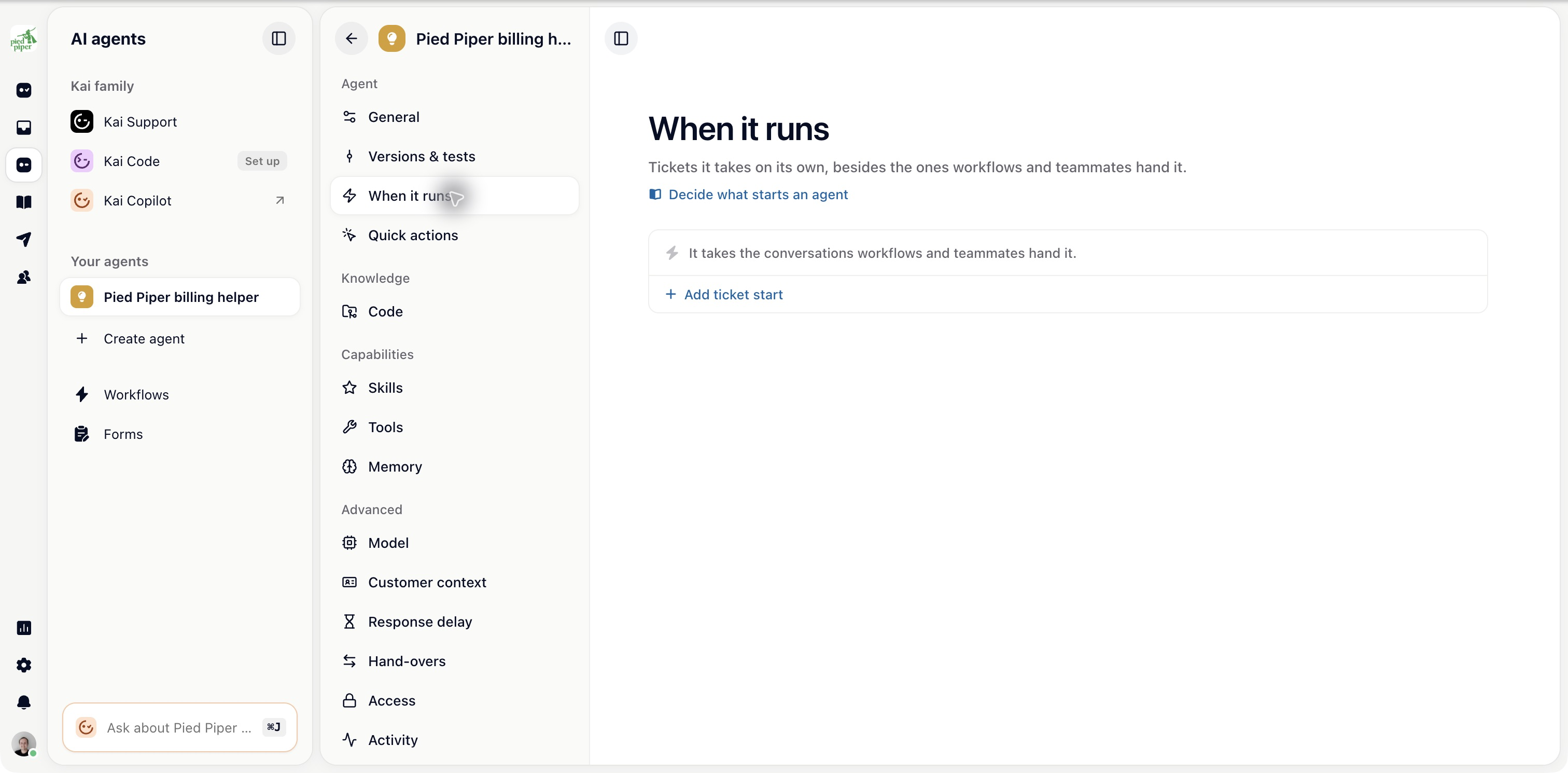
A customer agent’s When it runs page offers Add ticket start. Choose a ticket event, narrow which tickets it applies to and write What it does with the ticket. It takes matching conversations when the start is on.
A workflow can also pass a live conversation to the agent with Pass to agent. The agent needs to be published and able to reply to customers. The Workflows that hand it conversations section lists the workflows that use it and their starts today.
Kai Support has its own Channels and Investigations settings. Configure those there rather than looking for a separate investigation agent.
For a team agent, choose Start it on an API call, a contact event or a tool event instead below the routine list.
API call creates a POST endpoint when you save. Open the saved trigger for its endpoint and request example. Keep its service-account token on your server.
Contact event starts background work when the Gleap SDK tracks a contact’s event. Set the event, audience and frequency. It has no customer conversation to reply in; use an Outreach chat message to greet a visitor.
Tool event reacts to an event in a connected app. Pick the connected tool and event, and complete the fields it requests.
If a tool event shows Needs reconnect, open it to restart the stopped connection.
Test the agent with representative input first. Then verify the start is enabled, the schedule’s timezone is right, its filters match and its daily limit has not been reached. Review the last-run details and attempts shown on the page.
For a customer agent, check publication and customer-reply tools as well as the workflow or ticket-start conditions.

