Connectors is where Gleap meets the tools your team already uses: an issue tracker that receives bug reports, a billing system whose data shows next to the conversation, a channel your customers write from, or a tool Kai can look things up in. Only project admins see it. Connecting tools needs the Team plan or higher; on Starter, connecting one opens the upgrade instead.
Go to Settings → Connectors. The Connected list shows every tool you've connected, once, with chips underneath that say what it does. The filters in the sidebar narrow the list by job:
Channels: where customers write to you, such as email, WhatsApp, Instagram, Telegram or Slack. Every message lands in the inbox.
Integrations: where Gleap sends tickets, bugs and updates for your team, such as Jira, Linear, Slack notifications, webhooks or Zapier.
AI tools: what Kai and your agents can look up and do while they work, such as answering billing questions, looking up orders or booking a meeting.
Sidebar cards: customer details from your tools next to every conversation, such as Stripe, Chargebee or Shopify.
Import: bring your help center and past conversations over from another tool.
One tool can do several jobs and still appears once. Slack, for example, is a channel, an integration and an AI tool. The button in the header follows the filter you're on: Add connector, Add channel, Add integration, Add AI tool or Add sidebar card. They all open the same list of tools.
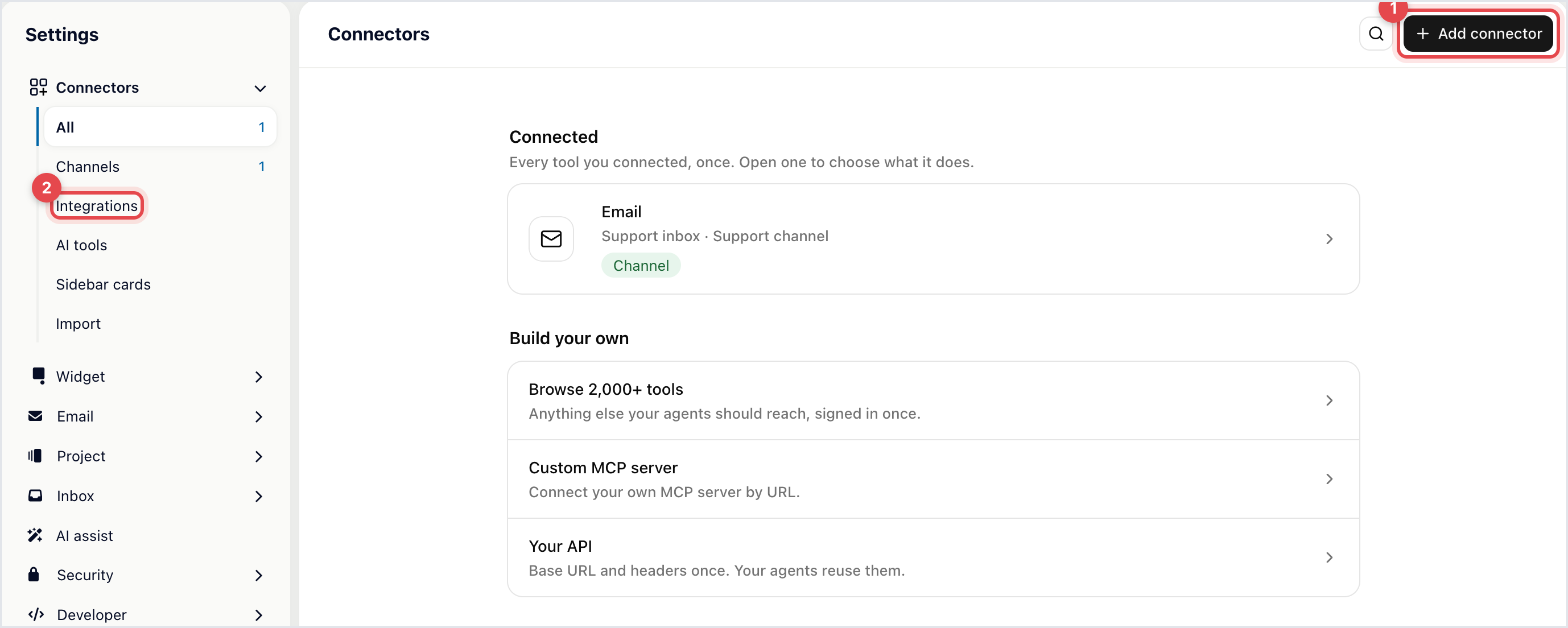
Go to Settings → Connectors and click Add connector.
Type the tool's name into Search tools and pick it.
If Gleap asks What should followed by the tool's name, tick the jobs you want it to do and click Continue with followed by the tool's name.
Sign in. Most tools send you to their own login screen with Connect with followed by the tool's name. A few, such as Chargebee, Shortcut or Better Stack, ask for an API key instead: paste it and click Connect.
Check what's listed under Now active, then click Done.
The tool now shows in the Connected list. Open it to see every job it does, turn each one on or off, and finish anything marked Finish setup.
A connection runs on the account in the other tool that authorised it. If that account is deactivated or loses access, the connection stops working. Connect the important ones with an account your team owns rather than a personal one.
For tools that receive tickets, Send tickets automatically and the Ticket types picker decide what goes out. Getting these right is what keeps your tracker useful. Send tickets to an issue tracker or Slack walks through it with Jira.
You can connect the same tool several times, such as two Jira sites or two Slack workspaces. Give each one a Name under Advanced in its settings, named for where it points ("Jira – mobile"), so the list stays readable. Stripe, Chargebee, Paddle, Calendly, Aircall, Better Stack and Zapier take one account per project.
A connection that stopped working shows a warning at the top of Settings → Connectors with a Reconnect button. Almost always the sign-in expired or the account behind it lost access. Check it after anyone changes permissions in the other tool.


