A public support address attracts a lot of mail that isn't support. Gleap filters it before it reaches your inbox, and the filtering can always be undone: filtered email is kept, not deleted. You set it up under Settings → Email → Spam filter. Project admins only.
Several filters work together. From strongest to weakest:
Whitelist: email from these senders is never marked as spam. It overrides everything below.
Blacklist: email from these senders is always marked as spam.
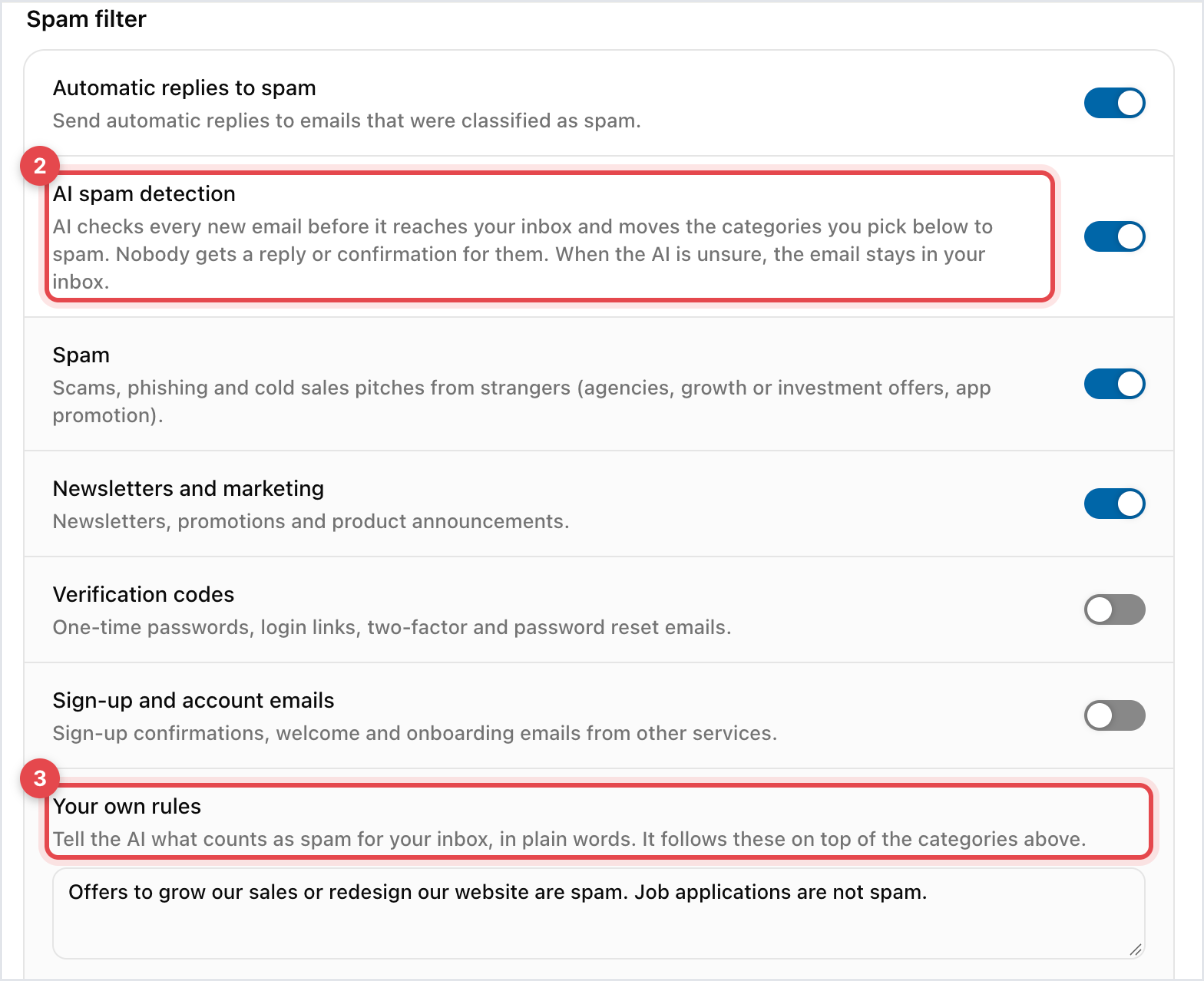
AI spam detection: AI checks every new email before it reaches your inbox and moves the categories you pick to spam. It's on by default and, until you change it, filters only the Spam category. When the AI is unsure, the email stays in your inbox.
SpamAssassin filter: scores incoming email with SpamAssassin and moves anything above your Threshold to spam. It's off by default.
Automatic replies to spam: files out-of-office and other automatic replies as spam, so they don't open tickets. It's on by default.
The AI categories you can switch on are Spam (scams, phishing and cold sales pitches from strangers), Newsletters and marketing, Verification codes (one-time passwords, login links, password resets) and Sign-up and account emails from other services.
Go to Settings → Email → Spam filter.
Leave AI spam detection on and switch on each category you want filtered.
Optional: under Your own rules, describe in plain words what counts as spam for your inbox, for example "Offers to invest in our store are spam. Job applications are not spam." The AI follows these on top of the categories.
Optional: switch on SpamAssassin filter and set the Threshold. Start high (15 or more) and lower it as you go.
Add senders under Blacklist or Whitelist: an email address, or a domain such as example.com to cover every address on it.
Changes save on their own.
Filtered email becomes an archived ticket in Archive & spam (at the bottom of the Tickets sidebar), on the Spam tab. It isn't deleted, and you can still read it.
While it sits there:
The sender is never contacted: no confirmation, no workflow, no Kai answer. A spammer learns nothing about whether the address is live.
It doesn't reach your team's notifications, so nobody is woken by junk.
It never feeds the suggestions Kai learns from solved conversations, so junk can't end up in your knowledge base.
A later reply on a filtered conversation stays in spam too, rather than pulling the thread back into the inbox. Email the AI filtered carries an internal note saying which category it matched.
The symptom is specific: a customer insists they wrote, and you have nothing in the inbox.
Open Archive & spam and switch to the Spam tab.
Find the email and click Restore to move it back to the inbox.
To stop it happening again, go to Settings → Email → Spam filter and add the address, or the whole domain, to the Whitelist.

When junk gets through, open the ticket's options menu and choose Mark as spam. The ticket moves to the Spam tab and the contact is blocked, so their future tickets are flagged as spam automatically.
That's the right way to deal with it. Closing a spam ticket normally would send the confirmation and survey a spammer should never receive.
Look through the Spam tab occasionally. It takes a minute, it's the only way to catch a legitimate sender being filtered quietly, and a queue nobody has opened in six months is where the complaint you're about to receive has been sitting.

