A Kai-written email is an automated email where Kai writes a different message for every recipient. You write the instructions once. Kai reads what Gleap knows about each person, such as their recent product events and tickets, and writes them a short, personal email in their language, signed by the sender. Use it for trial check-ins, activation nudges or founder outreach. Available on Team and up. Each email is paid from your AI balance.
Go to Outreach → Emails and click Create email.
Choose Kai-written email.
Under Start from a prompt, pick a starting point such as Trial check-in or Activation nudge, or Blank prompt.
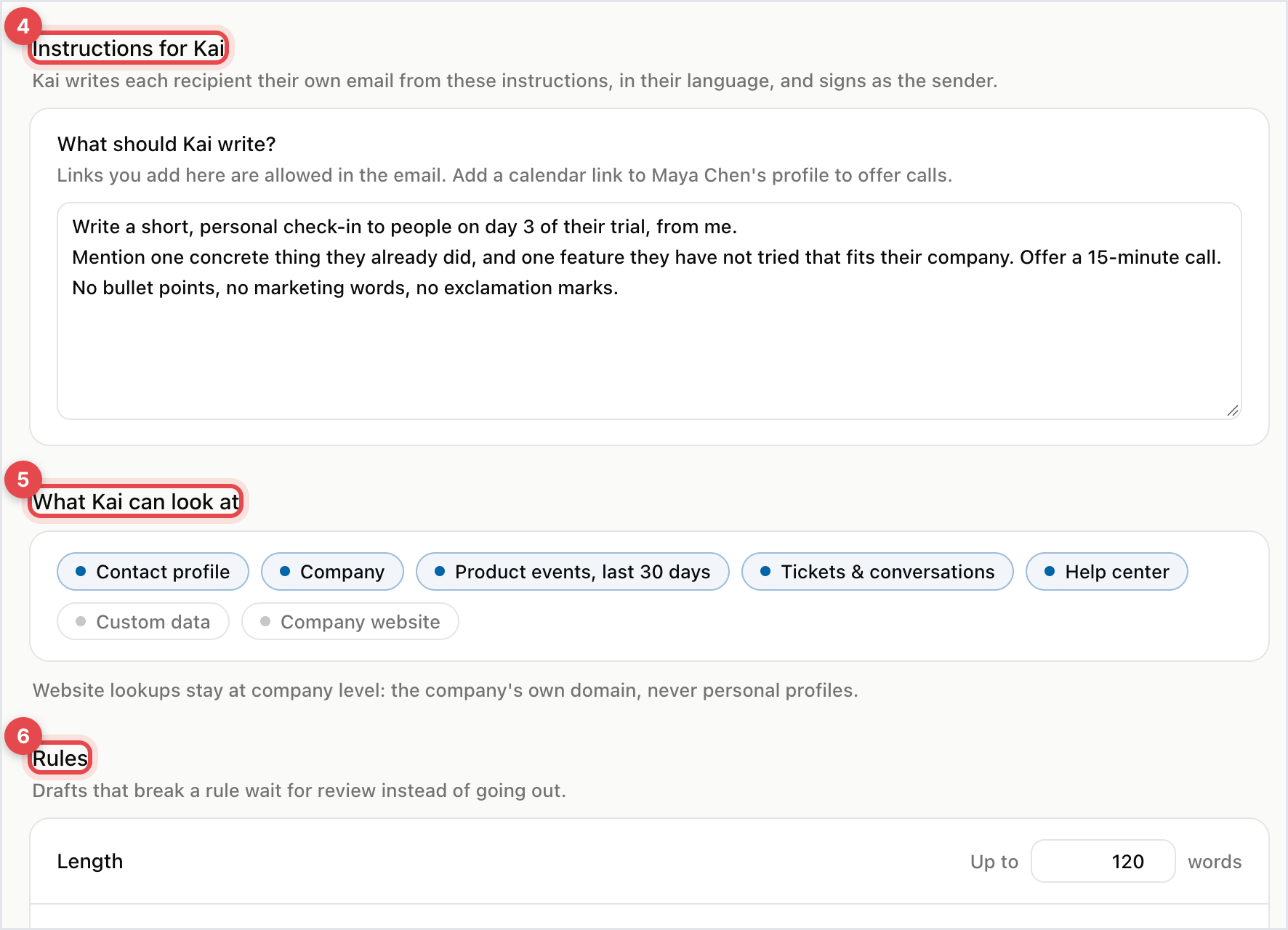
On the Email tab, write your instructions under Instructions for Kai in What should Kai write? Say what the email is for, what you want the reader to do, and what to avoid. Links you add here may appear in the email.
Under What Kai can look at, switch on the sources Kai may use: Contact profile, Company, Product events, last 30 days, Tickets & conversations, Help center, Custom data and Company website.
Set the Rules: the Length limit, extra Allowed links, and words Kai must Never mention.
Click Write samples under Preview on sample recipients to see three drafts for real people in the audience. Nothing is sent.
On the Targeting tab, choose who gets it and when, for example 3 days after signup.
Click Launch.
Kai-written emails always go out on a trigger, like other automated emails. They're written as one-to-one messages, so they use the Plain look and carry no unsubscribe link.
Under Before sending:
Review every email: nothing goes out without a teammate's approval.
Review the first 20, then send automatically: the default. You check the first drafts, and Kai sends the rest. Change the number under Emails to review first.
Send automatically: for instructions you already trust.
Whatever you choose, a draft that breaks a rule always waits for review. Kai flags drafts that are longer than your limit, contain a link outside the allowlist, mention a term you excluded, leave a variable empty or are in the wrong language.
Under If Kai has nothing specific to say, Skip this person is the default: if Gleap has no product activity, tickets, custom data or website content for someone, Kai doesn't write to them. Choose Send a fallback email to send a normal email you write once instead.
Open the email from Outreach → Emails.
Open the Review tab. The badge shows how many drafts are waiting.
Click Review on a draft. Edit the subject or text if you like, then click Approve or Reject.
To approve several at once, click Select unflagged, then Approve selected.
Kai learns from your edits: approved changes become examples for the next emails it writes.

Every draft, including samples, is billed as AI usage from your AI balance. The editor estimates about $0.02 to $0.05 per email. Under Daily limits, set Emails per day and AI cost per day to cap the spend. People over the limit get their email the next day.

