Connect a Slack channel, and every new thread posted there becomes a ticket, with replies in that thread added to the ticket. Your replies go back as replies in the same thread, so the person who asked never leaves Slack while your team works in the inbox.
This is mostly used for internal support, such as an IT help channel or a channel where colleagues ask the product team questions, and for shared channels with customers who prefer Slack to email. It's available on Team and up, and only project admins can connect it.
Open Settings → Apps, choose Add app, search for Slack and choose Connect. You can also open the channel directly from Settings.
Click Add Slack account and authorise Gleap in your Slack workspace.
Under Slack channel, choose the channel to connect.
Optional: change the Channel name, which is how the channel is labelled in the inbox and in reports.
Leave Create tickets on and click Connect.
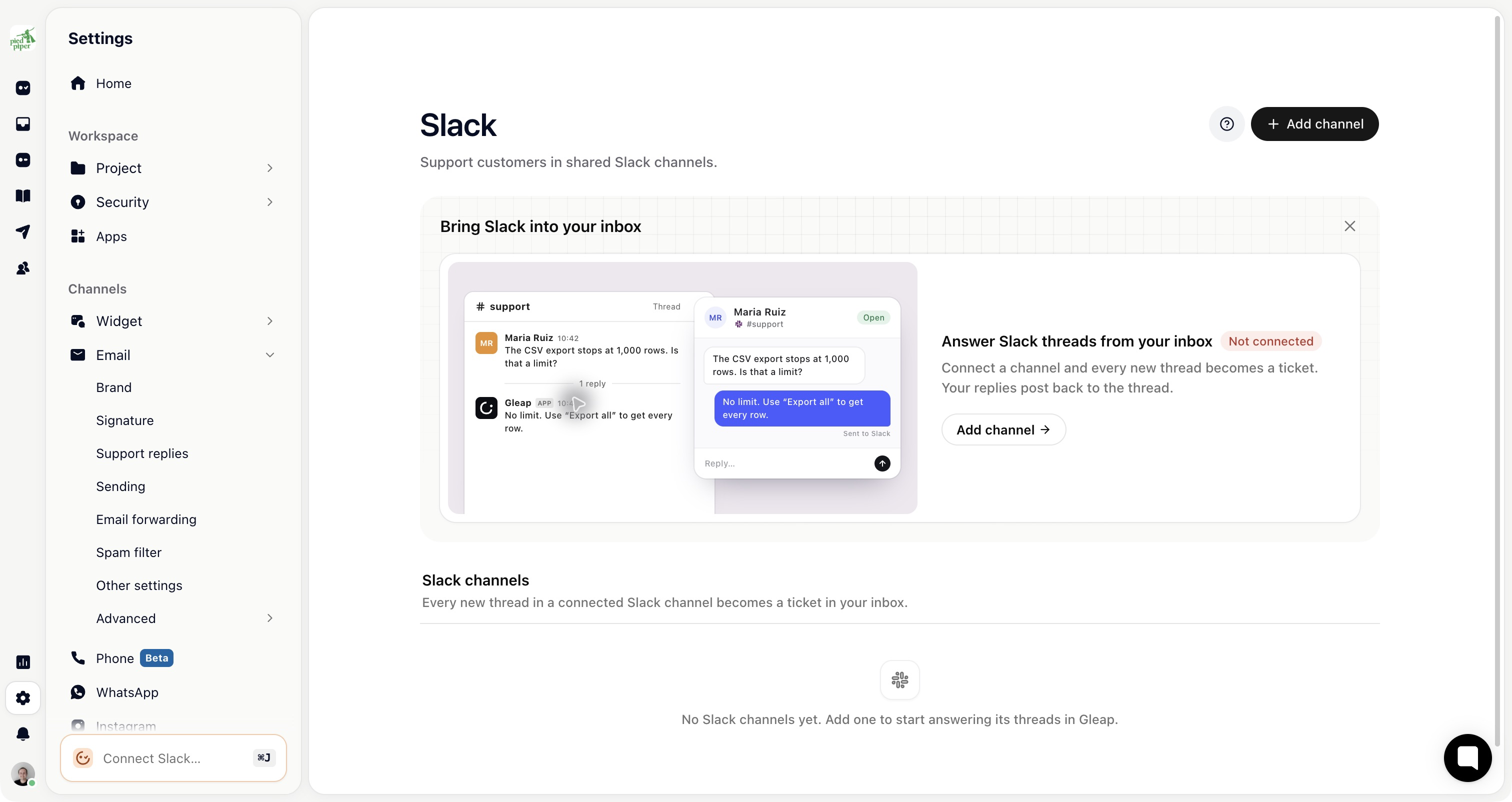
Post a message in that channel and check it arrives as a ticket. Then reply from Gleap and confirm the answer appears as a thread reply, not as a new message in the channel.
The channel can't be changed once connected. To switch, delete the connection and add Slack again.
Private channels only appear once the Gleap app is in them. In Slack, open the channel, choose the Integrations tab, click Add an app and pick Gleap, then reload the page. If the dialog says Gleap is not in this channel, do the same and click Save to check again.

Nothing changes for the people asking. They post as they always did, and answers arrive in the thread. What changes is on your side: the request is now tracked, assignable and measurable instead of scrolling away.
It also means answering in Slack directly bypasses all of that. If your team keeps replying in the thread from Slack, those replies arrive in Gleap as messages from the channel, not as answers from your team, so the tickets look unanswered while the question is long resolved. Agree on this before you switch it on.
Kai Support answers in Slack while Social & messaging is switched on under AI agents → Kai Support → Settings → Channels. That one switch covers WhatsApp, Instagram, Facebook, Telegram and Slack, and it saves as soon as you flip it. For an internal help channel this works well, because the questions repeat and the answers usually exist somewhere already.
By default Kai leaves out content tagged internal. Each Let Kai Support answer step in a workflow can set its own Knowledge scope, which you can widen to include internal content. Only do that in a workflow that runs on Slack alone: the workflow behind the Social & messaging switch also answers customers on WhatsApp, Instagram, Facebook and Telegram.
Getting new tickets and replies posted to a Slack channel for your team is a different use of the same Slack connection. See Send tickets to an issue tracker or Slack.

