Telegram is the least bureaucratic channel to connect. There's no business account to verify and no app review: you create a bot, paste its token, and messages start arriving. Telegram is available on Team and up, and only project admins can connect it.
In Telegram, search for @BotFather, Telegram's own bot for making bots, and start a chat with it.
Send /newbot and follow the prompts. Choose a display name and a username. The username has to end in "bot" and is what customers search for, so pick something recognisable rather than clever.
Copy the token BotFather gives you.
Open Settings → Apps, choose Add app, search for Telegram and choose Connect. You can also open the channel directly from Settings.
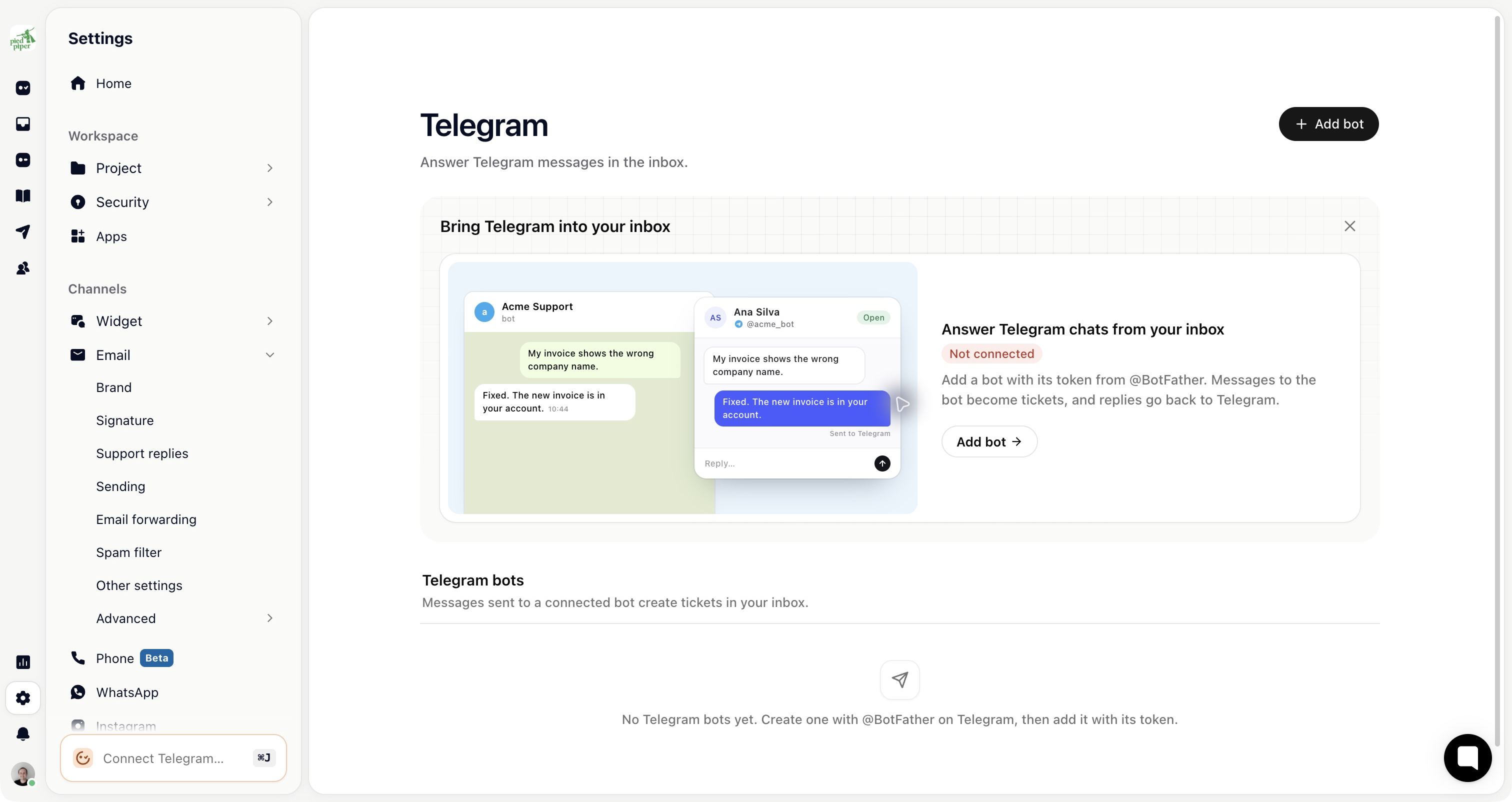
Click Add Telegram bot.
Paste the token into Bot token and click Connect.
Gleap checks the token with Telegram before connecting, and the bot appears under Telegram bots. Message your bot from a personal Telegram account and check that the conversation arrives and your reply comes back.

BotFather can also set a profile picture, a description and the "what can this bot do" text customers see before they start. It takes two minutes and is the difference between a bot that looks official and one that looks abandoned.
Then put the bot's link where customers will find it, such as your contact page or your footer. Unlike email, nobody discovers a Telegram bot by accident.
Messages are short and conversational, much like Instagram. You know a Telegram account, not a customer identity, so treat anything account-specific with care and ask for an email address before you act on it.
Kai Support answers on Telegram while Social & messaging is switched on under AI agents → Kai Support → Settings → Channels. That one switch covers WhatsApp, Instagram, Facebook, Telegram and Slack, and it saves as soon as you flip it. With it off, a connected bot collects messages that only your team answers.