WhatsApp goes through Meta's business platform, so connecting it means registering a phone number with Meta as well as setting up Gleap. It's the most involved channel to set up, so do it carefully once. WhatsApp is available on Team and up, and only project admins can connect it.
You need a WhatsApp Business Account and a phone number that isn't in use with the WhatsApp app. This is the part that trips people up: a number currently registered to WhatsApp on someone's phone has to be removed from there first.
Use a number your business controls rather than a personal one. It becomes the identity customers message, and moving it later is disruptive.
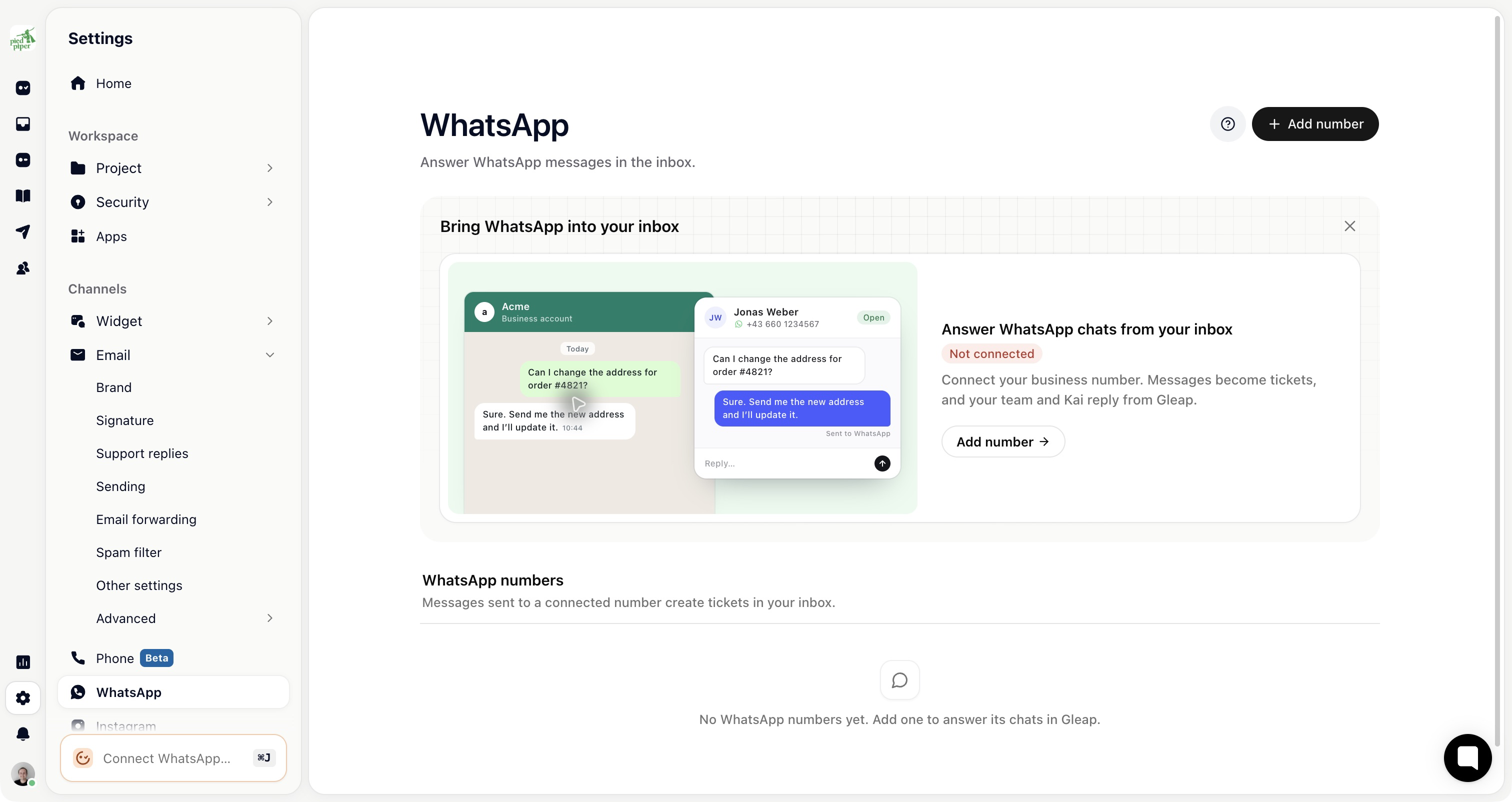
Open Settings → Apps, choose Add app, search for WhatsApp and choose Connect. You can also open the channel directly from Settings.
On the WhatsApp page, click Add business account and sign in with Meta to connect your WhatsApp Business Account.
Click the new entry under WhatsApp numbers, then pick the WhatsApp Business Account and the phone number Gleap should send and receive on.
Step 1 · Verify the number with Meta: choose Phone call or SMS, click Send verification code and enter the 6-digit code. Meta sends it to the number itself. If Meta has already verified the number, this step doesn't appear.
Step 2 · Register the number on the Cloud API: if the number already has a two-step PIN, enter it. If not, the six digits you choose become its PIN, so note them down. Gleap never stores it.
Click Connect.
For a landline, choose Phone call. The code is read out, so have someone at the phone when you request it.

If you see Failed to login with WhatsApp, the Meta sign-in window was closed or didn't finish. Click Add business account again and complete every step in Meta's window.
Once the number is connected, its settings show a Test the integration QR code that opens a chat with your number. Send a message from your own phone and check it arrives as a ticket, then reply from Gleap and confirm the reply arrives.
Do the round trip, not just the inbound half. Inbound messages usually work as soon as the connection is made; sending is where Meta's rules start to apply.
A number shows Needs attention when it isn't fully connected. Meta may report that it's no longer connected to the WhatsApp Cloud API, in which case messages can fail until you register it again, or that its ownership verification has lapsed. Open the number and click Re-register number, with the two-step PIN at hand if the number has one.
Deal with it when it appears. WhatsApp tends to fail silently from a customer's point of view: they message you, nothing arrives, and they conclude you don't answer.
Meta only lets you message someone freely for 24 hours after they last wrote. If you need to start conversations or follow up later, set up message templates first (Manage message templates at the top of the WhatsApp page).
Kai Support answers on WhatsApp while Social & messaging is switched on under AI agents → Kai Support → Settings → Channels. That one switch covers WhatsApp, Instagram, Facebook, Telegram and Slack, and it saves as soon as you flip it.

