Every ticket has had its own share link for a long time. Now every contact and every company has one too: a single link to a page that lists all the tickets they opened, with the selected ticket's conversation next to the list. Share a company's link with your client's IT lead or project manager, and they can check the status of everything their team reported without asking you.
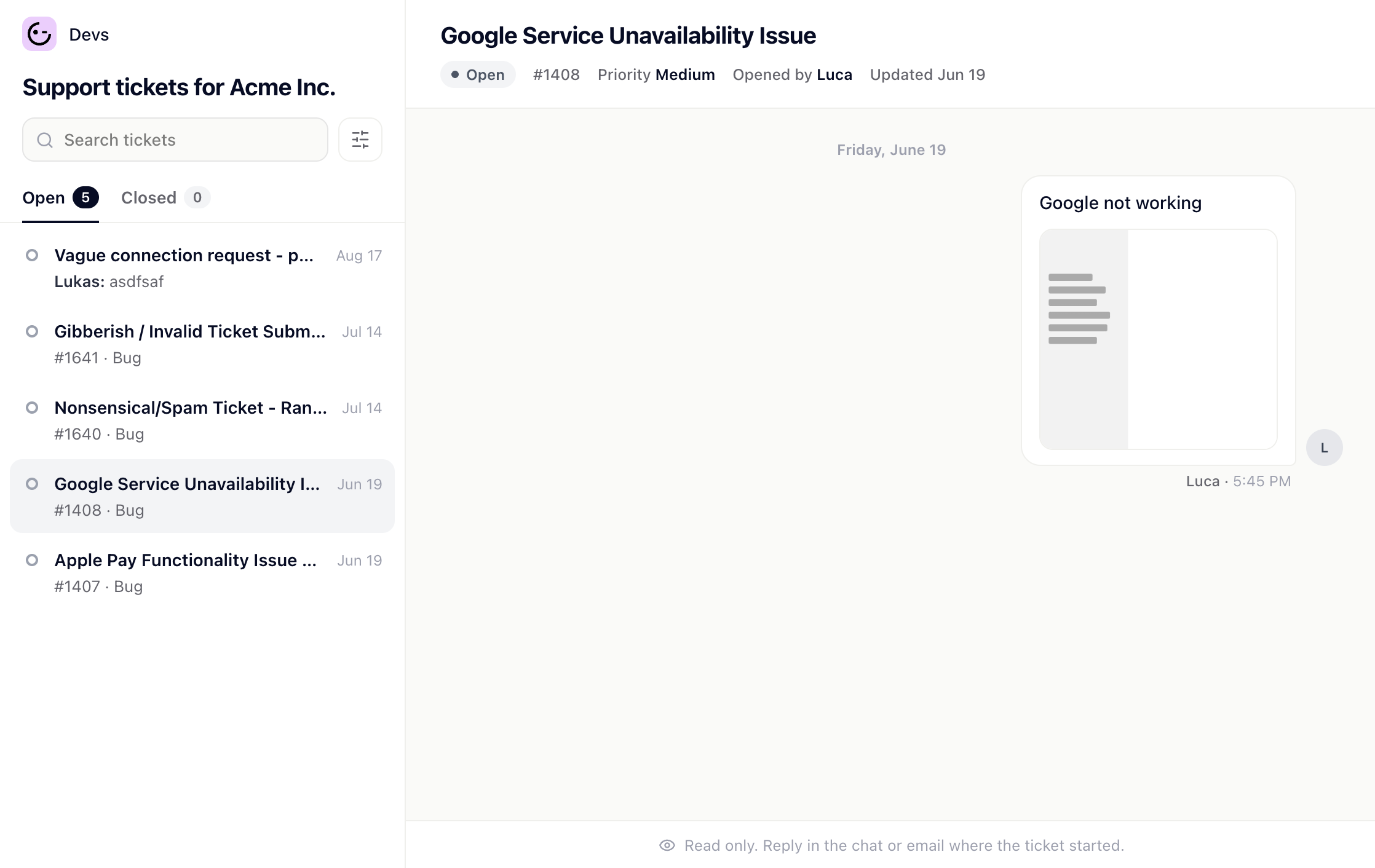
Each contact and company has one fixed link. Copy it from wherever you are:
On a Company or Contact page, open the ⋯ menu and choose Copy link to all tickets.
In a ticket's sidebar, click the link button next to Contact details or Company details.
In a ticket's ⋯ menu, Copy share link offers This ticket, All of [contact]'s tickets and, when the contact belongs to a company, All of [company]'s tickets.
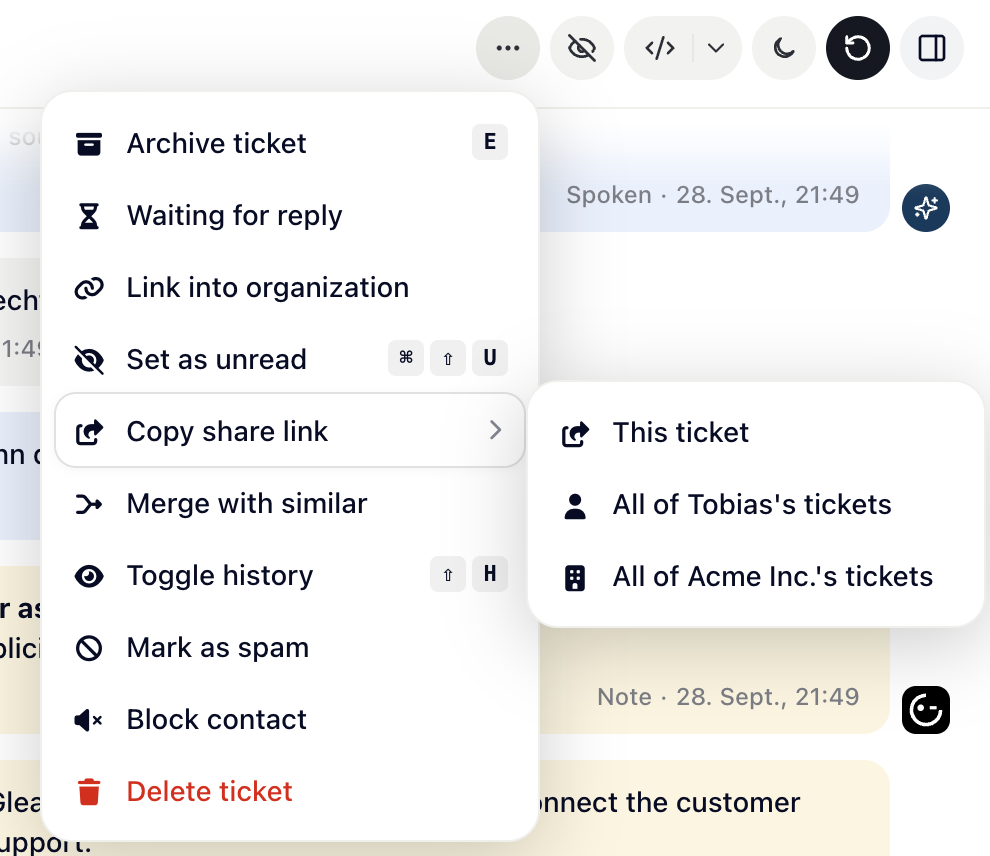
The link always shows the current tickets, so you can share it once and leave it in a client's bookmarks, a shared document or a page in your own product.
The tickets the contact or the company's contacts opened, from the boards you pick in the settings. It doesn't list tickets by who they're assigned to.
Open and closed tickets in separate tabs, with search and filters for type, status and who opened the ticket.
For each ticket: the title, the status and the messages, plus the details you allow under What others see.
Internal notes, logs and session replays never appear on the page. Teammates signed in to Gleap open any link without signing in again, and get a button that opens the ticket in Gleap.
Go to Settings > Inbox > Ticket sharing. Every change saves right away and applies to links you already shared.
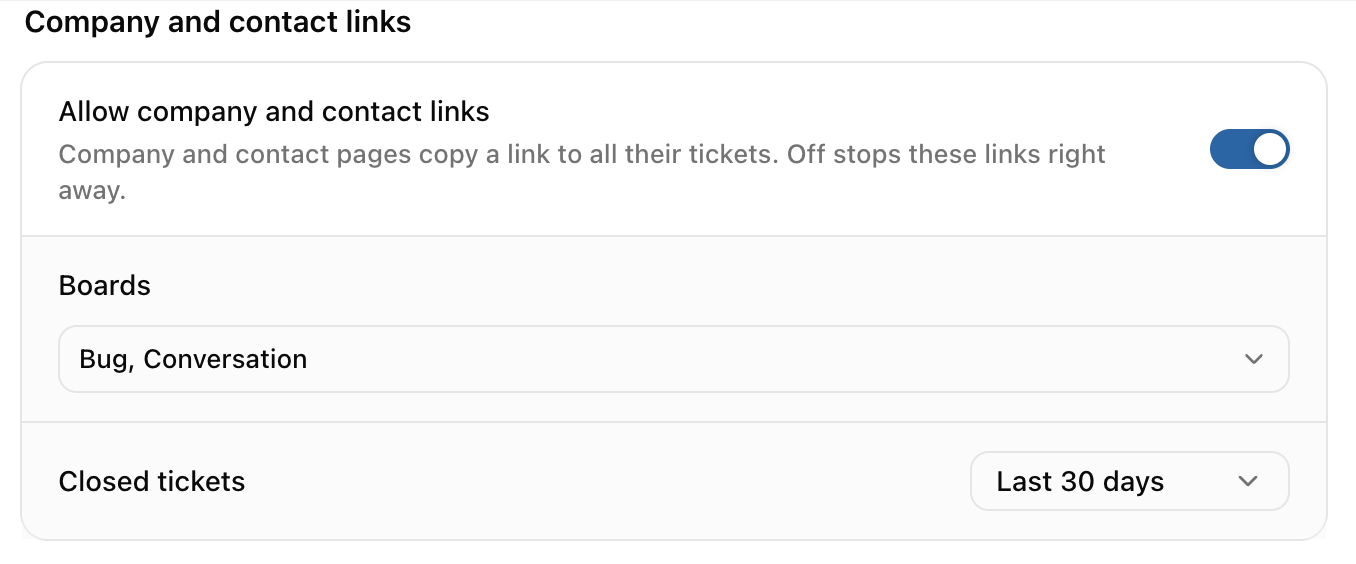
Under Company and contact links, make sure Allow company and contact links is on.
In Boards, pick the boards whose tickets the page lists. Tickets on other boards don't appear.
In Closed tickets, choose how far back closed tickets show: Hidden, the last 7, 30 or 90 days, or All.
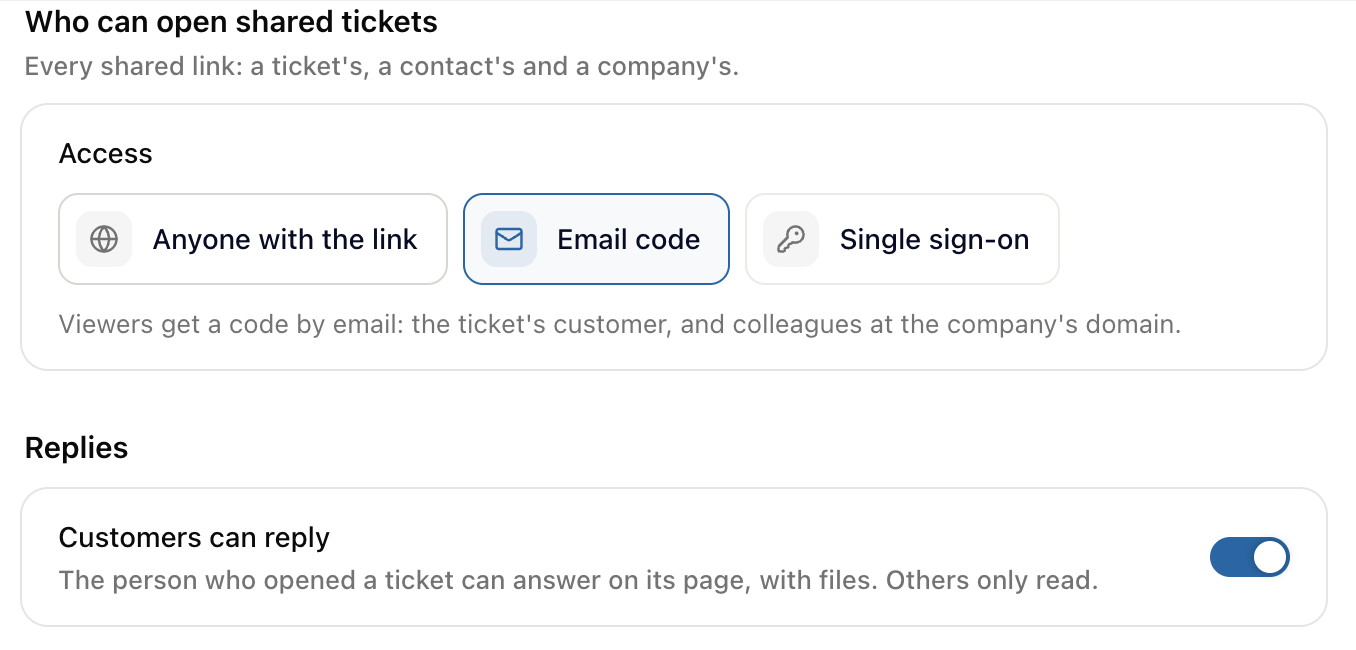
Under Who can open shared tickets, choose the access method (see below).
One setting covers every shared link: a single ticket's, a contact's and a company's.
Anyone with the link: no sign-in. Simple, but whoever gets the link sees the tickets.
Email code: the viewer enters their email address and gets a code. It lets in the ticket's own customer and colleagues whose email matches the company's domain. Personal mailboxes such as Gmail never count as a company domain.
Single sign-on: the viewer signs in on your own login page. It lets in the ticket's customer and the users of that company. This is the option to use when you link to the page from inside your product (see the next section).

With Single sign-on, users who are already signed in to your product get to their tickets without another login:
Pick Single sign-on and enter your Login page (it must start with https://). The page's Sign in button sends viewers there, with a redirect parameter that points back to the shared page.
Click Show signing key and store the key on your server. It's only for ticket links; never put it in your frontend.
On your login page, sign a short-lived token (HS256) with the user's userId, email, name and companyId, using the same IDs you pass to Gleap. Add it to the redirect URL as gleapToken and send the user back. Only redirect to Gleap's /share/ pages.
The settings page shows a ready-to-copy code sample for this step. Include companyId, or users only get into their own tickets and not their company's.
The person who opened a ticket always sees their whole conversation. Everyone else, such as colleagues reading the company page, sees what you allow under What others see:
Ticket number, priority, ETA (the due date), assignee, attachments and status history ("Status changed to In progress" lines).
Kai and bot messages. This is off by default, so a conversation Kai handled alone shows only its status lines to others. Turn it on if those answers should be visible.
Who opened it (name, name and email, or hidden) and Agent names (full name, first name, or your project name).
Custom fields show when Shared page is on in the field's settings.
With Customers can reply on, the person who opened a ticket can answer on the page and attach files; the reply lands in your inbox like any other message. Everyone else only reads. Customers who open the link in one of your reply emails are signed in for their own ticket automatically.
Missing from the list: its board isn't selected in Boards, or it was closed before the Closed tickets window. A company link only lists tickets of contacts who belong to that company.
No messages: the conversation was answered only by Kai or a bot, and Kai and bot messages is off.
"Copy link to all tickets" doesn't show: Allow company and contact links is off.